# You Don’t Know AI Coding: A Non-Engineer’s Guide to Claude Code
**作者**: Tw93
**日期**: 2026-04-29T14:08:59.000Z
**来源**: [https://x.com/HiTw93/status/2049491135522054555](https://x.com/HiTw93/status/2049491135522054555)
---
## TL;DR
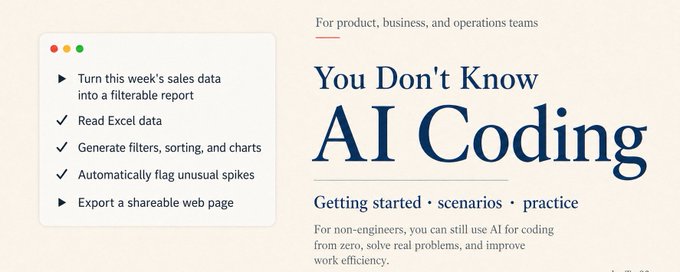
AI Coding is not just for programmers.
Last month, I ran an internal session for product, business, and operations teammates on how to get started with Claude Code. That deck eventually grew into this post.
For non-engineers, the first hurdle is usually the command line. It looks like a programmer-only place, but the bar is lower than it seems. If you can use a chatbot like ChatGPT, you can start using Claude Code with a bit of time and patience.
Once you get the hang of it, Claude Code starts to feel like an all-purpose assistant: pulling backend data, writing small tools for specific problems, stitching scattered docs into briefs, prototyping workflows, cleaning up sales reports, and automating repeated work.
Whether you have written code before is not the deciding factor. The shift happens when you stop treating AI as a chatbot and start treating it as an execution partner.
This post is a practical guide for non-engineers who want to use Claude Code for real work.
## The first hurdle is the command line
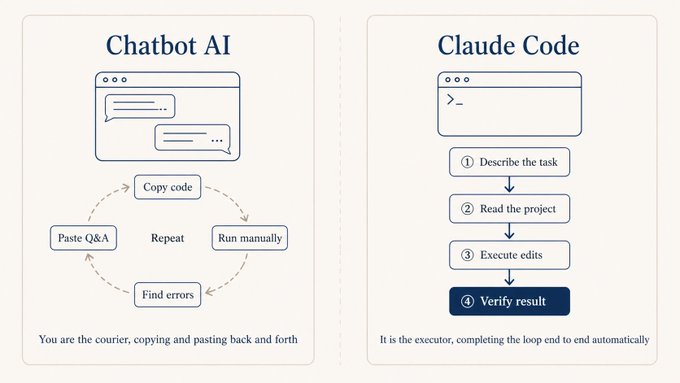
If you don’t write code, you’re used to chatbot AI like ChatGPT, and the first install of Claude Code feels a bit off. The old loop was a back-and-forth shuttle: you describe what you want, it spits out code, you copy-paste it somewhere else to try. With Claude Code that shuttle step is gone, it runs directly in the terminal.
If you’ve never used a terminal, try Kaku, which I built specifically for AI Coding. Install and go, no fiddling with colors or fonts. Light/dark mode follows the system, split panes with Cmd + D, file manager with Cmd + Shift + Y. The most beginner-friendly part is the built-in AI assist: when a command fails it auto-suggests fixes, and if you can’t remember a command, prefix it with # and type in plain English.
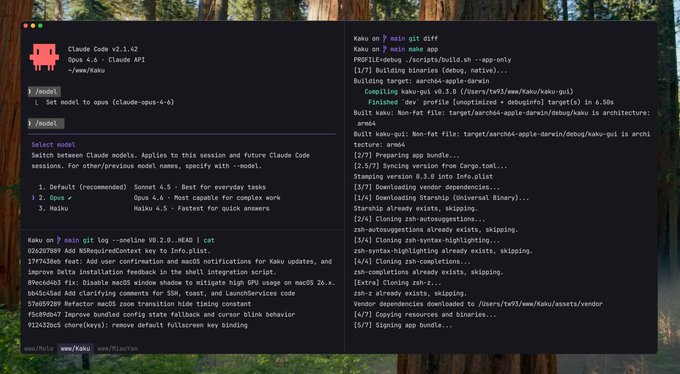
Installing Claude Code is one command, see the official docs, then cd into your project folder and type claude to start coding.
```
curl -fsSL https://claude.ai/install.sh | bash
```
## A bit of technical literacy goes a long way
If you don’t write code but want to actually use Claude Code well, knowing how to describe what you want isn’t enough. A bit of conceptual ground makes debugging way easier later.
What common frameworks do. Knowing roughly what React, Vue, and Next.js solve means you won’t be lost when Claude Code writes something using them.
Basics of common software: terminal commands, Git, VS Code, Chrome DevTools. When something errors out, you can locate it alongside Claude instead of just waiting.
A few core programming ideas: what a function is for, what variables and state are, why we split things into multiple files. Understanding these makes your requirements more precise.
Reading code and reading errors pays off earlier than learning to write code. When it changes a chunk, you can glance at it and roughly tell what’s happening, much faster than asking it to explain. When errors come up, don’t panic, just paste the whole thing back and ask “what does this mean and how do I fix it.” Nine times out of ten it’ll point you to the exact line.
You don’t need to learn enough to write code yourself. Just knowing what these things look like is enough. Spend a couple of evenings on the freeCodeCamp or MDN intro, or pick a free intro course like Crash Course Computer Science or Harvard CS50, and collaboration with Claude Code will feel noticeably different.
Three books I’d recommend most for non-engineers, all easy reads: INSPIRED for product judgment, Linux and the Unix Philosophy for engineering philosophy, and The Pragmatic Programmer for how senior engineers actually think. Reading these makes technical conversations with AI a lot less confusing.
## Account and subscription
Account: sign up at claude.ai with a Google or email account, the most standard flow.
Subscription: three tiers. Free is $0 and only gets you basic chat, no Claude Code. Pro is $20/month, unlocks Claude Code, and is the right entry point for most people. Max comes in $100 and $200 tiers, giving 5x and 20x usage respectively, suited for heavy day-to-day code work.
Start with Pro. Upgrade to Max if quotas feel tight. Subscription follows the account, so an iOS purchase shows up on Android and web too.
## What kind of tasks Claude Code is good at
I’ve tried a fair number of AI Coding tools, Cursor, Windsurf, and Codex are all in regular rotation, but my main driver stays Claude Code.
What sets it apart is the underlying model is already strong, and the Claude Code implementation pushes the harness pattern to the limit, looking at the whole project: it scans the CLAUDE.md and directory structure first to get the context, then edits across files, runs commands, reads errors, edits again, all on its own. On top of that it lives in the terminal, so git, tests, scripts, all the tools you already use, it can call directly without any copy-paste round-trip.
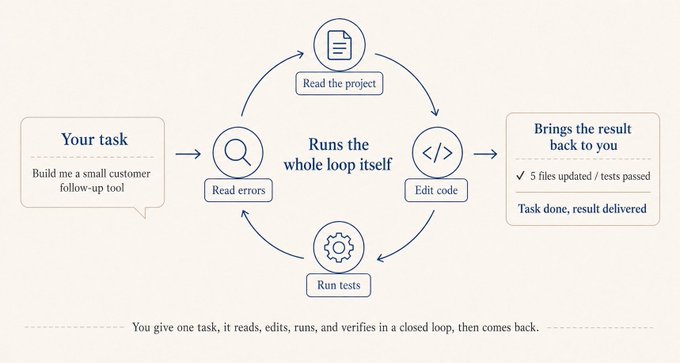
It’s effectively a general-purpose Agent. The Code in the name just reflects its original framing toward writing code. Anthropic has shared that internally many non-engineering teams, sales, risk, finance, are using it to handle CRM data and customer email. If you really don’t want to touch the terminal, the official desktop app Cowork can read and write your Downloads and Documents folders directly, so something like turning a stack of receipt screenshots into an expense report works with one sentence.
There’s another point that I think really matters: when it comes to writing code, speed isn’t what counts, accuracy is. Ten minutes of generation followed by twenty minutes of debugging is much worse than twenty minutes of generation that’s actually verifiable on the spot.
Getting it to be accurate starts with handing it work that is itself clearly defined and easy to verify. Tasks that meet both bars are the best fit, like assigning work to a very literal but technically excellent engineer.
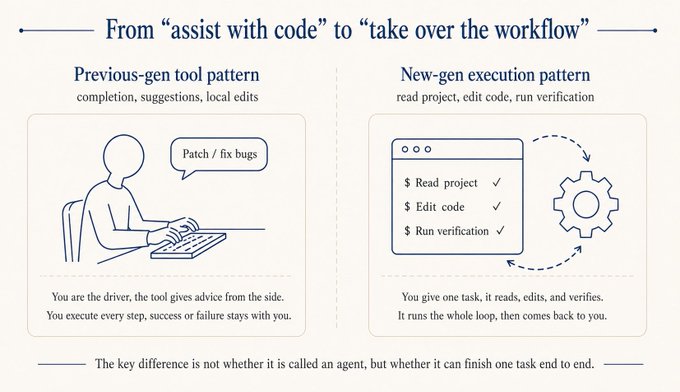
Concretely, a few categories: prototypes and internal tools, where you spell out the requirement and display logic and you have a working version the next day; processing CSVs and building sales reports, with grouping and calculation logic written out clearly, results in minutes; pulling clauses from contracts dozens of pages long, comparing versions, the kind of doc work it really shines at; and finally, feeding it a stack of links or PDFs and asking it to extract information from a specific angle, just spell out the format you want.
## Build software just for yourself
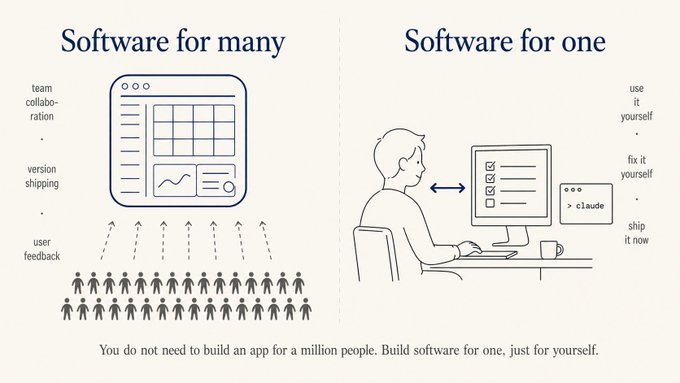
The biggest blocker when starting to “write code” is not knowing what to build. Kevin Roose, a NYT columnist, coined a useful concept: software for one. You don’t need to build something for a million people, you can build something just for you.
He built Stash for himself to organize links, LunchBox Buddy for prepping his kid’s lunches. For you, it might be a tool that turns voice notes into meeting minutes, or a small dashboard that pings you with three things to do every morning. This is exactly the kind of thing product and business folks can actually pull off, because nobody knows your daily friction better than you.
A pace from one day to three month
Don’t start by trying to build “something like Notion.” A pace that works:
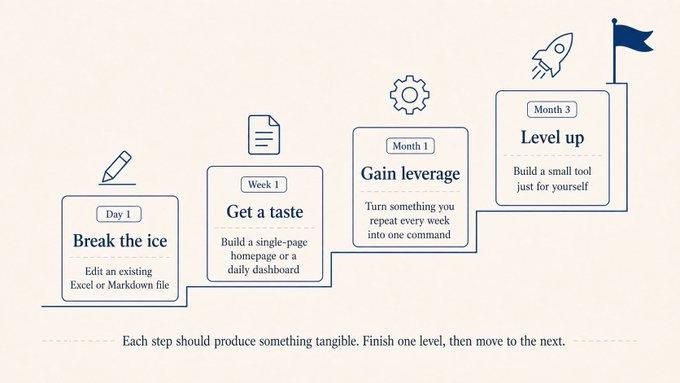
Day 1, dip in: have it edit an Excel or Markdown file you already have on hand. Week 1, taste it: build a single-page personal homepage or a daily dashboard, fifteen minutes to get it running. Month 1, ship something: pick one thing you do two or three times a week and turn it into a single command or a single page. Month 3, level up: pick a software-for-one idea and build a real tool just for you.
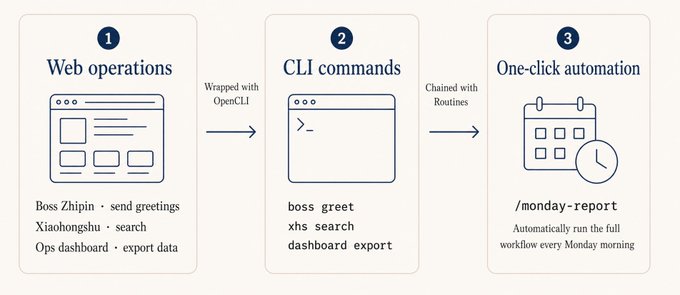
## Use OpenCLI to turn web operations into commands
A lot of operations work happens in browsers: checking dashboards, sending messages, exporting reports. Most of that can skip the UI entirely and call the underlying API instead.
OpenCLI is built by my friend Cabbi. It ships with built-in CLI adapters for dozens of sites including Reddit, X/Twitter, YouTube, plus a set of generic browser primitives like click, type, scrape, screenshot. It turns web actions into single commands that Claude Code can invoke in one sentence.
Social listening: have Claude Code call opencli reddit to pull data, then categorize and extract trending terms. What used to take half an hour of clicking now takes one sentence.
Sentiment digest: combine the X/Twitter, Reddit, and HackerNews adapters and turn discussion of the same keyword across multiple platforms into a daily report.
Sites without an adapter: describe the flow with browser primitives, like open page, type keyword, scrape table, and Claude Code stitches it together.
Claude Code also has a feature called Routines that stores a workflow in the cloud and triggers it on a schedule, webhook, or GitHub event. I haven’t used it heavily yet, but conceptually something like “every Monday morning, run the weekly report flow” can be handed off to it. See the docs if interested.
## CLAUDE.md: write the project background down clearly first
A lot of people install it and start firing questions. They end up restating the background every time, and after a while it gets old. The reason is almost always the same: no CLAUDE.md.
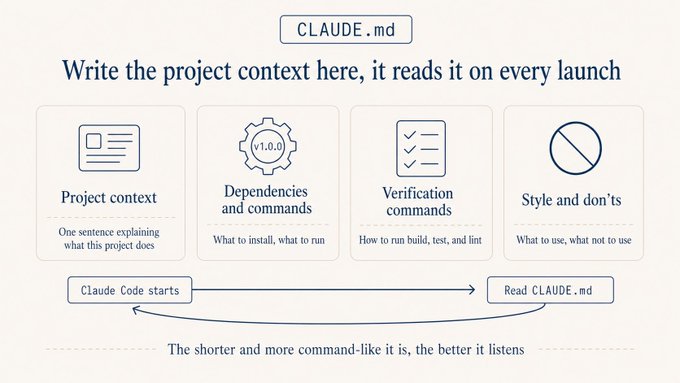
It lives at the project root, and Claude Code reads it on every startup. Treat it like the onboarding doc you’d write for a new teammate, except this one reads it from scratch every time and follows it strictly.
Three things matter most. Keep it short, ideally under 150 lines. Going longer eats into the conversation budget. Be direct, use the imperative, skip the soft “we tend to prefer” phrasing. “All comments in English” beats “the team prefers English comments” by a wide margin. Make every rule something you can judge against. “Code quality should be high” is useless. “Functions over 50 lines must be split” is something you can actually enforce.
Four rules that earn their keep, take them as-is: ask before acting, prefer simple, only touch what needs touching, verify when done. Expanded: don’t let it guess your intent, spell out the goal first; if two lines do the job, don’t write two hundred, no over-engineering; don’t refactor code you weren’t asked to touch; build and tests pass before calling it done, otherwise don’t.
A template you can adapt by changing the project background:
```
# Project Background
A customer dashboard for the operations team. Stack: Node.js + Next.js,
React on the front end, PostgreSQL database, deployed on Vercel.
PM is Alice, designer is Bob, backend is me.
# Working Rules
- All comments in English, variables and functions in English.
- State what you intend to change before making any edits, wait for my OK.
- For new features, write the implementation, don't add tests unless I ask.
- Database table names use snake_case, e.g. user_profile.
# Don't Do
- Don't proactively refactor files I haven't mentioned.
- Don't delete any file unless I explicitly say so.
- Don't run npm install for new dependencies without confirming first.
# Preserve When Compacting
When the long conversation gets auto-compacted, preserve in this priority:
1. Architecture decisions and the reasoning behind them
2. Which files were changed and what the changes were
3. Current progress state
4. TODOs that aren't done yet
```
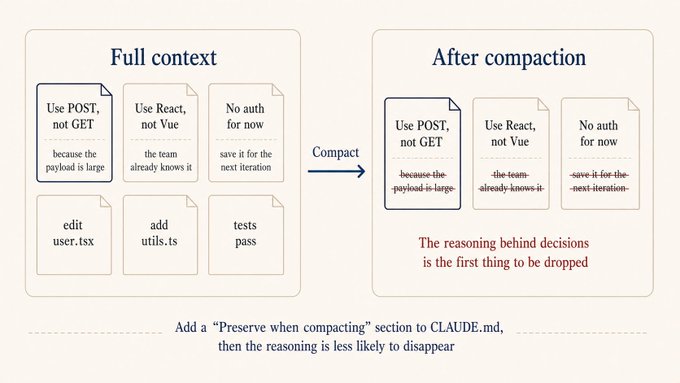
That last “preserve when compacting” section looks small but it’s what makes long sessions stay coherent. Claude Code’s context auto-compacts past a threshold, and the reasoning behind decisions is usually the first thing dropped. If you previously said “use POST not GET because the payload is large,” post-compaction it might just become “use POST,” with the reasoning gone. Next time the topic comes up, it might propose something completely different and contradict itself. With this section in place, long sessions stop fighting themselves.
You don’t need to write all of this from scratch. After installing Claude Code, just say “read my project and generate a CLAUDE.md for me.” It’ll scan the code, stack, and structure and hand you a draft. You only need to tweak names and team preferences. Same goes for installing dependencies, configuring aliases, editing ~/.claude/settings.json, just tell it the effect you want and let it figure out, it’s faster than reading docs. Hand off the configuration work, save your energy for the things that actually need judgment.
## The more precise the requirement, the less it diverges
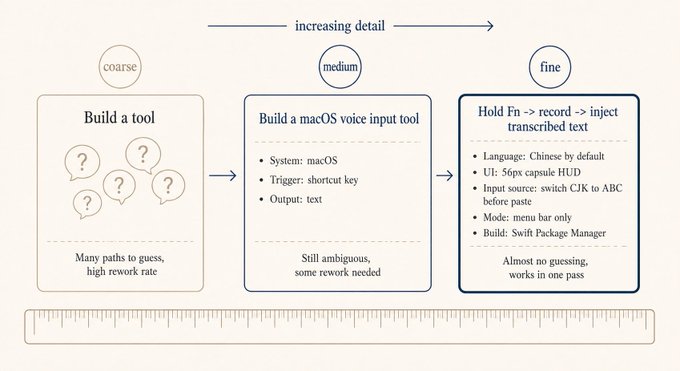
Vague: build me a customer follow-up tool. Precise: build a sales follow-up tool, single-file webpage, store data locally. Left side is a list showing company name, next follow-up date, status. Right side is detail view including communication history, dates, key points. Top has three filters: status, time, keyword. Data lives in browser localStorage, no backend.
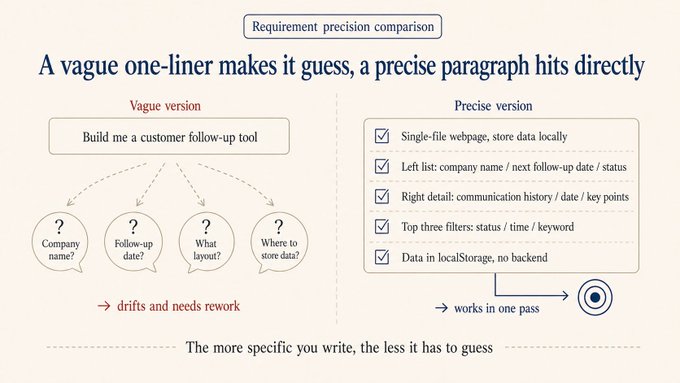
The precise version gets you a working prototype the same day. The vague one almost always needs a redo.
Here’s a fully precise example, requirements yetone wrote for a Claude Code build of a macOS voice input tool. You don’t need to follow the code details, the point is how specifically each requirement is broken down.
```
Build me a native macOS voice input tool in Swift:
1. Hold Fn to start recording, release to inject the transcribed text into
the focused input. Prefer streaming transcription (Apple Speech Recognition
framework). Listen for Fn globally via CGEvent tap; suppress Fn event
propagation to avoid triggering the emoji selector.
2. Default language must be Simplified Chinese (zh-CN) — works for Chinese
out of the box. Menu bar can switch to English, Traditional Chinese,
Japanese, Korean; persist choice to UserDefaults.
3. While recording, show a borderless capsule HUD centered at the bottom
of the screen: no traffic lights, no titlebar. Use NSPanel
(nonactivatingPanel) + NSVisualEffectView (.hudWindow material).
Height 56px, corner radius 28px. Left side shows a live audio waveform
(5 vertical bars driven by RMS level), right side shows transcribed text
(160-560px elastic width). Spring entrance 0.35s, text width transition
0.25s, scale exit 0.22s.
4. Inject text via clipboard + simulated Cmd+V. Before injecting, detect
the active input source: if it's a CJK input source, temporarily switch
to ABC, paste, then restore the original input source. Restore the
original clipboard contents afterward.
5. Plug in an LLM to improve recognition accuracy for mixed Chinese/English.
Use an OpenAI-compatible API (configurable Base URL, Key, Model) to refine
transcribed text. The system prompt must be extremely conservative: only
fix obvious speech recognition errors (e.g. "pie son" -> "Python",
"jay son" -> "JSON"), never rewrite or polish text that looks correct,
if it looks right, return it as-is.
6. Menu bar exposes an LLM Refinement submenu with enable/disable toggle and
a Settings entry. Settings window has API Base URL, API Key, Model fields,
plus Test and Save buttons. After Fn release, if LLM is enabled, the HUD
shows Refining... until the response comes back, then injects.
7. Run as LSUIElement (menu bar icon only, no Dock icon). Build with Swift
Package Manager, ship a Makefile (build/run/install/clean).
```
With this kind of description, Claude Code barely needs to guess and produces an installable macOS app directly. Every line is preventing it from guessing wrong on a specific point:
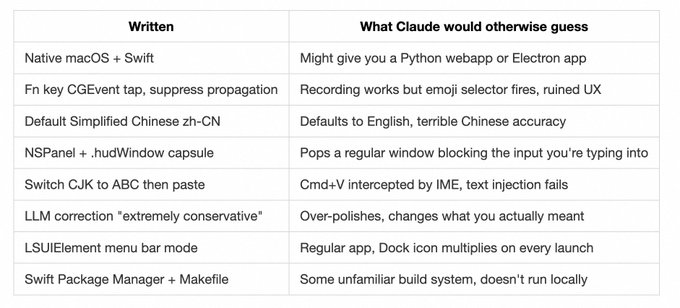
You don’t need to write Swift, but you do need to write the requirement this specifically. Every line in there is a pit yetone has fallen into or anticipated. Each extra concrete detail saves one round of redo.
For business-side requirements, describing the function isn’t enough. Lead with the problem, what are we solving, who is it for, what counts as done. Don’t open with a feature list. Say we’re building a new category landing page for international ticket products, the very first sentence should be: “International ticket products don’t have a dedicated entry point today, users only find them through search, and exposure for non-popular cities is extremely low.” That sentence shapes its judgment when it later runs into questions like “how many popular cities to show” or “should the filter include ‘recently viewed’.”
Next, scope it. Claude Code is eager: ask for a list page and it’ll throw in favorites, sharing, and analytics tracking. Spell out “no auth, no sharing, no SEO, save those for the next iteration” and it stops crossing lines. Edge cases get their own list: API timeout, empty data, missing images, what’s the fallback. Don’t write these down and it either skips them or guesses a fallback you won’t like.
Acceptance criteria need numbers. “Page should be fast” is useless. “First paint under 1.5s” is judgable. “Layout should look right” is useless. “No layout breakage at 375 and 1440 widths” is verifiable.
Don’t write “TBD” or “decide later.” Claude Code will fill those in by guessing, and the guess usually isn’t what you want. Even “hardcode for this version, configurable next version” beats leaving it blank.
## For complex tasks, sync first: Plan and Auto mode
There was one time I asked it to refactor the login module and it deleted a util class I needed downstream. Took me half an hour to roll back. Lesson stuck.
Since then, for anything complex I press Shift+Tab twice to flip into Plan mode first. It lays out what it intends to do, you confirm the direction, then it executes. Same as how things work at the office: you don’t tell a junior engineer to just go build the feature, you have a quick sync on the approach, agree, then they start.
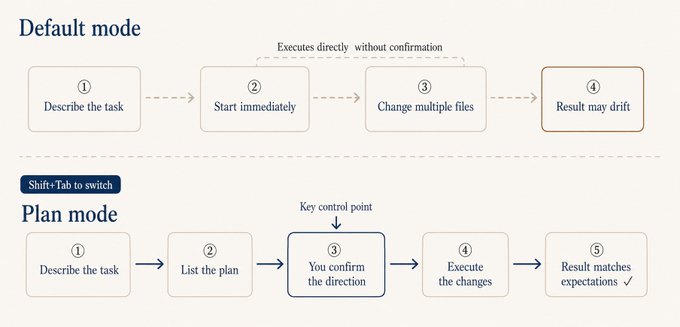
A Plan mode plan looks something like: which files to change, what changes per file, the reasoning, and the expected blast radius. Judging direction from business logic is much easier than judging the code itself. Even if you can’t read code, you can rule on “should this step happen, does this rationale hold.
If asking on every step gets old, switch on Auto mode: cycle Shift+Tab to the auto position. It’s available on Max, Team, and Enterprise; Pro doesn’t have it yet. It judges autonomously: safe operations like reading files run directly, risky operations like database writes or file deletes still ask. Default it on early, you don’t get interrupted by trivial confirmations and it doesn’t go rogue either.
## How do you know it actually got it right
It saying “done” doesn’t mean much, what counts is how you verify. AI also takes the path of least effort.
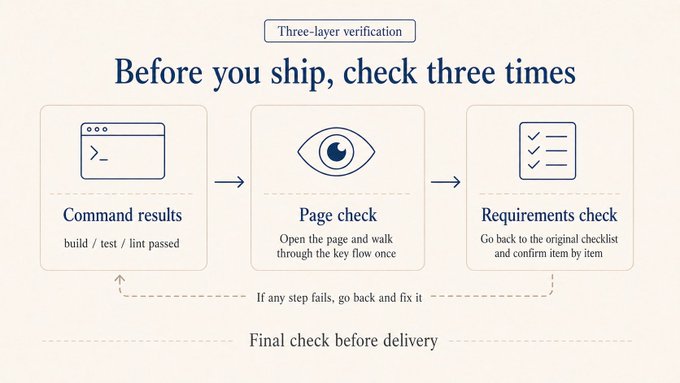
I check three things. Did the commands pass: build and test go green. Putting “after finishing, run make build && make lint” in CLAUDE.md makes it self-check. Did you actually see it: open the page, eyeball the numbers, walk the key flow. A file edit isn’t the same as the page looking the way you wanted. Did it match the list: walk the acceptance criteria one by one, anything missed isn’t done, send it back.
Recovering from a bad change
The thing non-coders fear most is the code getting tangled past recovery. Two common saves.
Git snapshot: before any big change, have it run git status to see what’s there, then commit a checkpoint once you’re satisfied. If things go bad, just say “roll back to the last checkpoint,” much safer than running checkout by hand.
Undo last step: just say “undo everything you just did,” or use /rewind to return to the previous state.
Don’t let it slide into a try-this-try-that loop
A trap that’s easy to fall into: getting stuck in a try-this-try-that loop. Four or five rounds in, what was a small problem turns into a knot. The cause is always the same: patching before the diagnosis is clear.
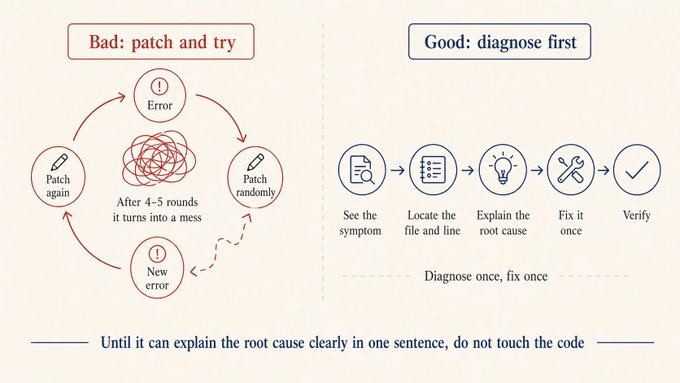
The fix in one line: don’t touch code until the root cause is named. Get it to first answer “which file, which line, why does this happen.” If the answer is fuzzy, keep digging. Only edit once the answer is clear. If it opens with “let me try changing X and see,” cut it off and ask for the root cause first.
## After the warm-up: alias, model, long sessions
You don’t need this on day one. Once you’re comfortable, or once Pro starts feeling tight, come back to this section.
How I use my Max subscription
alias, I dropped one line into .zshrc so pressing c launches Claude Code without permission prompts and pushes the auto-compact threshold up to 400k. Letting compaction trigger only when the context is fully maxed gives worse results than triggering a bit earlier. You can paste this snippet into your own Claude Code and have it adapt for you:
```
alias c='CLAUDE_CODE_AUTO_COMPACT_WINDOW=400000 claude --dangerously-skip-permissions'
```
--dangerously-skip-permissions is not for beginners. It literally means “dangerously skip every permission prompt,” so Claude Code won’t ask anything. I use it because I can read what it’s doing at every step, and the constant prompts genuinely slow me down. If you’re not at that level yet, stick with Auto mode.
Use opusplan as the model. The way I’m running it now is to type /model opusplan, a hidden command (these can change between releases, defer to whatever your version supports). It uses Opus for planning and Sonnet for execution: planning gets handed to Opus, execution to Sonnet, saves both money and time overall. Want it faster, run /fast on top, that buys back roughly the tokens you saved.
A key setting: if your version supports it, when using opusplan, set showClearContextOnPlanAccept to true in ~/.claude/settings.json. Without it the Sonnet leg hits a serious cache miss and slows down noticeably. Flipping this on smooths the whole thing out.
What to do about long sessions
Claude Code’s context window is fixed. Push it long enough and early content gets pushed out.
/clear after each task: one task per session. Finish, clear, start the next. Two unrelated things in the same context make it progressively confused.
Have it write a handoff note before a long task ends: just say “write current progress to HANDOFF.md, including what’s done, what didn’t work, what’s next.” Open a fresh session next day, hand it the file, it picks right up. No reliance on the compaction algorithm.
## Waza: turn good habits into muscle memory
AI can move fast on the parts of coding that are clearly defined, but what the thing is supposed to look like still needs to come from you. I’ve been working on a Skill collection called Waza, eight skills mapping to eight habits I think a good engineer should have.
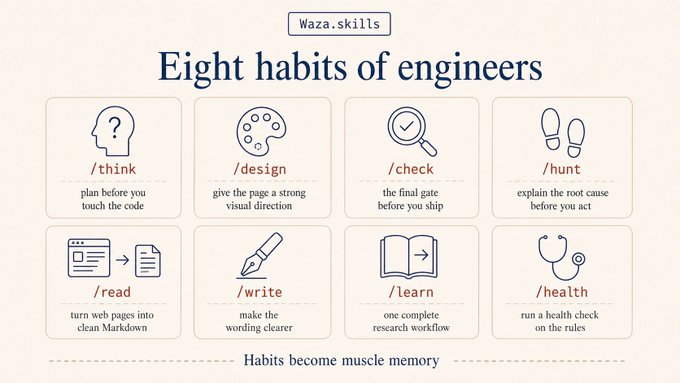
/think makes you think through the technical approach before writing any code. AI writes code fast, but moving fast in the wrong direction just gets you wrong faster. Question the problem first, get the approach right, then let it run. /design helps you design a real product page, no purple-blue gradients and emoji-laden AI templates. /hunt is for debugging, with one rule: don’t touch code until the root cause is named, no try-this-try-that loop. /check is the last gate before wrapping up, walks the diff, fixes what can be auto-fixed, and gathers the rest into questions for you.
The other four are everyday: /read turns any webpage or PDF into clean Markdown for your workflow, /write makes your prose clearer, /learn is a research workflow from gathering material to producing an article, /health runs a checkup on your CLAUDE.md and ruleset, useful when Claude feels off.
Install: npx skills add tw93/Waza -g. The one I’d most recommend for product, business, and ops folks to try first is /design. Drop a screenshot in with /design, and instead of jumping in to edit, it asks you who it’s for, what mood you want, what style you can’t stand, any micro-interactions you want users to remember. Then it goes. Results are typically more stable than just saying “make this look better.”
You can write a Skill yourself
A Skill is just a folder under .claude/skills/ with a SKILL.md describing when to use it and what to do. Claude Code only reads the frontmatter (the trigger description, around 100 chars) at startup, and only loads the full content when the Skill is actually called. So having dozens of Skills installed doesn’t slow startup.
The three types I use most:
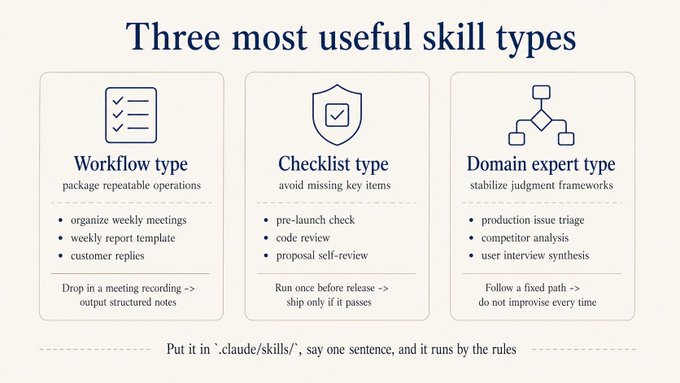
Type 1: workflow. Package a fixed sequence you do every time. For example, weekly meeting notes:
```
---
name: weekly-meeting-notes
description: Use when raw meeting notes need to be organized
---
## Output format
**Done this week**: [owner] finished what
**Next week**: [owner] does what, by when
**Open**: blocked on what, needs whose decision
**Action items**: [who] [does what] [by when]
## Rules
- Don't polish, keep the original phrasing
- Missing info gets marked "needs confirmation," don't guess
```
Type 2: checklist. Walk through it before launch, before release, before commit, to prevent omissions. For example, pre-launch:
```
---
name: launch-checklist
description: Run before shipping a feature, confirms nothing's missed
---
## Must all pass before shipping
- [ ] Each acceptance criterion in the PRD confirmed
- [ ] Design and implementation aligned: spacing, copy, interactions
- [ ] Edge states (empty, error, timeout) all handled
- [ ] Analytics events instrumented per spec
- [ ] Verified in staging
## Output
Each item Pass / Fail. Any Fail must be fixed before shipping.
```
Type 3: domain expert. Bake the judgment framework in, so for problems of this kind it walks a fixed path instead of improvising every time. For example, on-call incident triage, or any business SOP you have:
```
---
name: incident-triage
description: Use when an alert fires or a user reports something broken
---
## Collect
- Error screenshot or full error log
- Scope: which users, which page, when did it start
- Recent changes: code releases, config edits, data changes
## Diagnostic matrix
| Symptom | Check first |
| White screen | JS errors → recent releases |
| API timeout | Service monitoring → slow query |
| Bad data | Recent data change → upstream |
## Output format
Root cause / blast radius / fix steps / verification
```
Drop it in .claude/skills/, and when the matching scenario shows up, just say “use weekly-meeting-notes” or “use incident-triage.” You can also have Claude help you write these. Two pitfalls to avoid when writing Skills.
description is the trigger condition, not a feature pitch. “Use when raw meeting notes need to be organized” beats “Turn meeting recordings into structured weekly reports” by a wide margin in trigger accuracy.
One Skill, one job. Don’t bundle review, release, and debug into one. Splitting them gets you more accurate triggering.
## Kami: let AI handle the typesetting
Writing the content is just the first half. Laying it out into something publishable usually takes longer. Kami is an AI typesetting tool I’ve been working on. Hand it your content, say “lay this out as a one-pager” or “make a portfolio,” and it produces a downloadable PDF.
It ships with eight templates: one-pager, portfolio, slides, resume, long doc, letter, research note, changelog. The visual style is consistent: warm parchment background, ink-blue accents, serif typography by default. No need to mess with fonts.
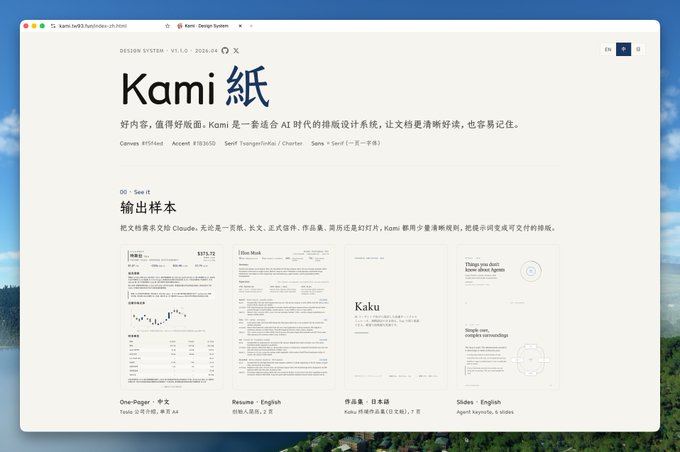
Most useful scenarios: meeting notes laid out as a brief, project status as a one-pager for your manager, your work history as a resume. Used to mean opening Word or Figma and fiddling for half a day. Now you drop the content in, get a first pass that’s already good enough to look at, then fine-tune.
Install: npx skills add tw93/Kami -g
## Claude Design: prototypes without writing code
Claude Design, released by Anthropic in April 2026, is another path: upload a screenshot or document, and it gives you back an interactive prototype, slide deck, or landing page directly. Useful for non-technical folks who want to prototype quickly.
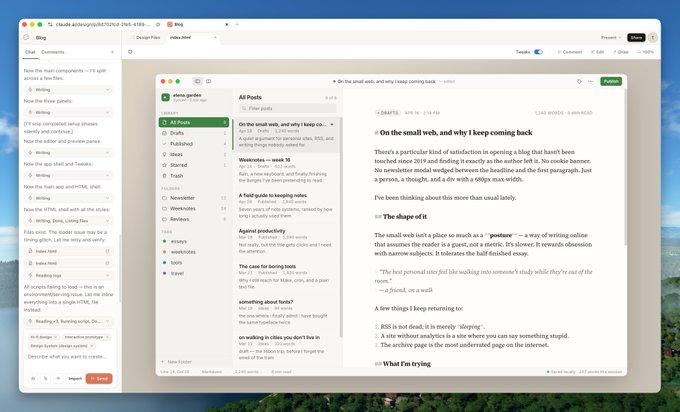
If you don’t want to touch code at all, use this to get something showable first. PMs can sketch a prototype, run a review, then hand the prototype to Claude Code to be turned into real code. Early prototypes don’t have to wait for full design and engineering capacity, you can have something to discuss the same day.
## A few small habits once you’re comfortable
Screenshots are faster than text. To describe a UI issue or reference a design style, just drop the image. Layout, color, hierarchy all come along, less guessing required.
Break tasks small, one at a time. A task you can describe in one sentence almost always gets done correctly. Dump a giant pile of requirements and any one wrong step downstream sends everything off course. Finish and verify one thing before starting the next.
Restart when the conversation drifts. Trying to course-correct a session that’s already drifted just makes it drift more. Clear the context and re-state the requirement, often faster. Picking up the next day, glance at the Recap (the conversation summary auto-generated after /clear) to remember where you were.
Memory remembers your preferences across projects. CLAUDE.md is project-level, you write one per project. Memory is user-level, applies across all projects and all sessions. Just say “remember I want to see the plan first before execution” or “remember to reply to me in English.” It writes to ~/.claude/memory/ and applies on any project from then on. Background you keep restating belongs in here, save yourself the repetition.
Double-tap ESC to edit the previous message. If you misspoke or it drifted, hit ESC twice to jump back to the previous message and edit, no need to restart the session.
## A few safety habits worth building from day one
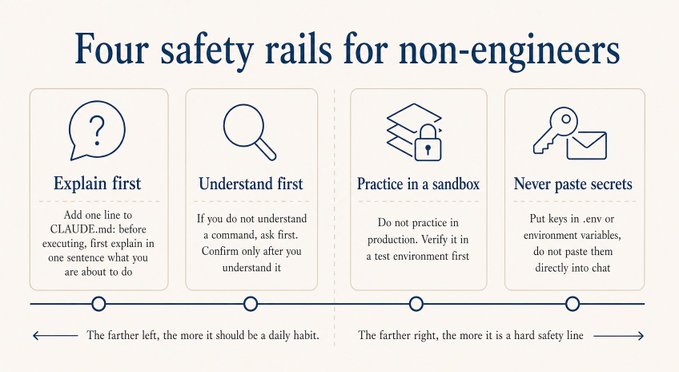
Have it explain before acting. Add this to CLAUDE.md: “Before running any Bash command or editing any file, explain in one sentence what you’re about to do.” It’ll narrate every step. Not being able to read code is fine, being able to read “I’m about to delete this file” is enough.
Ask about commands you don’t recognize. Don’t approve a command you’ve never seen. Ask “what does this command do, what’s the risk.” Understand it before approving. Don’t copy any command you don’t understand and run it; some of them can quietly download, upload, or leak information.
Don’t practice on production. Local and staging, mess around freely. For anything touching production database or live config, validate in staging first. The cost of one bad SQL or accidental delete is much higher than you’d predict.
Don’t paste secrets directly into chat. For API keys, database passwords, that kind of thing, have them go into environment variables or a .env file. Don’t drop plaintext credentials into the chat window.
One more that’s easy to overlook but really matters: passing tests doesn’t mean it’s safe. AI-generated code can have vulnerabilities. For login, payment, and personal information features, use Clerk or Stripe or similar mature services rather than letting it write from scratch.
## Further reading
1. You Don’t Know Claude Code: Architecture, Governance, and Engineering Practices
2. You Don’t Know Agent: Principles, Architecture, and Engineering Practices
3. You Don’t Know LLM Training: Principles, Paths, and New Practices
4. Claude Code Best Practices - Anthropic Official
5. vibe coding - Andrej Karpathy original tweet
6. Claude Skills are awesome, maybe a bigger deal than MCP - Simon Willison
7. Malleable software in the age of LLMs - Geoffrey Litt
8. Claude Code Starter Pack: Tools, Tutorials & Resources - AI Edge
9. When the Vibes Are Off: The Security Risks of AI-Generated Code - Lawfare
## 相关链接
- [Tw93](https://x.com/HiTw93)
- [@HiTw93](https://x.com/HiTw93)
- [2.5K](https://x.com/HiTw93/status/2049491135522054555/analytics)
- [Kaku](https://github.com/tw93/Kaku)
- [official docs](https://code.claude.com/docs/en/overview)
- [Crash Course Computer Science](https://www.youtube.com/playlist?list=PL8dPuuaLjXtNlUrzyH5r6jN9ulIgZBpdo)
- [Harvard CS50](https://cs50.harvard.edu/x/)
- [INSPIRED](https://www.amazon.com/INSPIRED-Create-Tech-Products-Customers/dp/1119387507)
- [Linux and the Unix Philosophy](https://www.amazon.com/Linux-Unix-Philosophy-Mike-Gancarz/dp/1555582737)
- [The Pragmatic Programmer](https://www.amazon.com/Pragmatic-Programmer-journey-mastery-Anniversary/dp/0135957052)
- [claude.ai](https://claude.ai/)
- [OpenCLI](https://opencli.info/)
- [docs](https://code.claude.com/docs/en/routines)
- [Waza](https://github.com/tw93/Waza)
- [/hunt](https://github.com/tw93/Waza/tree/main/skills/hunt)
- [/check](https://github.com/tw93/Waza/tree/main/skills/check)
- [Kami](https://github.com/tw93/Kami)
- [Claude Design](https://claude.ai/design)
- [You Don’t Know Claude Code: Architecture, Governance, and Engineering Practices](https://tw93.fun/2026-03-12/claude.html)
- [You Don’t Know Agent: Principles, Architecture, and Engineering Practices](https://tw93.fun/2026-03-21/agent.html)
- [You Don’t Know LLM Training: Principles, Paths, and New Practices](https://tw93.fun/2026-04-03/llm.html)
- [Claude Code Best Practices - Anthropic Official](https://code.claude.com/docs/en/best-practices)
- [vibe coding - Andrej Karpathy original tweet](https://x.com/karpathy/status/1886192184808149383)
- [Claude Skills are awesome, maybe a bigger deal than MCP - Simon Willison](https://simonwillison.net/2025/Oct/16/claude-skills/)
- [Claude Code Starter Pack: Tools, Tutorials & Resources - AI Edge](https://x.com/aiedge_/status/2011108297152082250)
- [When the Vibes Are Off: The Security Risks of AI-Generated Code - Lawfare](https://www.lawfaremedia.org/article/when-the-vibe-are-off--the-security-risks-of-ai-generated-code)
- [Upgrade to Premium](https://x.com/i/premium_sign_up)
- [10:08 PM · Apr 29, 2026](https://x.com/HiTw93/status/2049491135522054555)
- [2,584 Views](https://x.com/HiTw93/status/2049491135522054555/analytics)
- [View quotes](https://x.com/HiTw93/status/2049491135522054555/quotes)
---
*导出时间: 2026/4/29 22:50:30*
---
## 中文翻译
# 你不了解 AI 编程:写给非工程师的 Claude Code 指南
**作者**: Tw93
**日期**: 2026-04-29T14:08:59.000Z
**来源**: [https://x.com/HiTw93/status/2049491135522054555](https://x.com/HiTw93/status/2049491135522054555)
---

## TL;DR(太长不看版)
AI 编程并不只属于程序员。
上个月,我为产品、业务和运营的同事们做了一场关于如何上手 Claude Code 的内部分享,那份讲义最终扩展成了这篇文章。
对非工程师来说,第一道门槛通常是命令行。它看起来像是程序员专属的领域,但实际门槛比想象中低得多。如果你会用 ChatGPT 这样的聊天机器人,只要花点时间和耐心,就能开始使用 Claude Code。
一旦上手,Claude Code 就会像一个万能助手:拉取后端数据、为具体问题编写小工具、把散落的文档整合成简报、搭建工作流原型、清理销售报表,以及自动化重复性工作。
你以前是否写过代码并不是决定性因素。真正的转变发生在你不再把 AI 当作聊天机器人,而是开始把它当作执行伙伴的那一刻。
这篇文章是为想用 Claude Code 处理实际工作的非工程师准备的实用指南。
## 第一道门槛是命令行
如果你不写代码,习惯了 ChatGPT 这类聊天式 AI,那么第一次安装 Claude Code 会感觉有点陌生。以前的流程是来回穿梭式的:你描述想要什么,它输出代码,你再复制粘贴到别的地方去试。而 Claude Code 去掉了这个穿梭环节,它直接在终端里运行。

如果你从没用过终端,可以试试 Kaku,这是我为 AI 编程专门打造的工具。装好即用,不用折腾配色和字体。深色/浅色模式跟随系统,Cmd + D 分屏,Cmd + Shift + Y 打开文件管理器。对新手最友好的是内置的 AI 辅助:命令失败时会自动建议修复方案,记不住命令时,在前面加个 # 然后用大白话描述就行。

安装 Claude Code 只需一条命令,参见官方文档,然后 cd 进入你的项目文件夹,输入 claude 就可以开始编程了。
```
curl -fsSL https://claude.ai/install.sh | bash
```
## 懂一点技术常识大有裨益
如果你不写代码,但想真正用好 Claude Code,光会描述需求是不够的。掌握一些概念基础,会让日后的调试轻松很多。
了解常见框架是干什么的。大致知道 React、Vue 和 Next.js 解决什么问题,当 Claude Code 用它们写东西时你就不会一头雾水。
了解常用软件的基础:终端命令、Git、VS Code、Chrome DevTools。出错了,你可以和 Claude 一起定位问题,而不只是干等。
掌握几个核心编程概念:函数是做什么的、变量和状态是什么、为什么要拆分多个文件。理解这些能让你的需求描述更精确。
学会读代码和读报错,比学会写代码见效更快。当它改动了一大段代码时,你扫一眼就能大致知道发生了什么,比让它解释快得多。出现报错时别慌,直接把整个报错粘贴回去,问“这是什么意思,我该怎么修”。十有八九它会精确地指出问题所在的那一行。
你不需要学到能自己写代码的程度。只要知道这些东西长什么样就够了。花几个晚上看看 freeCodeCamp 或 MDN 的入门内容,或者选一门免费入门课程,比如 Crash Course Computer Science 或哈佛 CS50,之后你和 Claude Code 的协作体验会明显不同。
我最推荐非工程师读三本书,都很好读:《INSPIRED》讲产品判断力,《Linux and the Unix Philosophy》讲工程哲学,《The Pragmatic Programmer》讲资深工程师的真实思维方式。读完这些,和 AI 进行技术对话时就不会那么困惑了。
## 账号与订阅
账号:用 Google 或邮箱在 claude.ai 注册,这是最标准的流程。
订阅:分三档。免费版 $0,只能用基础聊天功能,没有 Claude Code。Pro 每月 $20,解锁 Claude Code,是大多数人的合适起点。Max 分 $100 和 $200 两档,分别提供 5 倍和 20 倍的用量,适合日常高强度编程工作。
从 Pro 开始,如果额度感觉不够用再升级到 Max。订阅跟随账号,所以在 iOS 上购买,Android 和网页端同样可用。
## Claude Code 擅长什么样的任务
我试过不少 AI 编程工具,Cursor、Windsurf 和 Codex 都在轮换使用,但我的主力工具始终是 Claude Code。
它的独特之处在于底层模型本身已经很强,而且 Claude Code 的实现把“工具框架”模式发挥到了极致,会着眼于整个项目:它先扫描 CLAUDE.md 和目录结构来获取上下文,然后跨文件编辑、运行命令、读取报错、再次修改,全程自主完成。除此之外,它运行在终端里,所以 git、测试、脚本这些你已经在用的工具,它都能直接调用,不需要任何复制粘贴的来回折腾。

它实际上是一个通用 Agent。名字里的 Code 只是反映了它最初面向写代码的定位。Anthropic 曾分享过,公司内部许多非工程团队——销售、风控、财务——都在用它处理 CRM 数据和客户邮件。如果你实在不想碰终端,官方桌面应用 Cowork 可以直接读写你的“下载”和“文稿”文件夹,比如把一堆收据截图整理成报销单,一句话就能搞定。
还有一点我认为非常重要:在写代码这件事上,速度不是关键,准确性才是。生成十分钟再调试二十分钟,远不如花二十分钟生成出当场就能验证的结果。
要做到准确,首先要把本身定义清晰、易于验证的工作交给它。同时满足这两个标准的任务是最合适的,就像给一个非常较真但技术过硬的工程师分配工作一样。

具体来说有几类:原型和内部工具,你把需求和展示逻辑说清楚,第二天就有能跑的版本;处理 CSV 和做销售报表,分组和计算逻辑写清楚,几分钟出结果;从几十页的合同里摘条款、比对版本,这类文档工作正是它的强项;最后,丢给它一堆链接或 PDF,让它从特定角度提取信息,只要把你要的格式说清楚就行。
## 为自己造软件
开始“写代码”时最大的障碍是不知道做什么。《纽约时报》专栏作家 Kevin Roose 提出了一个很有用的概念:个人专用软件(software for one)。你不需要为百万人做东西,你可以只为自己做。
他为自己做了整理链接的 Stash、为孩子准备午餐的 LunchBox Buddy。对你来说,可能是把语音备忘转成会议纪要的工具,或者一个每天早上提醒你三件事的小面板。这恰恰是产品和业务同学真正能做成的事,因为没有人比你更了解你日常的痛点。

从一天到三个月的节奏
不要一上来就想“做个 Notion 那样的东西”。可行的节奏是:

第 1 天,试水:让它编辑你手头已有的 Excel 或 Markdown 文件。第 1 周,尝味:做一个单页的个人主页或每日面板,十五分钟跑起来。第 1 个月,交付一个东西:挑一件你每周做两三次的事,把它变成一条命令或一个页面。第 3 个月,升级:选一个个人专用软件的点子,做一个真正只为你服务的工具。
## 用 OpenCLI 把网页操作变成命令
很多运营工作发生在浏览器里:看数据面板、发消息、导报表。其中大部分可以完全绕过界面,直接调用底层 API。
OpenCLI 是我的朋友 Cabbi 做的。它内置了几十个网站的 CLI 适配器,包括 Reddit、X/Twitter、YouTube 等,还提供一组通用的浏览器原语,比如点击、输入、抓取、截图。它把网页操作变成一条条命令,Claude Code 一句话就能调用。
舆情监听:让 Claude Code 调用 opencli reddit 拉取数据,然后分类并提取热门词。以前要花半小时点来点去的事,现在一句话搞定。
情绪摘要:把 X/Twitter、Reddit 和 HackerNews 的适配器组合起来,把同一个关键词在多个平台的讨论变成一份日报。
没有适配器的网站:用浏览器原语描述流程,比如打开页面、输入关键词、抓取表格,Claude Code 会把它们串起来。
Claude Code 还有一个叫 Routines 的功能,可以把一个工作流存到云端,按时间表、webhook 或 GitHub 事件触发。我自己还没深度使用,但概念上像“每周一早上跑一遍周报流程”这种事可以交给它。感兴趣可以看文档。

## CLAUDE.md:先把项目背景写清楚
很多人装上就开始提问,结果每次都要重复交代背景,时间一长就烦了。原因几乎都一样:没有 CLAUDE.md。

它放在项目根目录,Claude Code 每次启动都会读。把它当成你给新同事写的入职文档,只不过这位同事每次都从头读一遍,并且严格执行。
三点最重要。保持简短,最好控制在 150 行以内,太长会占用对话预算。直截了当,用祈使句,省掉“我们倾向于”这类软性措辞。“所有注释用英文”远胜于“团队偏好英文注释”。每条规则都要可判定。“代码质量要高”没有用,“超过 50 行的函数必须拆分”才是能真正执行的。
四条值得保留的规则,直接照抄:行动前先问,倾向简单,只动该动的,完成后验证。展开说:不要让它猜你的意图,先把目标说清楚;两行能解决的事不要写两百行,不做过度设计;不主动重构没让你碰的代码;构建和测试通过才算完成,否则不算。
一个模板,改改项目背景就能用:
```
# Project Background
A customer dashboard for the operations team. Stack: Node.js + Next.js,
React on the front end, PostgreSQL database, deployed on Vercel.
PM is Alice, designer is Bob, backend is me.
# Working Rules
- All comments in English, variables and functions in English.
- State what you intend to change before making any edits, wait for my OK.
- For new features, write the implementation, don't add tests unless I ask.
- Database table names use snake_case, e.g. user_profile.
# Don't Do
- Don't proactively refactor files I haven't mentioned.
- Don't delete any file unless I explicitly say so.
- Don't run npm install for new dependencies without confirming first.
# 压缩时保留
当长对话被自动压缩时,按以下优先级保留内容:
1. 架构决策及其背后的理由
2. 修改了哪些文件以及改动内容
3. 当前进度状态
4. 尚未完成的 TODO
```
那段“压缩时保留”的内容看起来很短,但它正是让长会话保持连贯的关键。Claude Code 的上下文在超过阈值后会自动压缩,而决策背后的理由通常是最先被丢掉的。如果你之前说过“用 POST 而不是 GET,因为请求体很大”,压缩后它可能只剩“用 POST”,理由消失了。下次这个话题再出现时,它可能会提出完全不同的方案,自相矛盾。有了这一段,长会话就不会自己跟自己打架。
这些内容你不需要从头写。安装 Claude Code 之后,直接说“读一下我的项目,帮我生成一个 CLAUDE.md”。它会扫描代码、技术栈和结构,给你一份草稿。你只需要调整一下命名和团队偏好。安装依赖、配置别名、编辑 ~/.claude/settings.json 也一样——直接告诉它你想要的效果,让它自己琢磨,比读文档快多了。把配置工作交出去,把精力留给真正需要判断的事情。
## 需求越精确,跑偏越少
模糊的:给我做一个客户跟进工具。精确的:做一个销售跟进工具,单文件网页,数据存本地。左侧是列表,显示公司名称、下次跟进日期、状态。右侧是详情视图,包括沟通历史、日期、要点。顶部有三个筛选器:状态、时间、关键词。数据存在浏览器 localStorage 里,不需要后端。

精确的版本当天就能拿到可用的原型。模糊的那个几乎总是要重做。
这里有一个完全精确的例子,是 yetone 为一个用 Claude Code 构建的 macOS 语音输入工具写的需求。你不需要细看代码细节,重点在于每条需求被拆解得多么具体。
```
用 Swift 给我做一个 macOS 原生语音输入工具:
1. 按住 Fn 开始录音,松开后将转写文本注入当前焦点输入框。优先使用流式转写(Apple Speech Recognition 框架)。通过 CGEvent tap 全局监听 Fn;抑制 Fn 事件传播,避免触发表情选择器。
2. 默认语言必须是简体中文(zh-CN)——开箱即用支持中文。菜单栏可切换为英语、繁体中文、日语、韩语;选择持久化到 UserDefaults。
3. 录音时,在屏幕底部居中显示一个无边框胶囊形 HUD:没有红绿灯按钮,没有标题栏。使用 NSPanel(nonactivatingPanel)+ NSVisualEffectView(.hudWindow 材质)。高度 56px,圆角 28px。左侧显示实时音频波形(5 根由 RMS 电平驱动的竖条),右侧显示转写文本(160-560px 弹性宽度)。弹簧入场动画 0.35s,文本宽度过渡 0.25s,缩放退出 0.22s。
4. 通过剪贴板 + 模拟 Cmd+V 注入文本。注入前,检测当前输入源:如果是中日韩输入源,临时切换到 ABC,粘贴后再恢复原输入源。之后恢复原剪贴板内容。
5. 接入 LLM 提高中英混语的识别准确率。使用 OpenAI 兼容 API(可配置 Base URL、Key、Model)对转写文本进行修正。系统提示词必须极其保守:只修正明显的语音识别错误(例如“派森”->“Python”、“杰森”->“JSON”),绝不重写或润色看起来正确的文本,如果看起来是对的,原样返回。
6. 菜单栏提供“LLM 修正”子菜单,含启用/禁用开关和一个设置入口。设置窗口包含 API Base URL、API Key、Model 字段,以及“测试”和“保存”按钮。Fn 松开后,如果启用了 LLM,HUD 显示“修正中...”直到响应返回,然后注入。
7. 以 LSUIElement 方式运行(仅菜单栏图标,无 Dock 图标)。用 Swift Package Manager 构建,附带 Makefile(build/run/install/clean)。
```
有了这样的描述,Claude Code 几乎不需要猜测,直接就能产出一个可安装的 macOS 应用。每一行都是在防止它在某个具体点上猜错:

你不需要会写 Swift,但你需要把需求写到这个具体程度。里面的每一行都是 yetone 踩过的坑或预判到的坑。每多一个具体细节,就能省掉一轮返工。

对于业务侧需求,光描述功能是不够的。先讲问题——我们在解决什么、给谁用、做到什么程度算完成。不要一上来就列功能。假设我们要为国际机票产品做一个新品类落地页,第一句话应该是:“国际机票产品目前没有专门的入口,用户只能通过搜索找到它们,非热门城市的曝光极低。”这句话会在它之后遇到“展示多少个热门城市”或“筛选器要不要包含‘最近浏览’”这类问题时,塑造它的判断。
接下来,划定范围。Claude Code 很积极:你要一个列表页,它会顺手加上收藏、分享和埋点统计。明确写上“不做登录、不做分享、不做 SEO,留到下个迭代”,它就不会越界。边界情况要单独列出来:API 超时、数据为空、图片缺失,兜底方案是什么。不写下来,它要么直接跳过,要么猜一个你不喜欢的兜底方案。
验收标准要有数字。“页面要快”没有用。“首屏渲染低于 1.5 秒”是可以判断的。“布局要正常”没有用。“在 375 和 1440 宽度下布局不破”是可以验证的。
不要写"TBD"或"稍后再定"。Claude Code 会靠猜测来填补这些空白,而猜出来的通常不是你想要的。哪怕写上"这个版本先硬编码,下个版本再做成可配置",也比留空强。
## 对于复杂任务,先同步:Plan 模式和 Auto 模式
有一次我让它重构登录模块,结果它删掉了一个我下游要用到的工具类。我花了半个小时才回滚。这个教训印象深刻。
从那以后,凡是复杂的任务,我都先按两次 Shift+Tab 切换到 Plan 模式。它会列出打算做什么,你确认方向之后,它才开始执行。就跟公司里做事一样:你不会跟初级工程师说"直接去把这个功能做出来",而是先快速同步一下方案,达成一致,然后他再动手。

Plan 模式生成的计划大致是这样的:改哪些文件,每个文件改什么,理由是什么,影响范围有多大。从业务逻辑上判断方向,比直接看代码判断容易得多。就算你读不懂代码,也能判断"这一步该不该做,这个理由站不站得住脚"。
如果每一步都要确认太麻烦,可以开启 Auto 模式:把 Shift+Tab 循环切到自动挡的位置。这个功能在 Max、Team 和 Enterprise 版本可用;Pro 版还没有。它会自主判断:读文件这类安全操作直接执行,写数据库、删文件这类有风险的操作仍然会先询问。早点把 Auto 模式设为默认,既不会被琐碎的确认打断,它也不会失控乱来。
## 怎么知道它真的做对了
它说"做完了"没多大意义,关键是你怎么验证。AI 同样会走省事的捷径。

我会检查三件事。命令是否通过:构建和测试是否变绿。在 CLAUDE.md 里写上"完成后运行 make build && make lint",可以让它自检。你是否亲眼看过:打开页面,核对数字,走一遍关键流程。文件改了不等于页面呈现的就是你想要的效果。是否符合清单:把验收标准逐条过一遍,有遗漏就不算完成,打回去重做。
## 从错误的改动中恢复
非程序员最怕的就是代码被搅得一团糟、无法挽回。有两种常用的补救方法。
Git 快照:在任何大的改动之前,让它运行 git status 看看现状,满意之后就提交一个检查点。如果搞砸了,只需说"回滚到上一个检查点",比手动运行 checkout 安全得多。
撤销上一步:直接说"把你刚才做的全部撤销",或者使用 /rewind 回到之前的状态。
## 别让它陷入"试试这个、试试那个"的循环
一个容易掉进去的坑:陷入"试试这个、试试那个"的循环。四五个回合下来,原本的小问题变成了死结。原因总是同一个:诊断还没搞清楚就开始打补丁。

解决办法一句话:根因没找到之前,不许碰代码。让它先回答"哪个文件、哪一行、为什么会这样"。如果回答含糊,就继续深挖。答案清楚了才动手改。如果它一上来就说"我试试改一下 X 看看",就打断它,先要根因分析。
## 热身之后:alias、模型、长会话
第一天你不需要这些。等你上手了,或者 Pro 版开始感觉不够用了,再回来看这一节。
我是怎么用 Max 订阅的
alias,我在 .zshrc 里加了一行,按 c 就能启动 Claude Code 且不用权限确认,并把自动压缩的阈值提高到 400k。只在上下文完全用满时才触发压缩,效果不如稍微早点触发。你可以把这段代码粘贴到你自己的 Claude Code 里,让它帮你适配:
```
alias c='CLAUDE_CODE_AUTO_COMPACT_WINDOW=400000 claude --dangerously-skip-permissions'
```
--dangerously-skip-permissions 不适合新手。它的字面意思是"危险地跳过所有权限确认",也就是说 Claude Code 什么都不会问。我用它是因为我能看懂它每一步在做什么,而不断的确认提示确实拖慢我的速度。如果你还没到那个程度,就继续用 Auto 模式。
模型用 opusplan。我现在的方式是输入 /model opusplan,这是一个隐藏命令(这些命令可能随版本变化,以你的版本实际支持的为准)。它用 Opus 做规划、Sonnet 做执行:规划交给 Opus,执行交给 Sonnet,总体上既省钱又省时间。想更快,再加一个 /fast,大致把你省下的 token 又买回来。
一个关键设置:如果你的版本支持,用 opusplan 时在 ~/.claude/settings.json 里把 showClearContextOnPlanAccept 设为 true。不开的话,Sonnet 执行阶段会出现严重的缓存未命中,速度明显变慢。打开之后整个流程就顺畅多了。
长会话怎么办
Claude Code 的上下文窗口是固定的。会话拉得太长,早期内容就会被挤出去。

每个任务结束后 /clear:一个会话一个任务。做完,清空,开始下一个。两件不相关的事放在同一个上下文里,它会越来越混乱。
长任务结束前让它写一份交接文档:直接说"把当前进度写到 HANDOFF.md,包括已完成的内容、试过但没用的方法、接下来的计划"。第二天开一个新会话,把文件交给它,它就能无缝接上。完全不依赖压缩算法。
## Waza:把好习惯变成肌肉记忆
AI 在编码中定义明确的部分可以很快,但这个东西最终应该长什么样,仍然需要你来决定。我一直在做一个叫 Waza 的 Skill 集合,八个技能对应我认为优秀工程师应该具备的八个习惯。

/think 会在写任何代码之前让你先想清楚技术方案。AI 写代码很快,但在错误的方向上快马加鞭只会更快地犯错。先质疑问题本身,把方案搞对,然后再放手让它跑。/design 帮你设计真正像样的产品页面,不会出现紫蓝渐变和满是 emoji 的 AI 模板。/hunt 用于调试,只有一条规则:在说出根本原因之前不许碰代码,杜绝“试试这个再试试那个”的循环。/check 是收尾前的最后一道关卡,走查整个 diff,自动修复能修的,剩下的整理成问题抛回给你。
另外四个是日常用的:/read 把任何网页或 PDF 转成干净整洁的 Markdown 融入你的工作流,/write 让你的文字更清晰,/learn 是一个从收集资料到产出文章的调研工作流,/health 会对你的 CLAUDE.md 和规则集做一次体检,在 Claude 表现不对劲时很有用。
安装:npx skills add tw93/Waza -g。对产品、业务和运营同学来说,我最推荐先试的是 /design。用 /design 丢一张截图进去,它不会直接上手改,而是先问你这是给谁看的、想要什么氛围、什么风格你受不了、希望用户记住哪些微交互。然后才开始动手。结果通常比只说一句“把这个改好看点”稳定得多。
你可以自己写一个 Skill
Skill 其实就是 .claude/skills/ 下的一个文件夹,里面放一个 SKILL.md,描述什么时候用它、该做什么。Claude Code 启动时只读取 frontmatter(触发描述,大约 100 字符),只有当 Skill 真正被调用时才加载完整内容。所以装几十个 Skill 也不会拖慢启动。
我最常用的三种类型:

类型一:工作流。把你每次都做的固定流程打包起来。比如周会纪要:
```
---
name: weekly-meeting-notes
description: 当原始会议记录需要整理时使用
---
## 输出格式
**本周完成**:[负责人] 完成了什么
**下周计划**:[负责人] 做什么,何时完成
**未决事项**:卡在什么上,需要谁拍板
**行动项**:[谁] [做什么] [何时前完成]
## 规则
- 不要润色,保留原始措辞
- 缺失的信息标注"待确认",不要猜测
```
类型二:检查清单。上线前、发布前、提交前走一遍,防止遗漏。比如上线前:
```
---
name: launch-checklist
description: 发布功能前运行,确认没有遗漏
---
## 发布前必须全部通过
- [ ] PRD 中每条验收标准已确认
- [ ] 设计与实现一致:间距、文案、交互
- [ ] 边界状态(空、错误、超时)都已处理
- [ ] 埋点事件按规范添加
- [ ] 预发环境已验证
## 输出
每一项标注 通过 / 不通过。任何"不通过"必须在发布前修复。
```
类型三:领域专家。把判断框架固化进去,遇到这类问题就按固定路径走,而不是每次临时发挥。比如值班事故分诊,或者你业务里的任何 SOP:
```
---
name: incident-triage
description: 当告警触发或用户反馈故障时使用
---
## 收集
- 报错截图或完整错误日志
- 影响范围:哪些用户、哪个页面、什么时候开始的
- 近期变更:代码发布、配置修改、数据变更
## 诊断矩阵
| 症状 | 优先排查 |
| 白屏 | JS 报错 → 近期发布 |
| API 超时 | 服务监控 → 慢查询 |
| 数据异常 | 近期数据变更 → 上游 |
## 输出格式
根因 / 影响范围 / 修复步骤 / 验证方式
```
把它放进 .claude/skills/,当匹配的场景出现时,说一句“用 weekly-meeting-notes”或“用 incident-triage”就行。你也可以让 Claude 帮你写这些。写 Skill 有两个坑要避开。
description 是触发条件,不是功能卖点。“当原始会议记录需要整理时使用”在触发准确度上远胜“把会议录音转成结构化周报”。
一个 Skill 只干一件事。别把评审、发布、调试捆在一起。拆开来,触发才更准确。
## Kami:让 AI 来排版
把内容写出来只是前半件事,把它排成能拿出去的样子往往花更多时间。Kami 是我一直在做的一款 AI 排版工具。把内容交给它,说一句“排成一页纸”或“做个作品集”,它就给你生成一份可下载的 PDF。
它内置八种模板:一页纸、作品集、幻灯片、简历、长文档、信函、研究笔记、更新日志。视觉风格统一:暖色羊皮纸底色、墨蓝点缀、默认衬线字体。不用再去折腾字体。

最有用的场景:会议纪要排成简报,项目进展排成一页纸发给老板,工作经历排成简历。放在过去,这意味着打开 Word 或 Figma 折腾半天。现在你把内容丢进去,得到一版已经拿得出手的初稿,再微调即可。
安装:npx skills add tw93/Kami -g
## Claude Design:不用写代码的原型
Anthropic 于 2026 年 4 月发布的 Claude Design 是另一条路:上传一张截图或一份文档,它直接给你一个可交互的原型、幻灯片或落地页。适合想快速做出原型的非技术同学。

如果你完全不想碰代码,可以用它先做出能展示的东西。产品经理可以画个原型、开个评审,然后把原型交给 Claude Code 转成真正的代码。早期原型不必等设计和工程的完整排期,当天就能拿出可讨论的东西。
## 上手之后值得养成的几个小习惯
截图比文字快。要描述一个界面问题或参考某个设计风格,直接丢图就行。布局、颜色、层级都随之而来,需要猜测的成分更少。
把任务拆小,一次只做一个。能用一句话描述清楚的任务几乎总能被正确完成。一次丢进一大堆需求,下游任何一步出错都会让所有事情偏离方向。先完成并验证一件事,再开始下一件。
对话跑偏了就重新开始。试图纠正一个已经跑偏的会话只会让它更偏。清空上下文、重新陈述需求,往往更快。第二天接着做时,看一眼 Recap(/clear 后自动生成的对话摘要)就能想起之前进行到哪里了。
Memory(记忆)能跨项目记住你的偏好。CLAUDE.md 是项目级的,每个项目写一份。Memory 是用户级的,适用于所有项目和所有会话。只需说“记住我想在执行前先看到计划”或“记住用英文回复我”。它会写入 ~/.claude/memory/,之后在任何项目中都生效。那些你总是需要反复说明的内容就应该放在这里,省去重复的麻烦。
双击 ESC 可以编辑上一条消息。如果说错了话或者对话跑偏了,按两次 ESC 跳回上一条消息进行编辑,无需重启会话。
## 一些值得从第一天就养成的安全习惯

让它先解释再行动。在 CLAUDE.md 中加上:“在运行任何 Bash 命令或编辑任何文件之前,先用一句话解释你要做什么。”它会逐步叙述每个操作。看不懂代码没关系,能看懂“我即将删除这个文件”就够了。
对不认识的命令要询问。不要批准从未见过的命令。问一句“这个命令是做什么的,有什么风险。”理解之后再批准。不要复制任何你不理解的命令去运行;有些命令可能悄悄下载、上传或泄露信息。
不要在生产环境上练手。本地和预发布环境可以随意折腾。任何涉及生产数据库或线上配置的操作,先在预发布环境验证。一条错误的 SQL 或一次误删的代价远比你能预想的高。
不要把密钥直接粘贴到聊天中。对于 API 密钥、数据库密码这类东西,让它们放入环境变量或 .env 文件。不要把明文凭据丢进聊天窗口。
还有一个容易被忽视但非常重要的一点:测试通过不代表安全。AI 生成的代码可能有漏洞。对于登录、支付和个人信息相关的功能,使用 Clerk、Stripe 或类似的成熟服务,而不是让它从零开始写。
## 延伸阅读
1. 你不知道的 Claude Code:架构、治理与工程实践
2. 你不知道的 Agent:原理、架构与工程实践
3. 你不知道的 LLM 训练:原理、路径与新实践
4. Claude Code 最佳实践 - Anthropic 官方
5. vibe coding - Andrej Karpathy 原推
6. Claude Skills 非常棒,也许比 MCP 意义更大 - Simon Willison
7. LLM 时代的可塑软件 - Geoffrey Litt
8. Claude Code 新手包:工具、教程与资源 - AI Edge
9. 当氛围不对时:AI 生成代码的安全风险 - Lawfare
## 相关链接
- [Tw93](https://x.com/HiTw93)
- [@HiTw93](https://x.com/HiTw93)
- [2.5K](https://x.com/HiTw93/status/2049491135522054555/analytics)
- [Kaku](https://github.com/tw93/Kaku)
- [官方文档](https://code.claude.com/docs/en/overview)
- [计算机科学速成课](https://www.youtube.com/playlist?list=PL8dPuuaLjXtNlUrzyH5r6jN9ulIgZBpdo)
- [哈佛 CS50](https://cs50.harvard.edu/x/)
- [INSPIRED](https://www.amazon.com/INSPIRED-Create-Tech-Products-Customers/dp/1119387507)
- [Linux 与 Unix 哲学](https://www.amazon.com/Linux-Unix-Philosophy-Mike-Gancarz/dp/1555582737)
- [程序员修炼之道](https://www.amazon.com/Pragmatic-Programmer-journey-mastery-Anniversary/dp/0135957052)
- [claude.ai](https://claude.ai/)
- [OpenCLI](https://opencli.info/)
- [文档](https://code.claude.com/docs/en/routines)
- [Waza](https://github.com/tw93/Waza)
- [/hunt](https://github.com/tw93/Waza/tree/main/skills/hunt)
- [/check](https://github.com/tw93/Waza/tree/main/skills/check)
- [Kami](https://github.com/tw93/Kami)
- [Claude Design](https://claude.ai/design)
- [你不知道的 Claude Code:架构、治理与工程实践](https://tw93.fun/2026-03-12/claude.html)
- [你不知道的 Agent:原理、架构与工程实践](https://tw93.fun/2026-03-21/agent.html)
- [你不知道的 LLM 训练:原理、路径与新实践](https://tw93.fun/2026-04-03/llm.html)
- [Claude Code 最佳实践 - Anthropic 官方](https://code.claude.com/docs/en/best-practices)
- [vibe coding - Andrej Karpathy 原推](https://x.com/karpathy/status/1886192184808149383)
- [Claude Skills 非常棒,也许比 MCP 意义更大 - Simon Willison](https://simonwillison.net/2025/Oct/16/claude-skills/)
- [Claude Code 新手包:工具、教程与资源 - AI Edge](https://x.com/aiedge_/status/2011108297152082250)
- [当氛围不对时:AI 生成代码的安全风险 - Lawfare](https://www.lawfaremedia.org/article/when-the-vibe-are-off--the-security-risks-of-ai-generated-code)
- [升级到 Premium](https://x.com/i/premium_sign_up)
- [2026 年 4 月 29 日 22:08](https://x.com/HiTw93/status/2049491135522054555)
- [2,584 次浏览](https://x.com/HiTw93/status/2049491135522054555/analytics)
- [查看引用](https://x.com/HiTw93/status/2049491135522054555/quotes)
---
*导出时间: 2026/4/29 22:50:30*