# How to Build Claude Workflows That Run Without You
**作者**: Chrome
**日期**: 2026-06-04T12:42:35.000Z
**来源**: [https://x.com/0xchromium/status/2062515355306631467](https://x.com/0xchromium/status/2062515355306631467)
---
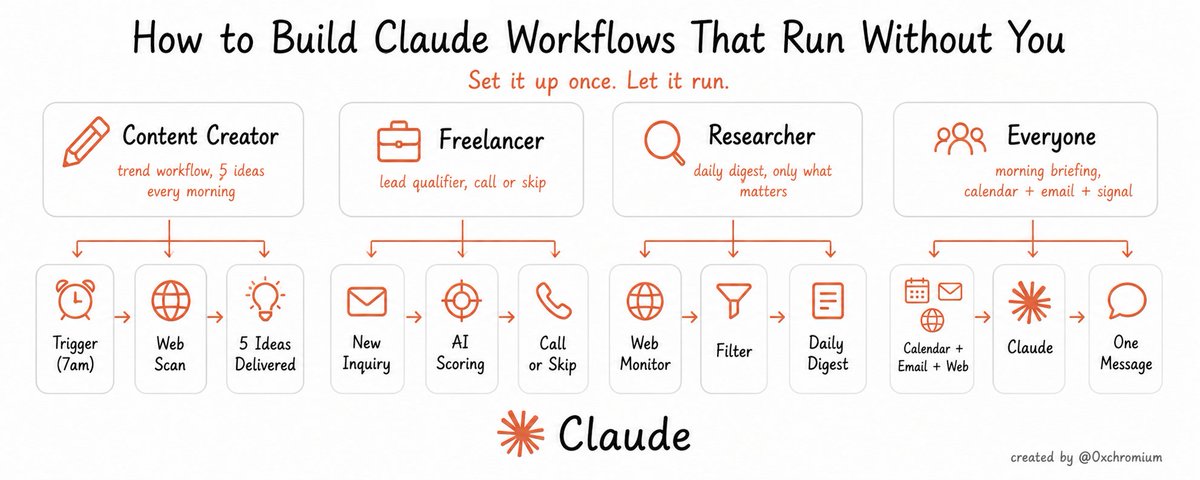
Right now you are doing work by hand that a machine could be doing while you sleep
Every morning you check the same sources for trends, you rewrite the same post for three platforms, you pull the same numbers into the same report, you send the same follow-up email after every call
None of that is thinking, it's repetition, and repetition is exactly what automation takes off your plate
Most people use Claude like a smarter search bar, they ask a question, they get an answer, they copy it out, they move on
A workflow is different, a workflow doesn't wait for you to ask, it runs on a schedule or a trigger, it uses tools to actually do things, and it hands you a finished result instead of a reply
The chat answers, the automation acts
This article shows you exactly what to build, role by role, and how to ship your first one in 30 minutes
## Part 1: What a workflow does that a chat never will
A normal chat with Claude is a conversation, you type, it responds, the work of acting on that response is still yours
A workflow has four parts that a chat doesn't:
- a ROLE, a fixed job written into its system prompt so it behaves the same way every time
- TOOLS, real access to your files, your email, your calendar, the web, a scheduling app
- a TRIGGER, a time or an event that starts it without you asking
- an OUTPUT, a defined thing it produces, a report, a draft, an email, a sorted folder
Put those together and you stop being the person who does the task, you become the person who approves it
That's the whole shift, and once you see it you can't unsee how much of your week is just you being a slow trigger for work that doesn't need you
## Part 2: What to actually build, by role
For each workflow below you get three things, what it does, how much time it gives you back, and one concrete example of it in action
## Content creator
Trend workflow
- What it does: every morning it scans the sources you care about and sends you 5-7 post ideas with the angle already written
- Time saved: 45 minutes of manual scrolling per day, around 5 hours a week
- In action: you open your phone at 8am and there's a message, "Topic X is spiking, here's a contrarian take that fits your audience, here's the hook," you pick one and start writing instead of starting from a blank screen
Repurpose workflow
- What it does: you give it one article, it produces native posts for every platform you run, a thread for X, a carousel outline for LinkedIn, a short script for Reels
- Time saved: 2-3 hours per piece of content
- In action: you paste a 1,200 word article, 90 seconds later you have a 9 tweet thread, a 6 slide carousel, and a 30 second video script, all in your voice, not generic
Weekly review workflow
- What it does: every Sunday it pulls your week's numbers, finds what outperformed, and tells you why in plain language
- Time saved: 1-2 hours of staring at analytics
- In action: "Your 3 best posts this week were all personal stories posted before 10am, your worst were product posts, do more of the first, move product content to a different format"
## Freelancer
Lead qualifier workflow
- What it does: it reads every inbound message from a prospect and tells you if they're worth a call, based on budget signals, fit, and intent
- Time saved: hours of back and forth with people who were never going to pay
- In action: an inquiry comes in, the automation replies to you, "This one mentioned a real budget and a deadline, worth a call, this other one is price shopping, send the template"
Client report workflow
- What it does: it collects the data for a client, formats it into your report template, and writes the summary
- Time saved: 3-4 hours per client per month
- In action: end of month, the automation assembles the numbers, drops them into your template, and writes "Here's what moved this month and what I recommend next," you review and send
Sales call prep workflow
- What it does: before a call it researches the prospect and hands you the questions to ask, the objections to expect, and how to position your price
- Time saved: an hour of prep per call
- In action: you give it a name and a company, it returns three sharp opening questions, the one objection you're most likely to hear, and the exact line that frames your rate as obvious
## Researcher or analyst
Daily digest workflow
- What it does: every day it sends one message with everything that moved in your niche, filtered down to only what matters
- Time saved: 1-2 hours of reading you'd never get back
- In action: 7am, one message, "Three things happened in your space yesterday that you need to know, here they are in two lines each, everything else was noise"
Company teardown workflow
- What it does: you give it a company or a project, it analyzes it against your fixed template and returns a structured breakdown
- Time saved: half a day of manual research per target
- In action: you drop in a company name, it returns the business model, the revenue signals, the weak points, and the opportunity, in the exact format you always use
Keyword monitor workflow
- What it does: it watches the web for your keywords and only pings you when something genuinely relevant shows up
- Time saved: the cost of checking 10 times a day for nothing
- In action: you set the keywords once, then silence until it matters, "Your keyword just appeared in a funding announcement, here's the link and why it's relevant to you"
## For everyone, no matter the role
Morning briefing workflow
- What it does: one message every morning with your calendar, the emails that actually need you, and the trends in your space
- Time saved: 30 minutes of opening five apps before you've had coffee
- In action: 7am, "You have 2 meetings, the 11am needs prep, 3 emails need a reply today, and one thing happened overnight you'll want to see"
File organizer workflow
- What it does: it sorts your files and notes into the right places automatically, by topic, by client, by date
- Time saved: the slow erosion of a messy desktop
- In action: you dump everything into one folder, the automation files it where it belongs and tells you what it did
Follow-up workflow
- What it does: after a meeting it drafts the follow-up email with the next steps already pulled from your notes
- Time saved: the 20 minutes you usually skip, which is why follow-ups don't happen
- In action: meeting ends, a draft is waiting, "Here's the recap and the next step, want me to send it?"
## Part 3: How it works, in plain language
Forget the technical version for a second
A chat is a single question and a single answer, the moment it's done, it's done, nothing happens until you type again
A workflow is a worker with a job description, you write down who it is and what it's responsible for, you give it the tools to do that job, you tell it when to start, and you tell it what to hand you when it's finished
That's it, four pieces:
- ROLE, the job, written as a system prompt
- TOOLS, what it's allowed to touch, files, email, web, calendar, a scheduler
- TRIGGER, what starts it, a time every day or an event like a new email
- OUTPUT, the finished thing it gives you
If you can describe a task to a new assistant in five sentences, you can build it as a workflow
## Part 4: How to build one, step by step
Step 1: write the system prompt with a role and a goal
This is the single most important part, you're hiring, so write the job description
```
You are a [role] for me
Your job is to [the one outcome you want] every [when]
You care about [what good looks like] and you avoid [what bad looks like]
When you're done, give me [the exact format of the result]
Be specific and concrete, never give me filler or generic output
```
The more specific the role, the better the result, "you are a content strategist who finds contrarian angles for a crypto and AI audience" beats "you help with content"
Step 2: connect the tools it needs
A workflow with no tools is just a chat, decide what this job actually touches:
- reading and writing files for reports, drafts, organizing
- email for follow-ups and inbox triage
- calendar for briefings and scheduling
- the web for trends, research, monitoring
- a scheduling app for publishing content
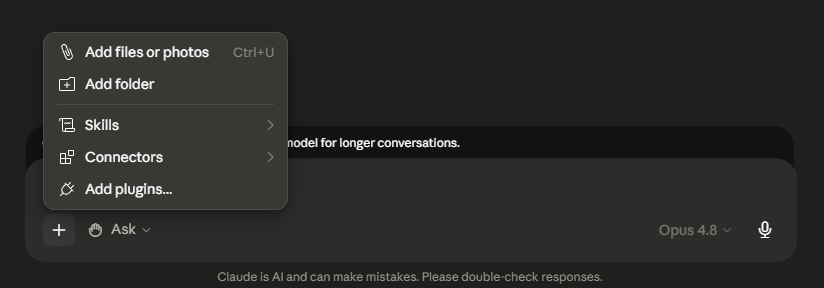
Give it only what the job needs, nothing more
Step 3: set the trigger
Decide when it runs, two options:
- a SCHEDULE, every morning at 7am, every Sunday night, every hour
- an EVENT, when a new email arrives, when a file lands in a folder
For your first workflow, use a schedule, it's the simplest and it's where most of the value is
Step 4: define what it does with the result
Tell it exactly where the output goes, send me a message, save a file to this folder, draft an email but don't send it, post to my scheduler as a draft for approval
For anything that goes to other people, keep yourself in the loop, the automation drafts, you approve, at least until you trust it
Step 5: test it and tune it
Run it once by hand before you let it run on a schedule, look at the output, then fix the prompt
The first run is never perfect, you'll see it being too generic, or missing context, or formatting wrong, so you go back to the system prompt and you add the missing instruction
Three or four rounds of this and the workflow is doing the job exactly how you would
## How to connect the tools and set up your first scheduled task in Claude Cowork
Everything above is the concept, this part is the buttons you actually click, we'll wire up the morning briefing workflow end to end, then you'll have the pattern for all the others
## Part 1: connect the connectors for the morning briefing
The briefing needs three things, your email, your calendar, and the web, here's how to turn each one on
1. Gmail
- Where to find it: in the chat bar click the plus sign or type a forward slash, hover over Connectors, then click Manage connectors, Gmail is in the Google Workspace list
- How to connect it: click Connect next to Gmail, a secure Google login window opens, sign in with the account you actually use, then grant the permissions it asks for, that one Google login covers Gmail, Calendar, and Drive together
- How to check it works: start a new chat and type "summarize my 3 most recent unread emails," if it pulls real messages back, you're connected, if you get an access blocked error, your workspace admin has to whitelist Claude first
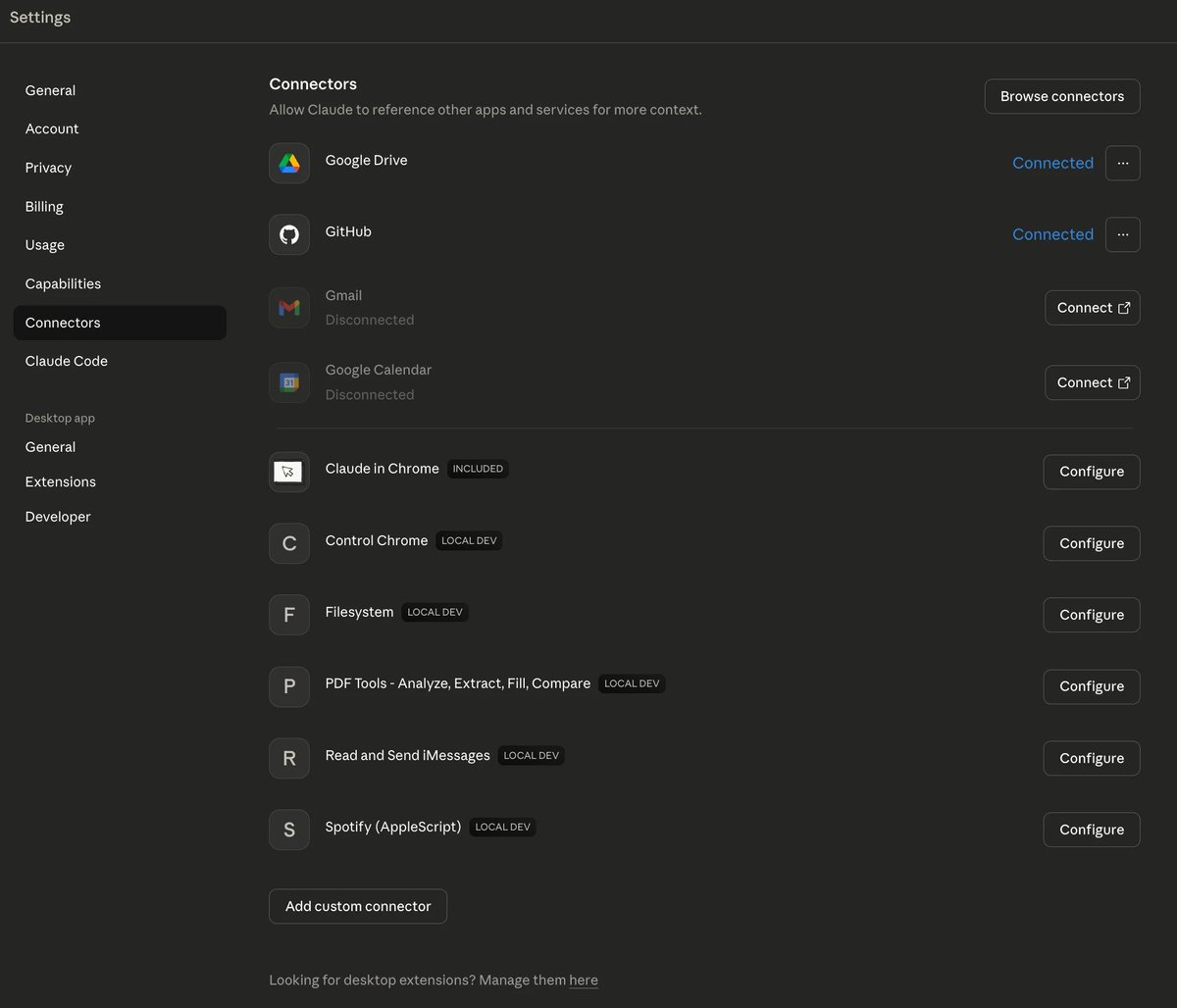
2. Google Calendar
- Where to find it: same place, plus sign or slash, Manage connectors, Google Calendar in the Google Workspace list
- How to connect it: if you already signed into Google for Gmail, Calendar is usually live on the same login, if it shows as separate, click Connect and approve the calendar permissions
- How to check it works: type "what's on my calendar today," if it lists your real events, it's working
3. Web search
- Where to find it: web search isn't a Google login, it's a built-in capability, look in the same connectors and tools menu for web search and make sure it's toggled on
- How to connect it: flip the toggle on, there's no separate account to sign into, it just needs to be enabled
- How to check it works: ask "search the web and tell me one thing that happened in [your niche] today," if it comes back with a fresh link, search is on
## Part 2: set it up as a scheduled task
Connectors give the workflow its hands, the scheduled task gives it a clock, this is what makes it run without you
Open scheduled tasks: in the same plus sign or slash menu, find scheduled tasks, this is where anything that runs on a timer lives
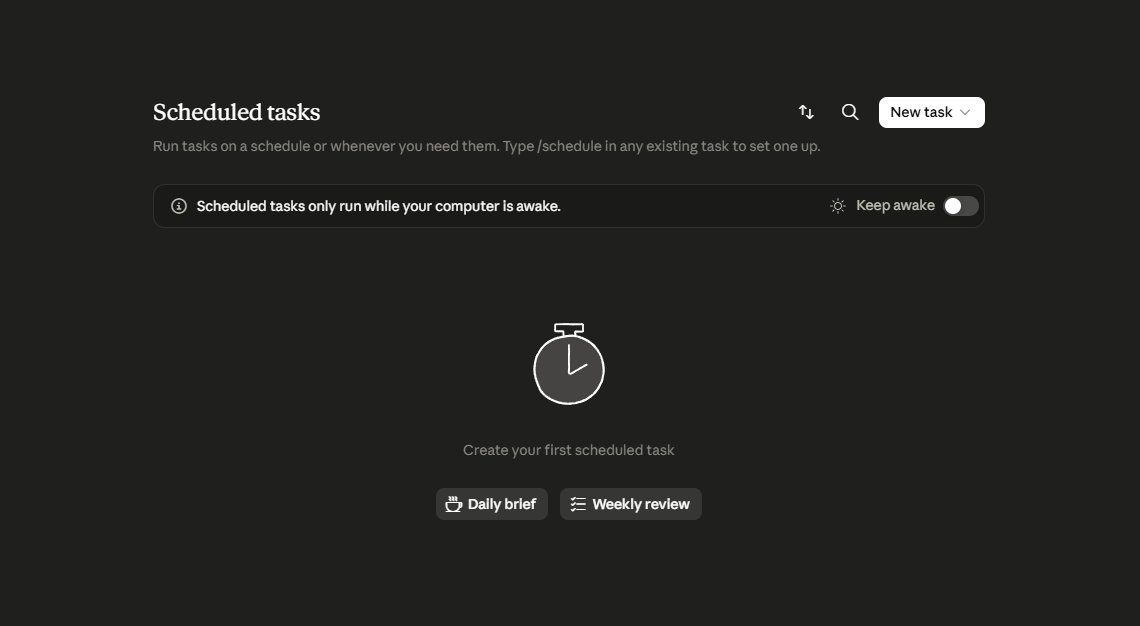
Paste the prompt: create a new scheduled task and drop in the morning briefing prompt from Part 6, the whole block, brackets filled in with your niche
Set the time: set it to run every day at 7am, or whatever time you want the briefing waiting for you, daily is the right cadence for this one
Run it once by hand: before you trust the schedule, trigger it manually once, read what it sends, then go back and fix the prompt if it's too generic or missing something, this is the same tune step from Part 4, just on the real thing
Turn on the schedule: once the manual run looks right, leave the daily schedule on, now it fires every morning on its own and the briefing is there before you open anything
For the other workflows in Part 2 you follow these exact same steps, you just change the prompt and connect different connectors for the job
## Part 5: what to change for each use case
Same five steps every time, here's exactly what changes per workflow
Trend workflow for content
- Prompt: "you are a trend scout for a [niche] audience, find me angles, not just news"
- Tools: web access
- Trigger: daily, early morning
- Output: a message with 5 to 7 ideas and hooks
Repurpose workflow
- Prompt: "you turn one article into native content for [your platforms], match my voice from these examples"
- Tools: file access for reading the source
- Trigger: event, run it when you drop in a new article
- Output: a file or message with one draft per platform
Lead qualifier
- Prompt: "you score inbound leads on budget, fit, and intent, tell me call or skip"
- Tools: email
- Trigger: event, new inquiry arrives
- Output: a one line verdict plus a reason
Client report workflow
- Prompt: "you build my monthly client report in this exact template and write the summary"
- Tools: file access, and whatever holds the data
- Trigger: monthly schedule
- Output: a finished report file ready to review
Daily digest workflow
- Prompt: "you monitor [niche] and send me only what matters, filter hard"
- Tools: web access
- Trigger: daily schedule
- Output: a short message, two lines per item
Morning briefing workflow
- Prompt: "you give me my day in one message, calendar, urgent email, one relevant trend"
- Tools: calendar, email, web
- Trigger: daily, before work
- Output: one message, nothing more
You're not learning six different skills, you're changing the role line, the tools, and the trigger, the machine underneath is identical
## Part 6: where to start, your first workflow in 30 minutes
Don't build the complicated one first, build the morning briefing workflow, it's the simplest, it touches the most useful tools, and you'll feel the value the next morning
Here's the prompt, copy it and fill in the brackets:
```
You are my morning briefing workflow
Every morning at 7am, send me one message with three sections:
1. TODAY, my calendar for the day, flag any meeting that needs prep
2. INBOX, only the emails that actually need a reply today, skip newsletters and noise
3. SIGNAL, one thing that happened in [your niche] in the last 24 hours that I'd want to know, two lines max
Rules:
- one message, no preamble, no sign off
- if a section is empty, say so in one line and move on
- never pad it with filler, I want the shortest version that's still complete
```
Now do the four steps:
- paste that as the system prompt
- connect calendar, email, and web access
- set it to run every day at 7am
- tell it to send the result as a message
Run it once by hand tonight, read the output, fix anything that's off, then let it run tomorrow on its own
That's a real workflow, working for you, before lunch
## What changes after your first one
The first workflow is never the one that matters most, the briefing workflow saves you 30 min, that's not the point
The point is what happens in your head after you watch it run, you stop seeing your week as a list of tasks and you start seeing it as a list of jobs you can hand off
The repurpose workflow becomes obvious, then the report workflow, then the lead qualifier, and within a month the question flips from "how do I do this" to "should I be doing this at all, or should a workflow"
The barrier was never the technology, it was thinking of yourself as the person who has to do the work
Build the briefing workflow tonight, that's where it starts
## 相关链接
- [Chrome](https://x.com/0xchromium)
- [@0xchromium](https://x.com/0xchromium)
- [413K](https://x.com/0xchromium/status/2062515355306631467/analytics)
- [Upgrade to Premium](https://x.com/i/premium_sign_up)
- [8:42 PM · Jun 4, 2026](https://x.com/0xchromium/status/2062515355306631467)
- [413.2K Views](https://x.com/0xchromium/status/2062515355306631467/analytics)
- [View quotes](https://x.com/0xchromium/status/2062515355306631467/quotes)
---
*导出时间: 2026/6/8 00:04:24*
---
## 中文翻译
# 如何构建无需你值守也能运行的 Claude 工作流
**作者**: Chrome
**日期**: 2026-06-04T12:42:35.000Z
**来源**: [https://x.com/0xchromium/status/2062515355306631467](https://x.com/0xchromium/status/2062515355306631467)
---

现在你正在手工做的工作,机器完全可以在你睡觉时替你完成
每天早上你都查看同样的来源寻找趋势,为三个平台改写同一篇帖子,把同样的数据拉进同样的报告,每次通话后发送同样的跟进邮件
这些没有一样是思考,全是重复,而重复正是自动化可以帮你卸掉的东西
大多数人把 Claude 当成一个更聪明的搜索栏来用,他们问一个问题,得到一个答案,复制出来,然后继续干别的
工作流则不同,工作流不会等你来提问,它按时间表或触发条件自动运行,它使用工具真正去做事情,并且交给你的是完成的结果,而不是一个回复
聊天是回答,自动化是行动
这篇文章会确切告诉你该构建什么,按角色逐一说明,以及如何在 30 分钟内交付你的第一个工作流
## 第 1 部分:工作流能做什么是聊天永远做不到的
与 Claude 的普通聊天是一次对话,你输入,它回复,而针对回复采取行动的工作仍然是你自己的
工作流拥有聊天所没有的四个部分:
- 一个角色(ROLE),写进系统提示词里的固定职责,让它每次都以同样的方式行事
- 工具(TOOLS),对你的文件、电子邮件、日历、网络、日程应用的真正访问权限
- 一个触发器(TRIGGER),无需你开口就能启动它的时间或事件
- 一个输出(OUTPUT),它产出的明确成果,一份报告、一篇草稿、一封邮件、一个整理好的文件夹
把这些组合起来,你就不再是执行任务的人,而是批准任务的人
这就是整个转变,一旦你看清这一点,你就再也无法忽视你一周中有多少时间只是充当了那些根本不需要你的工作中的一个缓慢触发器
## 第 2 部分:实际该构建什么,按角色划分
下面的每个工作流你都得到三样东西:它是做什么的,它能为你省回多少时间,以及一个它实际运作的具体例子
## 内容创作者
趋势工作流
- 它做什么:每天早上扫描你关注的来源,发送给你 5-7 个帖子创意,并且角度已经写好
- 节省时间:每天 45 分钟的手动刷屏,每周约 5 小时
- 实际运作:早上 8 点你打开手机,看到一条消息,“话题 X 正在升温,这是一个适合你受众的反向观点,这是开头钩子”,你选一个直接开始写,而不是面对空白屏幕从零开始
内容复用工作流
- 它做什么:你给它一篇文章,它为你在运营的每个平台生成原生帖子,一条 X 推文串、一份 LinkedIn 轮播大纲、一个 Reels 短视频脚本
- 节省时间:每篇内容 2-3 小时
- 实际运作:你粘贴一篇 1200 字的文章,90 秒后你得到一条 9 条推文的推文串、一个 6 页轮播图、一个 30 秒视频脚本,全都是你的语气风格,而不是千篇一律的通用内容
每周复盘工作流
- 它做什么:每个周日拉取你这一周的数据,找出表现出色的内容,并用平实的语言告诉你原因
- 节省时间:1-2 小时盯着分析后台看数据的时间
- 实际运作:“你本周表现最好的 3 篇帖子都是上午 10 点前发布的个人故事,表现最差的是产品帖,多做前者,把产品内容换成另一种形式”
## 自由职业者
潜在客户筛选工作流
- 它做什么:它阅读潜在客户发来的每一条咨询信息,并根据预算信号、匹配度和意向告诉你对方是否值得通话
- 节省时间:与那些根本不会付费的人来回沟通的数小时
- 实际运作:一条咨询进来,自动化回复你,“这位提到了真实的预算和截止日期,值得通话,另一位只是比价,发模板即可”
客户报告工作流
- 它做什么:它收集某个客户的数据,套入你的报告模板进行排版,并撰写摘要
- 节省时间:每个客户每月 3-4 小时
- 实际运作:月底,自动化汇总数据,填入你的模板,并写下“这是本月的变化以及我建议的下一步”,你审核后发送
销售通话准备工作流
- 它做什么:通话前它会调研潜在客户,交给你该问的问题、该预期的异议,以及如何定位你的报价
- 节省时间:每次通话一小时的准备时间
- 实际运作:你给它一个名字和公司,它返回三个犀利的开场问题、你最可能听到的那一个异议,以及那句能让你的报价显得理所当然的话
## 研究员或分析师
每日摘要工作流
- 它做什么:每天发送一条消息,涵盖你所在领域的一切动态,并过滤到只保留重要的内容
- 节省时间:1-2 小时你再也无法挽回的阅读时间
- 实际运作:早上 7 点,一条消息,“你的领域昨天发生了三件你需要知道的事,每件用两行说明,其他都是噪音”
公司拆解工作流
- 它做什么:你给它一个公司或项目,它按照你的固定模板进行分析,并返回结构化的拆解结果
- 节省时间:每个目标半天的人工调研时间
- 实际运作:你输入一个公司名称,它返回商业模式、营收信号、弱点和机会,格式正是你一贯使用的格式
关键词监控工作流
- 它做什么:它在网络上监控你的关键词,只有当真正相关的内容出现时才提醒你
- 节省时间:省去每天查看 10 次却一无所获的成本
- 实际运作:你设置一次关键词,然后保持安静,直到真正重要的事情发生,“你的关键词刚出现在一条融资公告中,这是链接以及它为什么与你相关”
## 适用于所有人,无论什么角色
晨报工作流
- 它做什么:每天早上一条消息,包含你的日程、真正需要你处理的邮件,以及你所在领域的动态
- 节省的时间:免去早上咖啡还没喝就要打开五个应用的 30 分钟
- 实际效果:早上 7 点,“你有 2 个会议,11 点的那个需要准备,3 封邮件今天需要回复,还有一件事发生在昨晚,你会想看看”
文件整理工作流
- 它做什么:自动将你的文件和笔记按主题、按客户、按日期归类到合适的位置
- 节省的时间:告别凌乱桌面的缓慢侵蚀
- 实际效果:你把所有东西都丢进一个文件夹,自动化会将它们归位,并告诉你它做了什么
跟进工作流
- 它做什么:会议结束后,它会起草跟进邮件,下一步行动直接从你的笔记中提取
- 节省的时间:省下你通常会跳过的那 20 分钟——这也正是跟进经常没做的原因
- 实际效果:会议结束,草稿已经在等待,“这是回顾和下一步,要我发送吗?”
## 第三部分:它是如何工作的,用通俗的话讲
先忘掉技术版本
聊天是一次提问加一次回答,结束了就是结束了,在你再次输入之前什么都不会发生
工作流是一个带着岗位职责的员工,你写下它是谁、它负责什么,你给它完成这份工作所需的工具,你告诉它什么时候开始,你告诉它完成时要交给你什么
就这么多,四个要素:
- 角色(ROLE),这份工作,写成一个系统提示词
- 工具(TOOLS),它被允许接触什么,文件、邮件、网络、日历、定时发布工具
- 触发器(TRIGGER),什么启动它,每天的某个时间,或者一个事件(比如收到新邮件)
- 输出(OUTPUT),它完成后交给你的成品
如果你能用五句话向一位新助理描述一项任务,你就能把它建成一个工作流
## 第四部分:如何一步步搭建一个工作流
第 1 步:写好带角色和目标的系统提示词
这是最重要的部分,你是在招人,所以要写好岗位描述
```
You are a [role] for me
Your job is to [the one outcome you want] every [when]
You care about [what good looks like] and you avoid [what bad looks like]
When you're done, give me [the exact format of the result]
Be specific and concrete, never give me filler or generic output
```
角色描述越具体,结果就越好,“你是一位为加密货币和 AI 受众寻找逆向角度的内容策略师”胜过“你帮我做内容”
第 2 步:连接它需要的工具
没有工具的工作流就只是个聊天,确定这项工作真正需要接触什么:
- 读写文件,用于报告、草稿、整理
- 邮件,用于跟进和收件箱分类
- 日历,用于简报和日程安排
- 网络,用于趋势、调研、监控
- 定时发布工具,用于发布内容

只给它工作所需的东西,不要更多
第 3 步:设置触发器
决定它什么时候运行,两种选择:
- 定时(SCHEDULE),每天早上 7 点、每周日晚、每小时
- 事件(EVENT),收到新邮件时、有文件进入某个文件夹时
对于你的第一个工作流,用定时触发,它最简单,而且大部分价值都在这里
第 4 步:定义它如何处理结果
明确告诉它输出放到哪里,给我发一条消息,把文件保存到这个文件夹,起草一封邮件但不要发送,以草稿形式发布到我的定时发布工具等待审批
凡是会发到其他人那里的内容,都要让自己参与审核,自动化起草,你来批准,至少在你信任它之前如此
第 5 步:测试并调整
在让它按计划自动运行之前,先手动运行一次,查看输出,然后修改提示词
第一次运行永远不会完美,你会看到它太笼统、缺少上下文,或者格式不对,于是你回到系统提示词,补上缺失的指令
这样反复三四轮之后,这个工作流就能完全按你的方式完成工作了
## 如何在 Claude Cowork 中连接工具并设置你的第一个定时任务
上面的一切都是概念,这部分是你实际要点击的按钮,我们会把晨间简报工作流从头到尾配置好,之后你就掌握了所有其他工作流的模式
## 第一部分:为晨间简报连接各个连接器
简报需要三样东西,你的邮件、你的日历和网络,下面是如何逐一启用它们
1. Gmail
- 在哪里找:在聊天栏点击加号或输入斜杠,悬停在“连接器”上,然后点击“管理连接器”,Gmail 在 Google Workspace 列表中
- 如何连接:点击 Gmail 旁边的“连接”,会打开一个安全的 Google 登录窗口,用你实际使用的账号登录,然后授予它要求的权限,这一次 Google 登录会同时覆盖 Gmail、日历和云端硬盘
- 如何验证它是否正常:开始一个新聊天并输入“总结我最近的 3 封未读邮件”,如果它返回了真实的邮件,说明你已连接成功;如果收到访问被阻止的错误,你的工作区管理员需要先把 Claude 加入白名单

2. Google 日历
- 在哪里找:同样的地方,加号或斜杠,管理连接器,Google Workspace 列表中的 Google 日历
- 如何连接:如果你已经为 Gmail 登录过 Google,日历通常会在同一次登录后自动生效;如果它显示为独立项,点击“连接”并批准日历权限
- 如何验证它是否正常:输入“我今天的日历上有什么”,如果它列出了你的真实日程,就说明正常工作了
3. 网络搜索
- 在哪里找:网络搜索不是 Google 登录,而是内置功能,在同样的连接器和工具菜单中找到网络搜索,确保它已开启
- 如何连接:打开开关即可,不需要登录单独的账号,只需启用
- 如何验证它是否正常:问“搜索网络,告诉我今天在[你的领域]发生的一件事”,如果它返回一条新鲜的链接,说明搜索已开启
## 第二部分:把它设置为定时任务
连接器给工作流装上了双手,定时任务给它装上了时钟,这就是它能在你不在时自动运行的原因
打开定时任务:在同一个加号或斜杠菜单里,找到定时任务,所有按时间运行的东西都在这里

粘贴提示词:创建一个新的定时任务,把第 6 部分的晨间简报提示词放进去,整个块都放,方括号里填上你的细分领域
设置时间:设置为每天早上 7 点运行,或者任何你希望简报等在那里的时间,每日是这个任务正确的节奏
手动运行一次:在信任这个计划之前,先手动触发一次,读一读它发送的内容,然后回去修改提示词,如果它太泛或缺少某些东西,这和第 4 部分的调优步骤一样,只是这次是在真实任务上
开启计划:一旦手动运行的结果看起来没问题,就让每日计划保持开启,现在它每天早上自动触发,在你打开任何东西之前简报就已经在那里了
对于第 2 部分的其他工作流,你按照完全相同的步骤操作,只需更换提示词并连接适合该任务的连接器
## 第 5 部分:每个用例需要改动什么
每次都是同样的五个步骤,以下是每个工作流的具体改动
内容趋势工作流
- 提示词:"你是面向 [细分领域] 受众的趋势侦察员,给我找切入角度,而不只是新闻"
- 工具:网页访问
- 触发器:每日,清晨
- 输出:一条包含 5 到 7 个创意和钩子的消息
内容复用工作流
- 提示词:"你把一篇文章转换成适合 [你的平台] 的原生内容,参照这些示例匹配我的语气"
- 工具:文件访问,用于读取源文章
- 触发器:事件,当你放入一篇新文章时运行
- 输出:一个文件或一条消息,每个平台一份草稿
线索筛选工作流
- 提示词:"你根据预算、匹配度和意向给入站线索打分,告诉我该致电还是跳过"
- 工具:邮件
- 触发器:事件,新咨询到达时
- 输出:一行结论加一个理由
客户报告工作流
- 提示词:"你按照这个确切的模板生成我的月度客户报告并撰写摘要"
- 工具:文件访问,以及存放数据的任何工具
- 触发器:每月计划
- 输出:一份完成的报告文件,随时可供审阅
每日摘要工作流
- 提示词:"你监控 [细分领域],只把重要的内容发给我,严格过滤"
- 工具:网页访问
- 触发器:每日计划
- 输出:一条简短消息,每项两行
晨间简报工作流
- 提示词:"你用一条消息告诉我我的一天,日程、紧急邮件、一个相关趋势"
- 工具:日历、邮件、网页
- 触发器:每日,上班前
- 输出:一条消息,仅此而已
你不是在学六种不同的技能,你只是在改角色描述、工具和触发器,底下的机器完全相同
## 第 6 部分:从哪里开始,30 分钟内完成你的第一个工作流
不要先构建复杂的那个,先构建晨间简报工作流,它最简单,涉及的工具最有用,而且第二天早上你就能感受到价值
这是提示词,复制并填入方括号:
```
You are my morning briefing workflow
Every morning at 7am, send me one message with three sections:
1. TODAY, my calendar for the day, flag any meeting that needs prep
2. INBOX, only the emails that actually need a reply today, skip newsletters and noise
3. SIGNAL, one thing that happened in [your niche] in the last 24 hours that I'd want to know, two lines max
Rules:
- one message, no preamble, no sign off
- if a section is empty, say so in one line and move on
- never pad it with filler, I want the shortest version that's still complete
```
现在完成四个步骤:
- 把它粘贴为系统提示词
- 连接日历、邮件和网页访问
- 设置为每天早上 7 点运行
- 告诉它以消息形式发送结果
今晚手动运行一次,读一读输出,修正任何不对的地方,然后让它明天自动运行
这就是一个真正的工作流,在午饭前就已经为你工作了
## 完成第一个之后的改变
第一个工作流从来都不是最重要的那个,简报工作流为你节省 30 分钟,但这不是重点
重点是你看着它运行之后脑海中发生的变化,你不再把一周看作一列任务,而是开始把它看作一列可以交出去的工作
复用工作流变得显而易见,然后是报告工作流,然后是线索筛选工作流,一个月之内,问题从"我该怎么做这个"变成了"我到底该不该亲自做这个,还是该交给一个工作流"
障碍从来不是技术,而是你把自己当成那个必须亲自做事的人
今晚就构建简报工作流,一切从这里开始
## 相关链接
- [Chrome](https://x.com/0xchromium)
- [@0xchromium](https://x.com/0xchromium)
- [413K](https://x.com/0xchromium/status/2062515355306631467/analytics)
- [升级到 Premium](https://x.com/i/premium_sign_up)
- [2026年6月4日 晚上8:42](https://x.com/0xchromium/status/2062515355306631467)
- [41.32万次浏览](https://x.com/0xchromium/status/2062515355306631467/analytics)
- [查看引用](https://x.com/0xchromium/status/2062515355306631467/quotes)
---
*导出时间: 2026/6/8 00:04:24*