# Perplexity Computer Masterclass for Beginners (FULL COURSE)
**作者**: Corey Ganim
**日期**: 2026-04-20T14:09:40.000Z
**来源**: [https://x.com/coreyganim/status/2046229817977192594](https://x.com/coreyganim/status/2046229817977192594)
---

Perplexity Computer has replaced 2 full time virtual assistants in just a few months (over $3,000 per month in payroll savings).
I've used it to automate real work, connect to my tools, generate reports, do research, and so much more.
The single biggest unlock for me (and for you) is learning how to set Computer up properly from the start and knowing what exactly it's capable of.
This is a full course on everything you need to know about Perplexity Computer, clearly explained so that the everyday non-technical person can get maximum value.
Table of Contents
What Computer Is (And Why It Matters)
How To Set It Up
Multi Model Orchestration (The Secret Weapon)
The Connectors
The Credit System
Underrated Features Most People Miss
What Computer Is Great At (And What To Avoid)
Computer vs. Claude Cowork vs. OpenClaw
Real Setup Walkthrough (Step by Step)
The Bottom Line + Action Items
Section 1: What Perplexity Computer Actually Is (And Why It Matters)
Computer is a digital worker that lives inside your Perplexity account. You describe what you want done. It breaks that into subtasks, automatically assigns each one to the best AI model for the job, and works autonomously until it's finished.
This isn't a chatbot. It's an agent. The difference is massive:
Chatbots wait for you to give them input. They answer one question at a time. They don't remember context across sessions. They can't connect to your tools.
Agents take a goal, plan the steps needed to reach it, execute those steps across multiple tools and systems, and report back when they're done. They remember everything you told them. They work while you sleep.
Computer runs inside an isolated cloud sandbox with tools pre-installed. Nothing touches your local machine. If something breaks, the failure stays contained. You're not exposing your business to risk.
## Real use cases from the first week:
- Market research: Research 5 competitors in your industry, create a comparison table with pricing/features/target audience, and deliver it as a Google Sheet
- Content creation: Analyze your top 10 performing tweets, extract the patterns, and generate 20 new tweet ideas in your exact voice
- Data analysis: Connect your Snowflake database, run analysis on Q1 performance, and email the report to your team
- App building: Build a full web app from a PRD (product requirements doc), test it, and deploy it to production
- Workflow automation: Every Monday morning, pull your calendar, summarize your key meetings, and draft prep notes for each one—automatically
That last one alone is worth the subscription. Set it once, it runs forever.
Section 2: How to Set It Up (First Time User)
Step 1: Get the right subscription
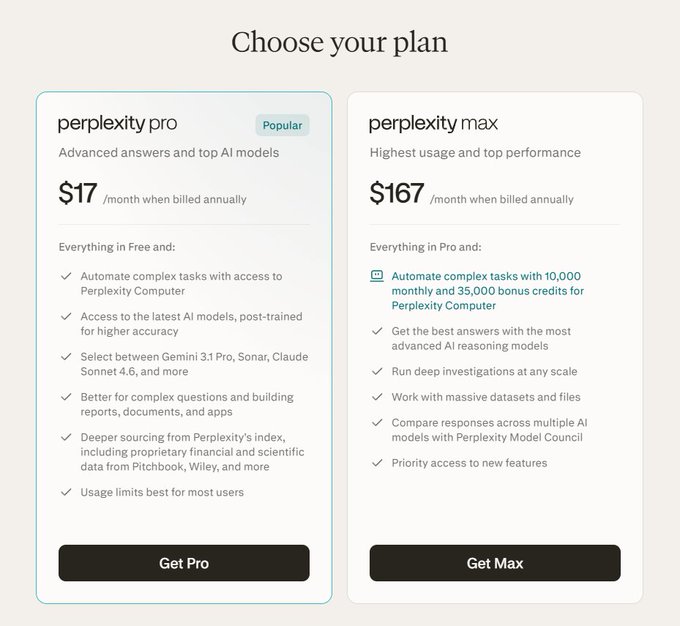
Computer requires Perplexity Pro ($20/month) or Perplexity Max ($200/month) (or $17/mo for Pro, $167/mo for Max when billed annually). Pro will get you started and teach you how to use it. Max is for heavy users or teams.
Start with Pro. You'll get monthly credits. When you understand how it works, you can upgrade if you need more capacity.
Step 2: Access Computer
Once subscribed, you'll see "Computer" in the Perplexity interface. Click it. That's your command center. The interface is simple: a text input field for your task, a view of what Computer is currently working on, and a history of completed tasks.
Step 3: Connect your tools (This is where the power unlocks)
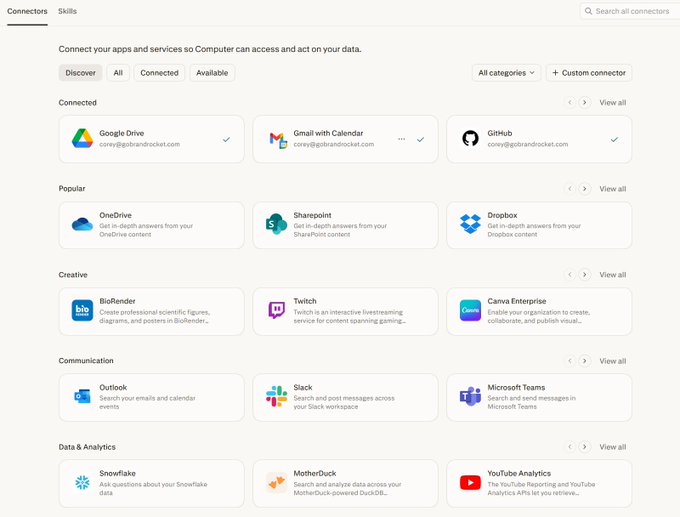
In the Computer panel, go to Connectors. This is where it gets powerful. You'll see 400+ apps available through managed OAuth connections. Each connector takes about 30 seconds to set up. Click Enable, authorize with OAuth, done.
Start with these core connectors:
- Gmail / Google Calendar — Read and send emails, manage your schedule
- Slack — Pull conversation history, send messages, respond to mentions
- Notion — Read and write to your workspace databases
- Google Drive — Access docs, sheets, slides
- GitHub — Manage repos, create issues, review PRs
Pro tip: Connect everything, even tools you don't think you'll need. Computer pulls context from connected tools automatically when working on tasks. More connections = better context = better outputs.
Step 4: Give it your first task
Start simple. Something like:
Watch how Computer breaks the task down, assigns subtasks, and delivers results. That first task teaches you more about how Computer thinks than any documentation will.
Section 3: The Secret Weapon (Multi-Model Orchestration)
This is Perplexity's biggest differentiator and the thing most people don't fully appreciate.
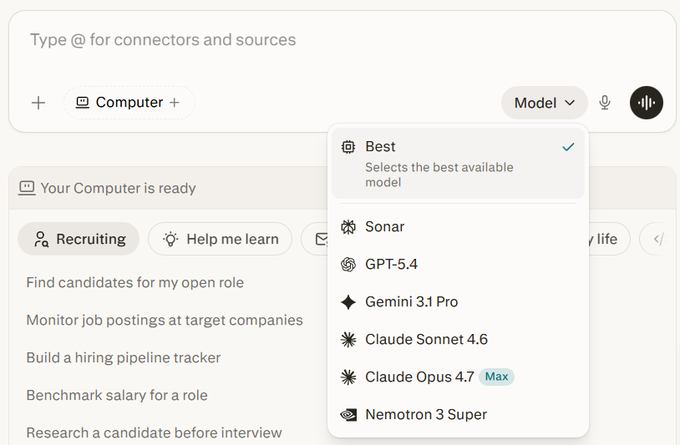
Computer doesn't use one AI model. It uses 19, and it routes each subtask to whichever model is best suited for that specific job:
- Claude Opus 4.7 (Anthropic) — Core reasoning engine. Handles complex decision-making and coordination.
- GPT-5.2 (OpenAI) — Long-context recall and broad web search. Great for synthesizing large amounts of information.
- Gemini (Google) — Deep research tasks. When Computer needs to go deep on a topic, Gemini handles it.
- Grok (xAI) — Lightweight, speed-sensitive operations. Quick tasks that don't need heavy reasoning.
- Nano Banana (Google) — Image generation.
- Veo 3.1 — Video production.
You don't choose which model to use. Computer decides based on the subtask. This is why the outputs are often better than what you'd get from any single model.
Example: A coding task might use Claude for architecture decisions, GPT-5.2 for pulling documentation context, and Grok for quick syntax checks—all in the same workflow.
This is why Computer often produces better results than throwing everything at Claude or GPT. It's not trying to be good at everything. It's routing to specialists.
Section 4: The Connectors
Connectors are what separate Computer from every other AI tool. Without them, it's just a smart chatbot. With them, it's an AI that can actually do things inside your business.
Productivity:
- Gmail, Outlook, Google Calendar, Google Drive, OneDrive, Box
Communication:
- Slack (both the connector for searching Slack data AND the Slack app for running Computer inside Slack)
- Microsoft Teams
Project Management:
- Notion, Asana, Jira, Linear, Confluence
Sales & CRM:
- Salesforce, HubSpot
Developer:
- GitHub, Vercel
Data:
- Snowflake, PostgreSQL
Custom:
- You can add your own via MCP server URLs with OAuth, API key, or open authentication
Pro tip #1: The Slack integration is actually two things. The Connector for Slack lets Computer search your Slack data from inside Perplexity.
The Slack App lets you run Computer directly inside Slack by messaging it. Use both.
Pro tip #2: Connect everything, even tools you don't think you'll need. Computer pulls context from connected tools automatically when working on tasks. More connections = better context = better outputs.
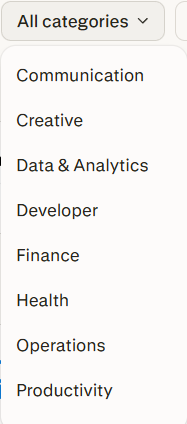
Perplexity connector categories (not shown: Sales & Marketing)
Section 5: The Credit System
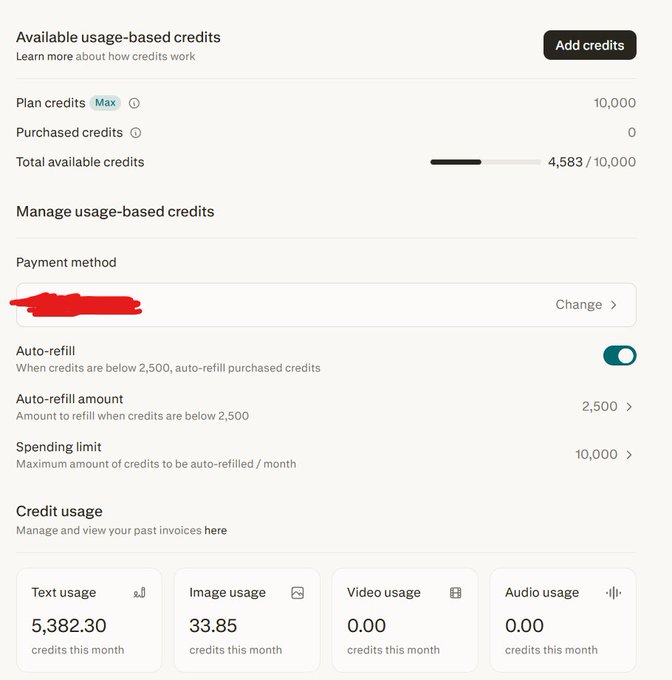
Credits are how Perplexity meters usage. Higher subscription plans give you more credits per month. Credits are consumed per task based on complexity.
Credit ranges:
- Simple tasks (alt text, quick lookups): ~30 credits
- Medium tasks (research reports, email drafts): ~100-500 credits
- Complex tasks (building apps, extended coding): 1,000-5,000+ credits
What happens when you run out: Tasks pause (not cancel). They resume when credits refill at your next billing cycle or when you buy more.
Default settings:
- Auto-refill is OFF (intentional to prevent surprise charges)
- Monthly spending cap is $200 by default (adjustable up to $2,000)
- Maximum possible monthly spend: $400 (subscription + one refill)
- Unused credits expire at the end of each billing cycle
The biggest credit-waster: Vague prompts. "Make this better" triggers broad compute cycles across multiple models. "Rewrite the headline to include a specific benefit and reduce to under 10 words" uses a fraction of the credits for a better result.
My favorite hack: PRD-first workflow. Don't go straight to Computer with a complex build. Draft a PRD (product requirements doc) in Claude first.
Define exactly what you want: features, layout, copy, functionality. Then hand that PRD to Computer. It follows specs precisely, wastes fewer credits, and the output is dramatically better than a vague prompt.
Section 6: Underrated Features Most People Miss
1. Spaces
Spaces are persistent project environments. Create a Space for each major project or client. Upload reference documents, set context, and every task you run inside that Space has access to all of it.
Think of it like giving Computer a project brief that it never forgets. Instead of re-explaining your brand voice, target market, and content guidelines with every task, you set them once in the Space, and Computer remembers.
Example Space setup:
- Space name: "Podcast Production Q2 2026"
- Documents: Brand voice guide, episode template, guest interview questions, clip editing guidelines
- Result: Every task you assign in this Space automatically knows your show format, target audience, and production standards
2. Scheduled Tasks
Computer can run tasks on a schedule. "Every Monday morning, pull my calendar for the week, summarize my key meetings, and draft prep notes for each one."
Set it once. It runs forever. This alone is worth the subscription for anyone with a packed calendar.
3. Subagent Spawning
When Computer hits a complex task, it spawns subagents to parallelize the work. A market research task might spawn one subagent for competitor pricing, another for feature comparison, and a third for customer reviews, all running simultaneously.
This is why complex tasks finish faster than you'd expect. You're not waiting for serial execution. You're getting parallel work from a team of agents.
4. Skill Playbooks
Computer loads from 50+ domain-specific skill playbooks automatically. When you ask it to build a website, it activates the web development playbook. Research task? Research playbook.
It's pre-loaded with best practices for common workflows so you don't have to prompt-engineer everything from scratch.
5. Email Attachments
Recent update: Computer can now attach files to emails it sends on your behalf. If it generates a report and you ask it to email it to someone, the report goes as an attachment.
Small feature, huge time saver.
6. Voice Mode
Summon Computer via a dedicated taskbar shortcut on Mac. Use voice to give commands. "Research competitors in the fitness app space and create a pricing comparison table." Computer listens, understands context (what app you're currently using), and gets to work.
Section 7: What Computer Is Great At (And What to Avoid)
Computer Excels At:
- Research: Market analysis, competitor breakdowns, trend reports. It searches the web in real time and synthesizes across sources.
- Content creation: Reports, presentations, email sequences, landing pages.
- Data analysis: Connect Snowflake or upload CSVs and ask questions about your data.
- App building: Full web applications, dashboards, internal tools. It writes, tests, and deploys.
- Workflow automation: Recurring tasks on a schedule across your connected tools.
- Multi-step projects: Anything that requires coordinating research, writing, analysis, and action across multiple tools.
What to Watch Out For:
- Connector reliability varies. Most work great. Some (like Vercel) have OAuth tokens that expire frequently. GitHub sometimes needs manual token workarounds.
Test your connectors with a simple task before relying on them for something important.
- No live preview for code. When Computer builds something, you can't see it running in real time. You have to push it to external hosting to check. This creates a slow feedback loop for development tasks.
- Credits burn fast on stuck tasks. If Computer hits a dependency error and keeps retrying, it'll burn through credits without telling you why.
Monitor complex builds in real time, especially the first time you try a new type of task.
- Context can't be manually managed. There's no way to branch, clear, or summarize context mid-conversation. Long sessions can drift. Start fresh when switching to a different type of task.
Section 8: Computer vs. Claude Cowork vs. OpenClaw
These three aren't competitors. They're different tools for different use cases:
Perplexity Computer:
- Best for non-technical users who want zero setup, multi-model orchestration, and 400+ connectors out of the box
- $20/month base
- Cloud-based, sandboxed, safe
- No local machine required
- Web/app interface only
Claude Cowork:
- Best for users who want a personal AI workspace with deep customization, skills, and scheduling
- $20-200/month depending on plan
- Desktop app, more hands-on customization
- Great for people who want to build custom integrations
- Requires some technical comfort
OpenClaw:
- Best for technical users who want full control and unlimited customization
- Free but requires a dedicated machine, terminal access, and API key configuration
- Most powerful but highest friction to set up
- Can run 24/7 as a true autonomous system
- Self-hosted, completely private
All three can get the job done. Your choice depends on your technical comfort level and how much setup you're willing to do.
My take: Start with Computer. If you find yourself wanting more customization or local control, migrate to Cowork or OpenClaw. But for most people, Computer is the best risk-adjusted entry point.
Section 9: Real Setup Walkthrough (Step-by-Step)
Time to complete: 15 minutes
1. Subscribe to Perplexity Pro ($20/month)
- Go to perplexity.ai/subscribe
- Choose Pro
- Add payment method
- Confirm
2. Access Computer
- Log into your Perplexity account
- Look for "Computer" in the main navigation
- Click it
3. Connect Gmail
- Go to Connectors
- Find Gmail
- Click Enable
- Click "Authorize with Google"
- Grant permission
- Done
4. Connect Slack (repeat same process as Gmail)
5. Connect Notion (repeat same process)
6. Give it a test task
- In the task input box, type: "What are the top 3 competitors to [your business] and what are their main pricing plans?"
- Press submit
- Watch it work
That's it. You now have an AI employee.
Section 10: The Bottom Line
Perplexity Computer is the easiest way to get an AI employee running in your business today. No code. No terminal. No configuration files.
Connect your tools. Describe what you need. Let it work.
The credit system means you need to be intentional with your prompts. Vague asks waste money. Specific, well-scoped tasks get the best results.
Start with one recurring workflow. Something you do every week that takes 2-3 hours. Automate it with Computer. Once you see the time savings, you'll find ten more things to hand off.
Action Items
This week:
1. Subscribe to Perplexity Pro
2. Connect 3-5 tools (Gmail, Slack, Notion minimum)
3. Run 3 test tasks (simple → medium → complex)
4. Identify one recurring workflow to automate
Next week:
1. Set up that recurring workflow on a schedule
2. Monitor it for 2-3 runs
3. Adjust based on what you learn
4. Identify the next workflow to automate
The result: 5-10 hours per week back in your calendar. That's a part-time employee's worth of work. And you're only spending $20/month for it.
Get started: https://www.perplexity.ai/subscribe
-----
I hope you found this free course valuable.
Be sure to follow me @CoreyGanim as I post AI tips/tricks/guides every single day.
If you like this type of content then subscribe to my free newsletter where I post deep dive AI content every single week.
## 相关链接
- [Corey Ganim](https://x.com/coreyganim)
- [@coreyganim](https://x.com/coreyganim)
- [2.1K](https://x.com/coreyganim/status/2046229817977192594/analytics)
- [perplexity.ai/subscribe](https://perplexity.ai/subscribe)
- [https://www.perplexity.ai/subscribe](https://www.perplexity.ai/subscribe)
- [@CoreyGanim](https://x.com/@CoreyGanim)
- [Upgrade to Premium](https://x.com/i/premium_sign_up)
- [10:09 PM · Apr 20, 2026](https://x.com/coreyganim/status/2046229817977192594)
- [2,173 Views](https://x.com/coreyganim/status/2046229817977192594/analytics)
- [View quotes](https://x.com/coreyganim/status/2046229817977192594/quotes)
---
*导出时间: 2026/4/20 23:18:28*
---
## 中文翻译
# Perplexity Computer 新手大师课(完整课程)
**作者**:Corey Ganim
**日期**:2026-04-20T14:09:40.000Z
**来源**:[https://x.com/coreyganim/status/2046229817977192594](https://x.com/coreyganim/status/2046229817977192594)
---

Perplexity Computer 在短短几个月内取代了 2 名全职虚拟助理(每月节省超过 3,000 美元的人力成本)。
我用它来自动化处理真实工作、连接我的工具、生成报告、做研究,以及做更多的事情。
对我(对你也一样)最大的解锁,就是学会从一开始就正确设置 Computer,并准确了解它的能力范围。
这是一门关于 Perplexity Computer 你需要了解的一切的完整课程,讲解清晰明了,让每一位不懂技术的普通人都能获得最大价值。
目录
什么是 Computer(以及为什么它很重要)
如何进行设置
多模型编排(秘密武器)
连接器
积分系统
大多数人忽略的隐藏功能
Computer 擅长什么(以及应避免什么)
Computer vs. Claude Cowork vs. OpenClaw
真实设置演示(一步步来)
总结 + 行动清单
第 1 节:Perplexity Computer 到底是什么(以及为什么它很重要)
Computer 是一个生活在你的 Perplexity 账户里的数字工作者。你描述你想完成的事情。它会将其拆分为子任务,自动把每个子任务分配给最适合该工作的 AI 模型,然后自主工作直到完成。
这不是聊天机器人。这是智能体(Agent)。区别是巨大的:
聊天机器人等待你输入。它们一次只回答一个问题。它们不会跨会话记住上下文。它们无法连接你的工具。
智能体接收一个目标,规划达成目标所需的步骤,跨多个工具和系统执行这些步骤,并在完成时汇报。它们记住你告诉它们的一切。它们在你睡觉时工作。
Computer 运行在一个预装了工具的隔离云端沙箱中。任何东西都不会触碰你的本地机器。如果出了问题,故障也会被限制在沙箱内。你不会让企业面临风险。
## 第一周的真实使用案例:
- 市场调研:调研你所在行业的 5 个竞争对手,创建包含定价/功能/目标受众的对比表,并以 Google 表格的形式交付
- 内容创作:分析你表现最好的 10 条推文,提取其中规律,并用你独特的语气生成 20 条新推文创意
- 数据分析:连接你的 Snowflake 数据库,对 Q1 业绩进行分析,并将报告通过邮件发送给你的团队
- 应用开发:根据 PRD(产品需求文档)构建一个完整的 Web 应用,进行测试,并部署到生产环境
- 工作流自动化:每周一早上,自动拉取你的日历,总结你的重要会议,并为每个会议起草准备笔记
光最后一条就值回订阅费了。设置一次,永久运行。
第 2 节:如何设置(首次使用)
第 1 步:选择合适的订阅方案
Computer 需要 Perplexity Pro(20 美元/月)或 Perplexity Max(200 美元/月)(按年付费则分别为 Pro 每月 17 美元、Max 每月 167 美元)。Pro 足够你入门并学习如何使用它。Max 适合重度用户或团队。
从 Pro 开始。你会获得每月积分。等你了解它的工作方式后,如果需要更多容量,再升级也不迟。

第 2 步:访问 Computer
订阅后,你会在 Perplexity 界面中看到"Computer"。点击它。那就是你的指挥中心。界面很简单:一个用于输入任务的文本框、一个显示 Computer 当前正在处理内容的视图,以及已完成任务的历史记录。
第 3 步:连接你的工具(这里是能力解锁的关键)
在 Computer 面板中,进入 Connectors(连接器)。这里才是真正强大的地方。你会看到通过托管 OAuth 连接提供的 400 多个应用。每个连接器大约 30 秒即可设置完成。点击启用,通过 OAuth 授权,完成。
从这些核心连接器开始:
- Gmail / Google 日历 — 读取和发送邮件,管理你的日程
- Slack — 拉取对话历史,发送消息,回复提及
- Notion — 读取和写入你的工作区数据库
- Google Drive — 访问文档、表格、幻灯片
- GitHub — 管理仓库,创建 issue,审查 PR
专业提示:把所有工具都连上,即使是你觉得用不到的工具。Computer 在处理任务时会自动从已连接的工具中获取上下文。更多连接 = 更好的上下文 = 更好的输出。

第 4 步:给它第一个任务
从简单的开始。比如:
观察 Computer 如何分解任务、分配子任务并交付结果。这第一个任务会让你比任何文档都更了解 Computer 的思考方式。
第 3 节:秘密武器(多模型编排)
这是 Perplexity 最大的差异化优势,也是大多数人没有充分认识到的一点。
Computer 并不只使用一个 AI 模型。它使用 19 个模型,并将每个子任务路由到最适合该特定工作的模型:
- Claude Opus 4.7(Anthropic)— 核心推理引擎。负责复杂的决策制定和协调。
- GPT-5.2(OpenAI)— 长上下文回忆和广泛的网络搜索。非常适合综合大量信息。
- Gemini(Google)— 深度研究任务。当 Computer 需要深入探讨某个主题时,由 Gemini 处理。
- Grok(xAI)— 轻量级、对速度敏感的操作。不需要复杂推理的快速任务。
- Nano Banana(Google)— 图像生成。
- Veo 3.1 — 视频制作。
你不需要选择使用哪个模型。Computer 会根据子任务来决定。这就是为什么输出效果往往优于任何单一模型。
举例:一个编程任务可能会用 Claude 做架构决策,用 GPT-5.2 拉取文档上下文,用 Grok 做快速语法检查——全部在同一个工作流中完成。

这就是为什么 Computer 往往比把所有事情都丢给 Claude 或 GPT 效果更好。它并不试图在所有事情上都表现出色,而是将任务路由给专家。
第 4 节:连接器
连接器是 Computer 与其他所有 AI 工具的区别所在。没有它们,它只是一个聪明的聊天机器人;有了它们,它就是一个能在你的业务中真正做事的 AI。
生产力:
- Gmail、Outlook、Google 日历、Google 云端硬盘、OneDrive、Box
沟通:
- Slack(既包括用于搜索 Slack 数据的连接器,也包括在 Slack 内运行 Computer 的 Slack 应用)
- Microsoft Teams
项目管理:
- Notion、Asana、Jira、Linear、Confluence
销售与 CRM:
- Salesforce、HubSpot
开发者:
- GitHub、Vercel
数据:
- Snowflake、PostgreSQL
自定义:
- 你可以通过 MCP 服务器 URL 添加自己的连接器,支持 OAuth、API 密钥或开放认证
专业提示 #1:Slack 集成实际上是两个东西。Slack 连接器让 Computer 可以在 Perplexity 内部搜索你的 Slack 数据。
Slack 应用则让你通过发送消息直接在 Slack 内运行 Computer。两者都用上。
专业提示 #2:把所有工具都连接上,即使是你觉得用不上的。Computer 在执行任务时会自动从已连接的工具中提取上下文。连接越多 = 上下文越好 = 输出越好。

Perplexity 连接器分类(未显示:销售与市场营销)
第 5 节:积分系统
积分是 Perplexity 计量使用量的方式。更高的订阅计划每月提供更多积分。积分根据任务复杂度按任务消耗。
积分范围:
- 简单任务(替代文本、快速查询):约 30 积分
- 中等任务(研究报告、邮件草稿):约 100-500 积分
- 复杂任务(构建应用、长时编码):1,000-5,000+ 积分
积分用完时会怎样:任务会暂停(而非取消)。在下一个计费周期积分恢复或你购买更多积分后,任务会继续执行。
默认设置:
- 自动充值默认为关闭(有意为之,以防止意外扣费)
- 每月消费上限默认为 200 美元(最高可调至 2,000 美元)
- 每月最大可能支出:400 美元(订阅费 + 一次充值)
- 未使用的积分在每个计费周期结束时过期
最大的积分浪费源:模糊的提示词。“把这个做得更好” 会触发多个模型的大范围计算周期。“重写标题,包含一个具体的收益点,并压缩到 10 个词以内” 只需一小部分积分,效果还更好。
我最喜欢的技巧:PRD 优先工作流。不要直接带着复杂的构建需求去找 Computer。先用 Claude 起草一份 PRD(产品需求文档)。
明确定义你想要的东西:功能、布局、文案、功能特性。然后把这份 PRD 交给 Computer。它会精确遵循规格说明,浪费更少的积分,输出效果也远胜于模糊的提示词。

第 6 节:大多数人忽略的实用功能
1. 空间
空间是持久的项目环境。为每个重要项目或客户创建一个空间。上传参考文档、设置上下文,你在这个空间中运行的每个任务都能访问所有这些内容。
把它想象成给 Computer 一份它永远不会忘记的项目简报。你不必在每次任务中都重新解释你的品牌调性、目标市场和内容准则,只需在空间中设置一次,Computer 就会记住。
示例空间设置:
- 空间名称:“2026 年第二季度播客制作”
- 文档:品牌调性指南、单集模板、嘉宾访谈问题、片段剪辑指南
- 结果:你在这个空间中分配的每个任务都会自动了解你的节目形式、目标受众和制作标准
2. 定时任务
Computer 可以按计划运行任务。“每周一早上,拉取我这周的日历,总结我的重要会议,并为每个会议起草准备笔记。”
设置一次,永久运行。仅此一项对日程繁忙的人来说就值回订阅费。
3. 子代理生成
当 Computer 遇到复杂任务时,它会生成子代理来并行处理工作。一个市场研究任务可能会生成一个子代理负责竞争对手定价,另一个负责功能对比,第三个负责客户评价,全部同时运行。
这就是为什么复杂任务完成得比你预期的更快。你等待的不是串行执行,而是一个代理团队在并行工作。
4. 技能手册
Computer 会自动加载 50 多个领域专属的技能手册。当你让它构建网站时,它会激活网页开发手册。研究任务?研究手册。
它预先内置了常见工作流的最佳实践,让你不必为每件事都从头设计提示词。
5. 邮件附件
近期更新:Computer 现在可以在代表你发送的邮件中附加文件。如果它生成了一份报告,你让它通过邮件发给某人,报告会作为附件发送。
小功能,省时利器。
6. 语音模式
在 Mac 上通过专属的任务栏快捷方式召唤 Computer。用语音下达指令。“研究健身应用领域的竞争对手,并创建一个定价对比表。” Computer 会倾听、理解上下文(包括你当前使用的应用),然后开始工作。
第 7 节:Computer 擅长什么(以及应避免什么)
Computer 擅长:
- 研究:市场分析、竞争对手拆解、趋势报告。它实时搜索网络并跨来源综合信息。
- 内容创作:报告、演示文稿、邮件序列、落地页。
- 数据分析:连接 Snowflake 或上传 CSV,然后针对你的数据提问。
- 应用构建:完整的网页应用、仪表板、内部工具。它负责编写、测试和部署。
- 工作流自动化:跨已连接工具按计划执行的周期性任务。
- 多步骤项目:任何需要在多个工具之间协调研究、写作、分析和行动的任务。
需要注意的地方:
- 连接器的可靠性参差不齐。大多数运行良好。有些(如 Vercel)的 OAuth 令牌经常过期。GitHub 有时需要手动使用令牌变通方法。
在依赖连接器完成重要任务之前,先用一个简单的任务测试一下。
- 代码没有实时预览。当 Computer 构建某个东西时,你无法实时看到它运行。你必须把它推送到外部托管平台才能检查。这为开发任务造成了缓慢的反馈循环。
- 卡住的任务会快速消耗积分。如果 Computer 遇到依赖错误并不断重试,它会在不告诉你原因的情况下消耗掉积分。
实时监控复杂的构建过程,尤其是在你第一次尝试新类型任务时。
- 无法手动管理上下文。没有办法在对话中途分支、清除或总结上下文。长时间会话可能会跑偏。切换到不同类型的任务时,请重新开始。
第 8 节:Computer vs. Claude Cowork vs. OpenClaw
这三者并非竞争对手。它们是针对不同使用场景的不同工具:
Perplexity Computer:
- 最适合想要零配置、多模型编排以及开箱即用 400+ 连接器的非技术用户
- 基础价 $20/月
- 基于云端,沙箱隔离,安全
- 无需本地机器
- 仅限网页/应用界面
Claude Cowork:
- 最适合想要一个具备深度定制、技能和调度功能的个人 AI 工作区的用户
- $20-200/月,视方案而定
- 桌面应用,更多动手定制
- 适合想要构建自定义集成的人
- 需要一定的技术基础
OpenClaw:
- 最适合想要完全控制和无限自定义的技术用户
- 免费,但需要专用机器、终端访问权限以及 API 密钥配置
- 最强大,但设置门槛最高
- 可以作为真正的自主系统 24/7 运行
- 自托管,完全私密
三者都能完成工作。你的选择取决于你的技术水平以及愿意投入多少配置工作。
我的看法:从 Computer 开始。如果你发现自己想要更多自定义或本地控制,再迁移到 Cowork 或 OpenClaw。但对大多数人来说,Computer 是风险调整后最佳的入门选择。
第 9 节:实际设置演练(分步指南)
完成时间:15 分钟
1. 订阅 Perplexity Pro($20/月)
- 前往 perplexity.ai/subscribe
- 选择 Pro
- 添加支付方式
- 确认
2. 访问 Computer
- 登录你的 Perplexity 账户
- 在主导航中找到 "Computer"
- 点击它
3. 连接 Gmail
- 前往 Connectors
- 找到 Gmail
- 点击 Enable
- 点击 "Authorize with Google"
- 授予权限
- 完成
4. 连接 Slack(重复与 Gmail 相同的流程)
5. 连接 Notion(重复相同的流程)
6. 给它一个测试任务
- 在任务输入框中输入:"[你的业务] 的前三大竞争对手是什么?它们的主要定价方案是什么?"
- 点击提交
- 观察它工作
就这样。你现在拥有了一名 AI 员工。
第 10 节:结论
Perplexity Computer 是当今让你的企业运行一名 AI 员工的最简单方式。无需代码。无需终端。无需配置文件。
连接你的工具。描述你的需求。让它工作。
积分系统意味着你需要对自己的提示词有明确的意图。模糊的请求浪费金钱。具体、范围明确的任务才能获得最佳结果。
从一个重复性工作流开始。某件你每周都要做、需要 2-3 小时的事情。用 Computer 将其自动化。一旦你看到节省的时间,你就会找到另外十件可以移交的事情。
行动清单
本周:
1. 订阅 Perplexity Pro
2. 连接 3-5 个工具(至少包括 Gmail、Slack、Notion)
3. 运行 3 个测试任务(简单 → 中等 → 复杂)
4. 确定一个要自动化的重复性工作流
下周:
1. 为该重复性工作流设置定时任务
2. 监控它运行 2-3 次
3. 根据你学到的东西进行调整
4. 确定下一个要自动化的工作流
结果:每周从你的日程中找回 5-10 小时。这相当于一名兼职员工的工作量。而你每月只需为此花费 $20。
立即开始:https://www.perplexity.ai/subscribe
-----
希望你觉得这个免费课程有价值。
请务必关注我 @CoreyGanim,我每天都会发布 AI 技巧/窍门/指南。
如果你喜欢这类内容,请订阅我的免费通讯,我每周都会在上面发布深入探讨的 AI 内容。
## 相关链接
- [Corey Ganim](https://x.com/coreyganim)
- [@coreyganim](https://x.com/coreyganim)
- [2.1K](https://x.com/coreyganim/status/2046229817977192594/analytics)
- [perplexity.ai/subscribe](https://perplexity.ai/subscribe)
- [https://www.perplexity.ai/subscribe](https://www.perplexity.ai/subscribe)
- [@CoreyGanim](https://x.com/@CoreyGanim)
- [升级到 Premium](https://x.com/i/premium_sign_up)
- [2026年4月20日 晚上10:09](https://x.com/coreyganim/status/2046229817977192594)
- [2,173 次浏览](https://x.com/coreyganim/status/2046229817977192594/analytics)
- [查看引用](https://x.com/coreyganim/status/2046229817977192594/quotes)
---
*导出时间: 2026/4/20 23:18:28*