# WebMCP Clearly Explained
**作者**: Akshay
**日期**: 2026-08-28T21:35:20.000Z
**来源**: [https://x.com/akshay_pachaar/status/2093452397402317239](https://x.com/akshay_pachaar/status/2093452397402317239)
---
Google and Microsoft rarely agree. But now they are building the same thing to fix web access for agents, and it could be the biggest change to the web in years.
Ask an agent to buy something for you and watch what it actually does.
It takes a screenshot of the page. It looks for something that resembles a button. It clicks, waits, and screenshots again. It is reading your screen the way you would, except it is slower at it and you pay tokens every time it looks.
That works often enough to demo. It breaks the moment a site ships a redesign.
Here is what makes this stranger than it first appears. The website already knows exactly what it can do. It has a search, a cart, a checkout, a booking flow. None of that is written down anywhere a program can read it. All of it is buried inside a layout built for humans.
So the problem is not that agents are bad at reading pages. It is that pages were never written for anything except humans.
Check this example:
<video controls preload="metadata" poster="/doc/5445/image/img_ad1d79b6be37.jpg" src="/videos/0315.mp4"></video>
WebMCP is a browser API from the Chrome and Edge teams that lets a site write those actions down. Search, add to cart, book a slot, each one gets a name, a description written for a model to read, and a list of the inputs it accepts.
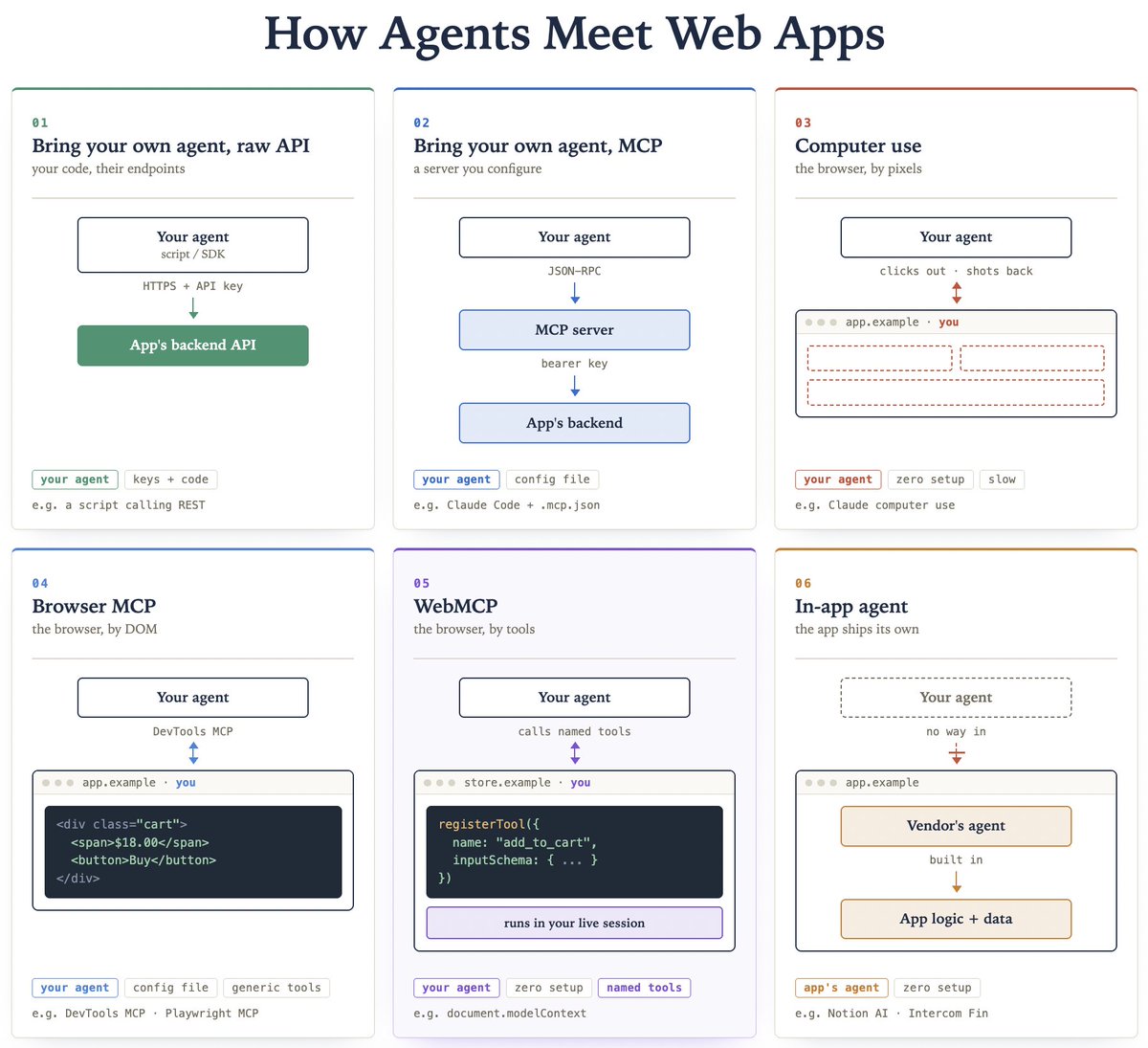
WebMCP is one of six ways an agent can reach an app. Lay all six side by side, walk through them one at a time, and it becomes clear why this one is the better bet.
Let's do it!
# Six ways an agent can reach an app
Line them up from furthest away to closest to the interface.
1. Call the raw API. Your script hits the company's backend directly with an API key. Precise and fast. You had to find the endpoints yourself, you manage the key, and the website is never involved.
2. Connect to a backend MCP server. The company builds a server that describes its actions as named tools, and your agent connects to it. Better, because someone who understands the product defined those tools. The user interface is still skipped entirely.
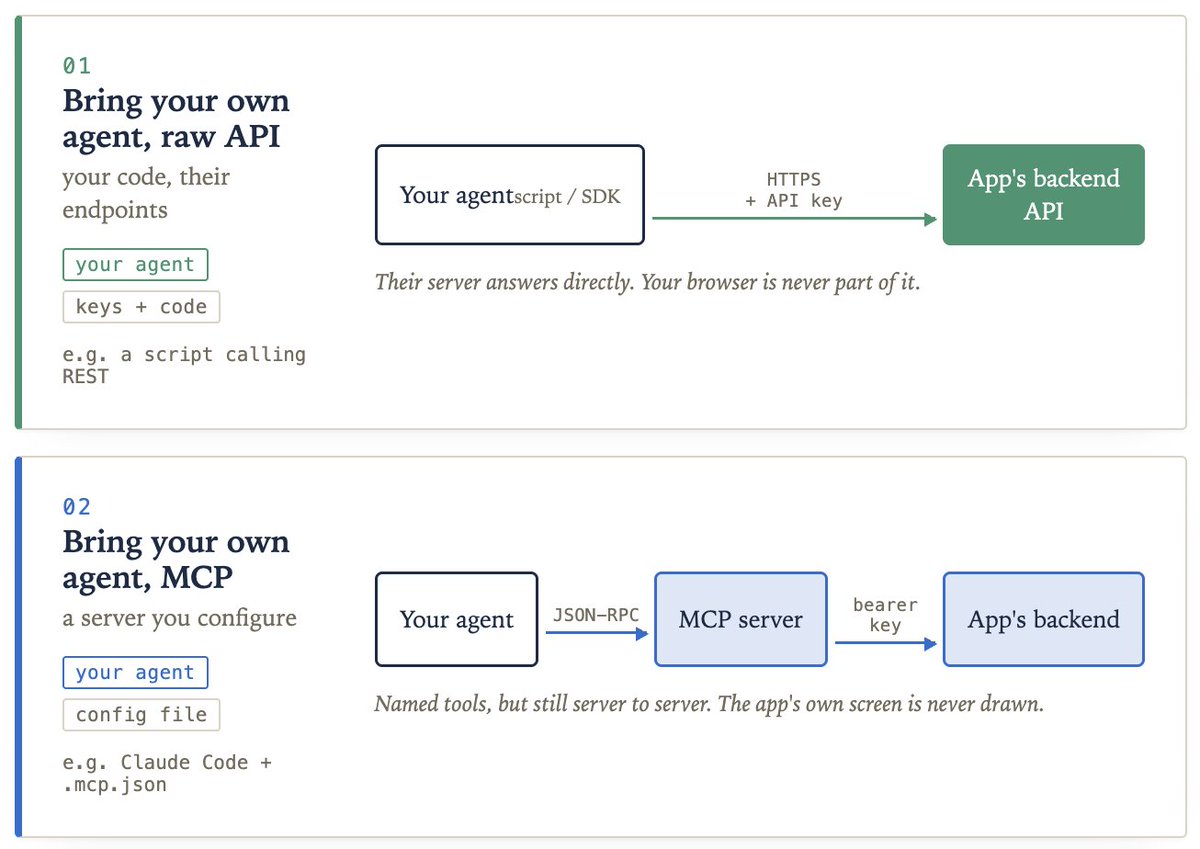
3. Let the agent use the computer. Your agent sees the live page as an image and clicks around. Nothing to set up. It is slow, every look costs money, and a layout change confuses it.
4. Point a browser automation tool at it. Your agent reads the page's underlying code instead of a picture of it. More reliable than pixels. The tools are still generic, so the agent is left inferring meaning from anonymous divs and buttons.
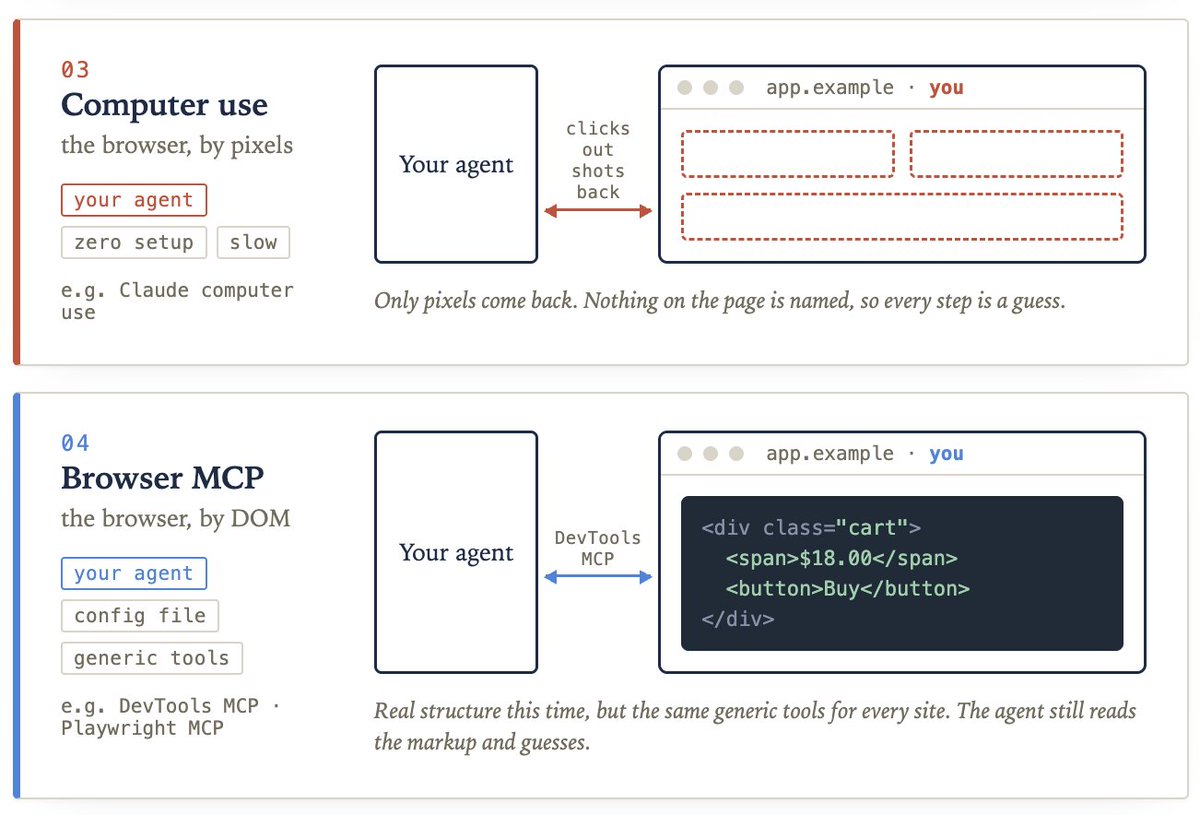
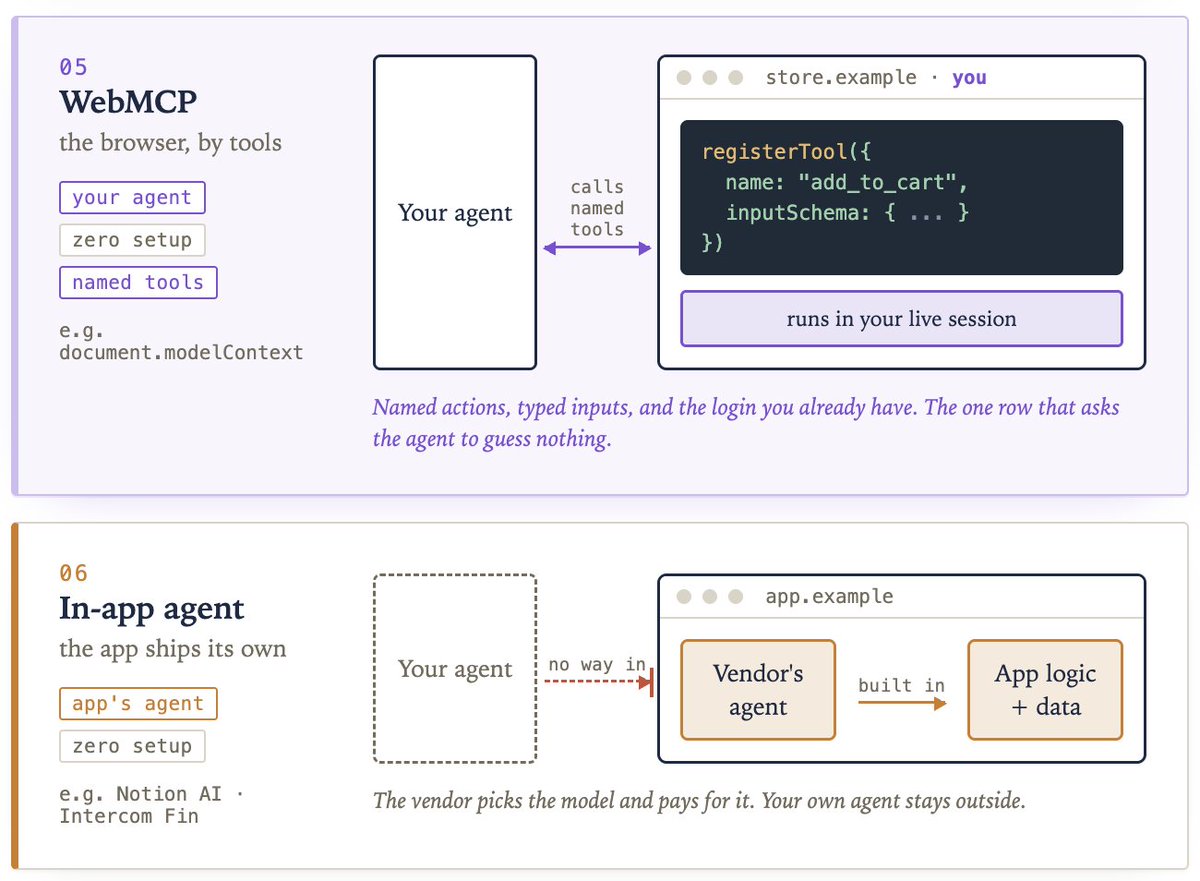
5. WebMCP. The page declares its own actions with names, descriptions, and typed inputs. Your agent calls them.
6. Use the site's built-in assistant. The company ships its own chat box. It picks the model, pays for the tokens, and your agent stays outside. Basically this doesn't let you bring your own agents to interact with the website.
# What lining them up actually shows
Once all six sit side by side, the pattern is easy to see. Three things vary across them.
Whose agent does the work. What the user has to configure before anything happens. And what the agent actually receives when it arrives.
Every one of those options gives up at least one of the three.
- The raw API and the backend MCP server give you clean typed actions, but you configure them and the website disappears from the picture.
- Computer use needs no setup, but hands the agent pixels and asks it to work everything out.
- Browser automation gives structure, but the same generic structure for every site on the internet.
- The built-in assistant is free and precise, and it is not your agent, so nothing it learns about you carries anywhere else.
WebMCP is the only one that keeps all three. Your own agent, nothing to configure, and real named actions instead of guesswork.
# Why declaring beats guessing
The change is small to describe and large in effect. Instead of the agent working out what a button does, the site says what it does.
A few things follow from that.
- The guessing stops. The agent gets a list of actions with typed inputs. There is no interpretation step where a wrong click quietly does the wrong thing.
- Login comes for free. The action runs inside your browser tab, in your session. No API key for the agent to hold, no separate login, no token to pass around. You are already signed in, so it already has access.
- The available actions change with the page. This is the part people miss. A logged out visitor's agent sees a handful of read-only actions like search and product lookup. After signing in, the site adds the rest, like order history, cart, and checkout. Nothing special happens on the agent's side. It just reads the list again.
- Your interface stays. The action runs on your visible page, so the user watches it happen and your product does not get reduced to an API somebody else's chat window is calling.
- Any model can use it. Inputs are described with JSON Schema, the same format Claude, GPT, and Gemini already use for tool calling. You describe your actions once.
# What it looks like in code
A tool is a plain JavaScript object handed to the browser. The code goes in your page's own front-end script, the same JavaScript that already runs when someone loads the site. You register each tool once, when the page loads, and from then on any agent visiting that page can see it and call it.
```
document.modelContext.registerTool({
name: "add_to_cart",
description: "Add a product to the shopping cart",
inputSchema: {
type: "object",
properties: {
productId: { type: "string" },
quantity: { type: "number" }
},
required: ["productId"]
},
async execute({ productId, quantity }) {
await addToCart(productId, quantity);
return `Added ${quantity} to the cart`;
}
});
```
Four parts, and only one of them is new work.
The name is what the agent calls. The description is written in plain English, because a language model reads it to decide whether this is the right action. The schema says which inputs are valid, so bad arguments never reach your code.
The last part is the function that runs. Notice it just calls addToCart, which is the same function already sitting behind your own button. You are not building a second version of your product for agents. You are pointing at the one you have.
If the thing you want to expose is already a form, you write no JavaScript at all. You add two attributes to the form markup you already have in your HTML.
```
<form toolname="search_flights"
tooldescription="Search available flights between two cities">
<input name="from">
<input name="to">
<button type="submit">Search</button>
</form>
```
Two attributes. The browser reads the form, works out that it takes a from and a to, and builds the schema itself.
That is the whole idea. The web spent thirty years describing itself to people through layout, and it has no equivalent for programs. WebMCP is one attempt at that missing description, written by the site that already knows the answer.
# Where this leaves you
For most of the web's history the only visitor worth designing for was a person. That is starting to change, and the site that tells an agent what it can do will get cleaner, more reliable results than the site that makes the agent guess from pixels.
It is still early. One browser family has shipped it, the standard is not final, and only the browser's own agent calls these tools today. But the cost of trying is close to nothing. If you own a site, the cheapest place to start is a form you already have. Add the two attributes, open it in a browser that supports the trial, and watch an agent use it.
[Read the official docs here →](https://developer.chrome.com/docs/ai/webmcp)
The illustration below is a summary of how agents access web apps today.
That's all for today.
Thanks for reading!
Cheers! :)
## 相关链接
- [Akshay](https://x.com/akshay_pachaar)
- [@akshay_pachaar](https://x.com/akshay_pachaar)
- [4.5K](https://x.com/akshay_pachaar/status/2093452397402317239/analytics)
- [Read the official docs here →](https://developer.chrome.com/docs/ai/webmcp)
- [Upgrade to Premium](https://x.com/i/premium_sign_up)
- [5:35 AM · Aug 29, 2026](https://x.com/akshay_pachaar/status/2093452397402317239)
- [4,530 Views](https://x.com/akshay_pachaar/status/2093452397402317239/analytics)
---
*导出时间: 2026/8/29 09:00:50*
---
## 中文翻译
# WebMCP 详解
**作者**: Akshay
**日期**: 2026-08-28T21:35:20.000Z
**来源**: [https://x.com/akshay_pachaar/status/2093452397402317239](https://x.com/akshay_pachaar/status/2093452397402317239)
---

Google 和 Microsoft 很少意见一致。但现在他们正在构建同一种东西,以解决智能体访问网页的问题,而这可能是近年来网页领域最大的变革。
让一个智能体帮你买东西,然后看看它实际在做什么。
它会对页面截图,寻找看起来像按钮的东西,点击、等待、再截图。它用你读屏幕的方式在读屏幕,只不过它更慢,而且每看一次你都要付 token 费。
这招在演示里勉强够用。但网站一改版,它就崩了。
更奇怪的是下面这一点。网站其实非常清楚自己能做什么。它有搜索、购物车、结账、预订流程。这些功能没有任何一处是程序能读到的书面描述。全都被埋在为人类设计的布局里。
所以问题不在于智能体不擅长读页面,而在于页面从来就只是为人类而写的。
看看这个例子:
<video controls preload="metadata" poster="/doc/5445/image/img_ad1d79b6be37.jpg" src="/videos/0315.mp4"></video>
WebMCP 是来自 Chrome 和 Edge 团队的一个浏览器 API,它让网站把这些操作写下来。搜索、加入购物车、预订时段——每一个操作都会有一个名称、一段写给模型看的描述,以及它接受的输入列表。
智能体访问应用共有六种方式,WebMCP 是其中之一。把六种方式并排放在一起,逐一分析,你就会明白为什么这是更好的选择。
开始吧!
# 智能体访问应用的六种方式
按从离界面最远到最近的顺序排列。
1. 直接调用原始 API。你的脚本用 API 密钥直接访问公司的后端。精确且快速。但你得自己找接口、自己管理密钥,而且网站本身完全不参与。
2. 连接后端 MCP 服务器。公司搭建一个服务器,把自己的操作描述为命名工具,你的智能体连接上去。这更好,因为定义这些工具的是理解产品的人。但用户界面仍然被完全跳过。

3. 让智能体操作电脑。你的智能体把实时页面看作一张图片,然后到处点击。无需任何配置。但它很慢,每看一次都要花钱,而且布局一变它就懵了。
4. 用浏览器自动化工具操作。你的智能体读的是页面的底层代码而不是截图。比像素更可靠。但这些工具仍是通用的,智能体只能从未具名的 div 和按钮中去猜测含义。

5. WebMCP。页面自己声明它的操作,包括名称、描述和类型化的输入。你的智能体直接调用它们。
6. 使用网站自带的助手。公司发布自己的聊天框。它选择模型、支付 token 费用,而你的智能体被排除在外。基本上这不允许你带上自己的智能体去与网站交互。

# 并排比较到底揭示了什么
当六种方式并排放在一起时,规律就显而易见了。有三件事在各方案之间各不相同。
谁来执行工作——是哪个智能体。用户在使用前需要配置什么。以及智能体到达后实际接收到什么。
以上每一种方案都至少放弃了三者之一。
- 原始 API 和后端 MCP 服务器给你干净的类型化操作,但你需要配置它们,而且网站从画面中消失了。
- 操作电脑无需配置,但把像素交给智能体,让它自己琢磨一切。
- 浏览器自动化提供了结构,但对互联网上的每个网站都是同一套通用结构。
- 自带助手免费且精确,但它不是你的智能体,它了解到的关于你的任何信息都无法带到别处。
WebMCP 是唯一三者兼得的方案。你自己的智能体、无需配置,以及真实的命名操作而非猜测。
# 为什么声明优于猜测
这个变化说起来很小,效果却很大。智能体不用再琢磨按钮是干什么的,而是由网站直接说明它是干什么的。
由此带来几件事。
- 猜测停止了。智能体拿到的是一个带有类型化输入的操作列表。不再存在一个解释环节,错误点击悄悄造成错误操作。
- 登录免费搞定。操作在你的浏览器标签页里、在你的会话中运行。智能体不需要持有 API 密钥,不需要单独登录,不需要传递令牌。你已经登录了,所以它已经有权限了。
- 可用操作随页面变化。这是人们容易忽略的一点。未登录访客的智能体只会看到少量只读操作,如搜索和商品查询。登录后,网站会添加其余的操作,如订单历史、购物车和结账。智能体那边不需要任何特殊处理,只需重新读取列表即可。
- 你的界面得以保留。操作在你可见的页面上运行,用户能亲眼看到它发生,你的产品也不会沦为被别人聊天窗口调用的一个 API。
- 任何模型都能使用它。输入用 JSON Schema 描述,这正是 Claude、GPT 和 Gemini 已经在工具调用中使用的格式。你只需描述一次你的操作。
# 代码里长什么样
一个工具就是一个交给浏览器的普通 JavaScript 对象。代码放在你页面自己的前端脚本里,也就是有人加载网站时本来就在运行的 JavaScript。你在页面加载时注册一次工具,之后任何访问该页面的智能体都能看到并调用它。
```
document.modelContext.registerTool({
name: "add_to_cart",
description: "Add a product to the shopping cart",
inputSchema: {
type: "object",
properties: {
productId: { type: "string" },
quantity: { type: "number" }
},
required: ["productId"]
},
async execute({ productId, quantity }) {
await addToCart(productId, quantity);
return `Added ${quantity} to the cart`;
}
});
```
四个部分,只有一个是新增工作。
名称是智能体调用的标识。描述用平实的英语写成,因为语言模型要读它来判断这是不是正确的操作。Schema 说明哪些输入是合法的,所以错误的参数永远到不了你的代码。
最后一部分是实际执行的函数。注意它只是调用了 addToCart——这正是已经存在于你自己的按钮背后的那个函数。你不是在为智能体构建产品的第二个版本,而是指向你已有的那个版本。
如果你想暴露的功能已经是一个表单,那你连 JavaScript 都不用写。只需在你 HTML 中已有的表单标记上加两个属性。
```
<form toolname="search_flights"
tooldescription="Search available flights between two cities">
<input name="from">
<input name="to">
<button type="submit">Search</button>
</form>
```
两个属性。浏览器读取表单,推断出它接受一个 from 和一个 to,然后自己构建 schema。
这就是全部的理念。三十年来,网页一直通过布局向人类描述自己,却从未有过面向程序的等价物。WebMCP 就是填补这个缺失描述的一次尝试,而它是由已经知道答案的那个网站亲自写下的。
# 这对你意味着什么
在网页历史的大部分时间里,唯一值得为之设计的访客是人。这一点正在改变。向智能体说明自己能做什么的网站,会比让智能体从像素中瞎猜的网站获得更干净、更可靠的结果。
现在还很早。只有一家浏览器家族已经发布该功能,标准尚未定稿,而且目前只有浏览器自带的智能体能调用这些工具。但尝试的成本几乎为零。如果你拥有一个网站,最便宜的起步方式就是从一个已有的表单开始。加上那两个属性,在一个支持该试用的浏览器里打开,然后看着一个智能体使用它。
[官方文档请看这里 →](https://developer.chrome.com/docs/ai/webmcp)
下图总结了当今智能体访问 Web 应用的各种方式。

今天的内容就到这里。
感谢阅读!
祝好!:)
## 相关链接
- [Akshay](https://x.com/akshay_pachaar)
- [@akshay_pachaar](https://x.com/akshay_pachaar)
- [4.5K](https://x.com/akshay_pachaar/status/2093452397402317239/analytics)
- [官方文档请看这里 →](https://developer.chrome.com/docs/ai/webmcp)
- [升级到 Premium](https://x.com/i/premium_sign_up)
- [5:35 AM · 2026年8月29日](https://x.com/akshay_pachaar/status/2093452397402317239)
- [4,530 次浏览](https://x.com/akshay_pachaar/status/2093452397402317239/analytics)
---
*导出时间: 2026/8/29 09:00:50*