# How to Give Claude Perfect Memory (complete guide)
**作者**: AI Edge
**日期**: 2026-04-08T15:56:21.000Z
**来源**: [https://x.com/aiedge_/status/2046966170868486512](https://x.com/aiedge_/status/2046966170868486512)
---

I don't care what anyone tells you - by default, Claude's memory is basically useless.
It frequently forgets context; you constantly have to re-explain yourself, and even after you do, it still often doesn't remember.
Sadly, most people have been living with these flaws for months, without knowing there is a better way.
I use Claude every single day. I literally have more Claude screen time than any other app on my Mac.
Because I use Claude so often, I can't afford to have my most-used work tool randomly forget context and important data.
In need of a Claude that is as sharp as possible, I went down the rabbit hole of looking for every possible memory solution.
Luckily, my research was successful.
I discovered three "layers" of memory systems, and they've made Claude significantly more powerful.
One that is easy and works well enough for 90%+ of Claude users.
Another one that takes ~60 minutes to set up, but changes how Claude operates entirely.
And the last one turns Claude into a self-evolving second brain, trained on all your data.
In today's article, I'm revealing all three of these systems and how I made my Claude way sharper.
Whether you've never touched Claude before or you're a power user, I'm confident that you'll find a system that fits your needs.
## Layer one: Basic Memory (Beginner)
This is where everyone should start - four quick wins that take minutes to set up and immediately improve every conversation you have with Claude.
1. Memory Editing Tool
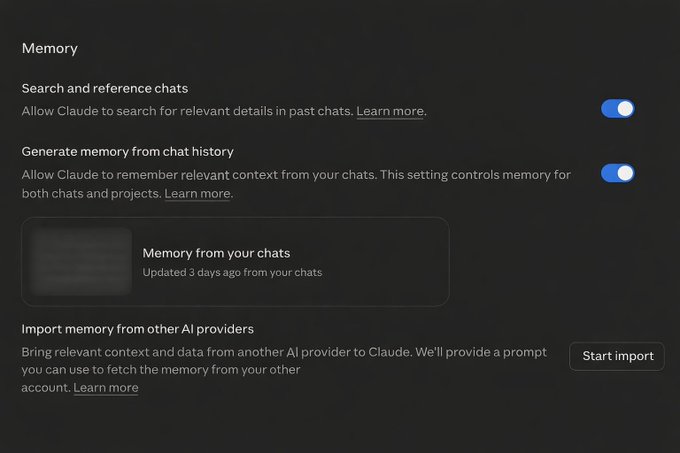
Go to Settings → Memory right now.
This is the most overlooked page in all of Claude, and most people have never opened it.
What you will find is everything Claude has stored about you (preferences, facts, habits, working styles, etc.) accumulated passively across every conversation you have ever had.
Left unmanaged, your memory quickly fills up with garbage.
The fix is simple: read through everything on this page. Delete anything outdated, inaccurate, or irrelevant. Then, manually add the context you actually want Claude to carry permanently.
Stick to the basics here (your role and basic preferences) - we'll dive into building highly specific systems soon.
Chat Memory
2. Project Instructions
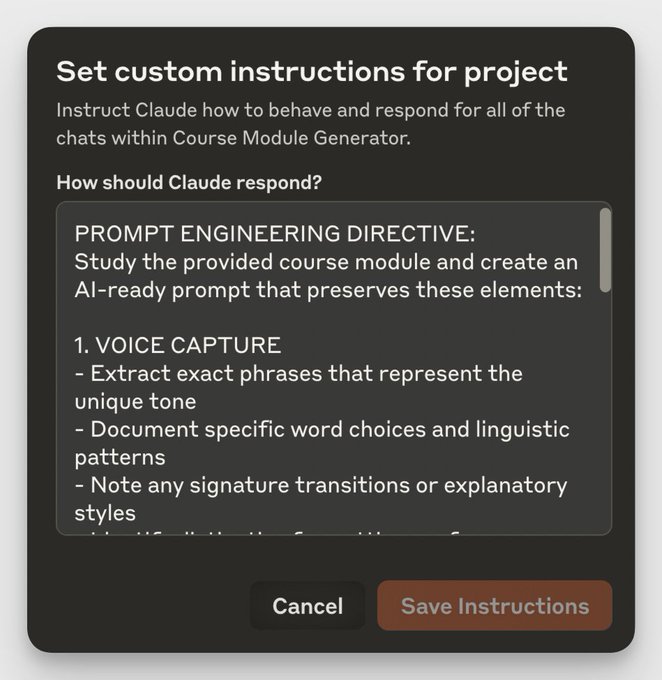
If you use Claude Projects (you should), you need to fill in your Project Instructions field.
Project Instructions
My advice: Create projects for all your most-used workflows, then voice-prompt all your context into a Google Doc and upload it as a PDF for each project.
3. Tell Claude Directly
The simplest memory hack on this list. Mid-conversation, just tell Claude what you want it to remember.
Things like:
```
"Remember that I never want [x]"
"Remember that my role is [x]"
"Update your memory with [x]"
"Remember that I prefer responses under 400 words."
```
Claude will store these in your memory immediately. You can also tell it to forget things: "Forget that I mentioned [x]."
4. Memory Imports & Exports
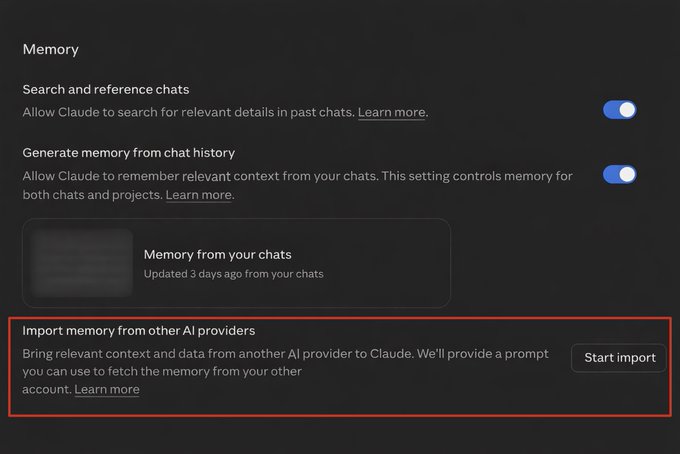
If you have been using ChatGPT (or another LLM) and have built up significant context there, you do not have to start from scratch in Claude; you have two effective options to transfer context:
a) You can tell ChatGPT you are switching platforms and ask it to generate a memory export document: "I'm switching this project to Claude, give me a summary document..."
b) You can use Import/Export in Claude
In Settings → Memory, you can import full data from other LLMs
Export/Import
These four quick edits will suffice for 90%+ of you, and they make an immediate impact on how Claude responds.
However, the next section is for people who want a real system for taking Claude to the next level.
## Layer two: Context File System (Intermediate)
Layer 1 fixes the basic memory problems.
Layer 2 builds something more powerful: a file-based memory architecture that lives on your computer, loads automatically into Cowork and Claude Code.
The concept is simple: Instead of prompting Claude for context, you store all of that context in .MD desktop files that Claude has access to.
You can also attach these markdown files to any LLM or AI agent system.
Start a new desktop folder, label it "Claude Master Folder", and build these four markdown files within it (Claude can help you do this):
1. Instructions. MD
This file tells Claude all your rules & instructions:
Example:
## Who you are
## What you do
## Rules
## What good outputs look like
Important to include: "Update Memory. MD with my preferences over time."
This line is crucial; it's how you get Claude to create a running memory log of your data in the second markdown file.
2. Memory. MD
This is the "brain" of Claude, and it gets continuously updated over time.
Example:
## Preferences
## Corrections
## Patterns
## Decisions
Now, whenever you say something like "stop using em dashes," Claude will go into the memory file and update it.
3. Context. MD
The specific context file for [x] project.
Obviously, what's in this markdown file will change depending on your specific project.
You can also just create a general "business context" or "life context" markdown mega file.
4. Archive Copies
This one is purely protective but worth doing.
Claude will update your memory files automatically as you work. Occasionally, it overwrites something incorrectly or makes a change you did not intend.
Without a backup system, that context is gone.
The fix is simple. Once a week, copy your entire master folder with Instructions, Memory, Context, and everything else into a separate archive folder that Claude cannot access, and label it with the date.
If anything breaks or gets overwritten incorrectly, you can restore from the archive.
This is what the final product should look like:
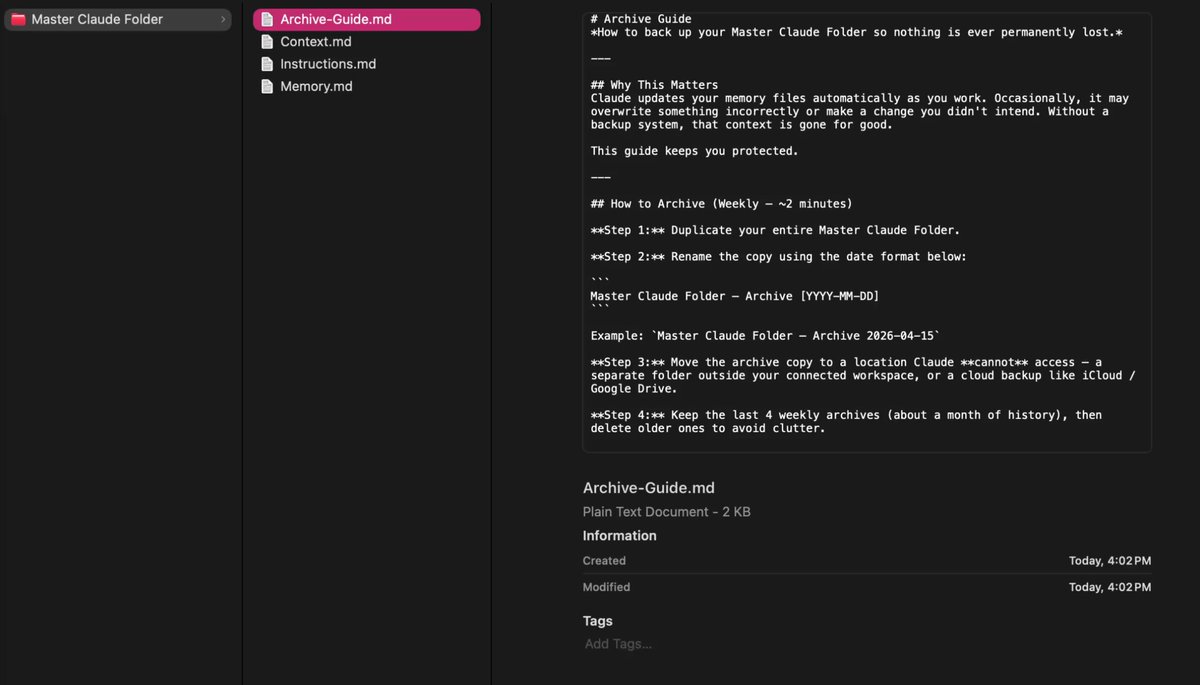
4 Markdown Files: Final Product
As I mentioned above, you can just get Claude to create this for you.
Just create a new folder called "Claude Master Folder," attach it to a new Cowork chat, and paste this prompt:
```
Go into my "Claude Master Folder" in my connected workspace and build these four markdown files inside it:
Instructions.md — includes sections for: Who You Are, What You Do, Rules, What Good Outputs Look Like, and a line telling Claude to update Memory.md with my preferences over time.
Memory.md — includes sections for: Preferences, Corrections, Patterns, Decisions, and Personal Context. Pre-fill with placeholder examples so I know what to add.
Context.md — includes sections for: About This Project/Business, Audience, Key People & Collaborators, Active Projects & Priorities, Tools & Stack, and Important Background/History. Use a template format with placeholders I can fill in.
Archive-Guide.md — a step-by-step guide explaining why to archive, how to do it weekly (duplicate the folder, rename with the date, move it somewhere Claude can't access), what to include, how to restore if something breaks, and where to store the backups.
```
So you have the system built - now, how do you actually use it?
Anytime you're working in Cowork/Claude Code, you can attach your Master Folder, and Claude will use this as a mini memory database.
It will edit the memory markdown file, leaving you with something you can attach to any LLM, new chat, or AI agent.
You can also manually update the .MD files and create new folders for specific projects within your Master Folder.
This system is a complete game-changer, but what I'm about to show you in Layer three takes this system even further.
## Layer three: AI Second Brain (Advanced)
This is the deepest level, and frankly, it is not for everyone.
It does require some initial setup and ongoing maintenance, but for those of you who build it, it truly is the best option for an advanced, detailed memory system with Claude.
There are two options depending on how you work.
The first option is easier, and I included it for those of you who want a "simple" AI second brain.
The second option is more advanced (but better overall), and requires 1-2 hours of dedicated building (don't worry, I'll guide you through it all).
Keep in mind that for your AI second brain memory vault to be effective, you actually have to spend time maintaining it and updating your databases.
Option 1: Claude x Notion
Connecting Claude to Notion is the highest-leverage thing you can do in 5 minutes.
Go to Claude → Settings → Connectors, then enable the Notion connector.
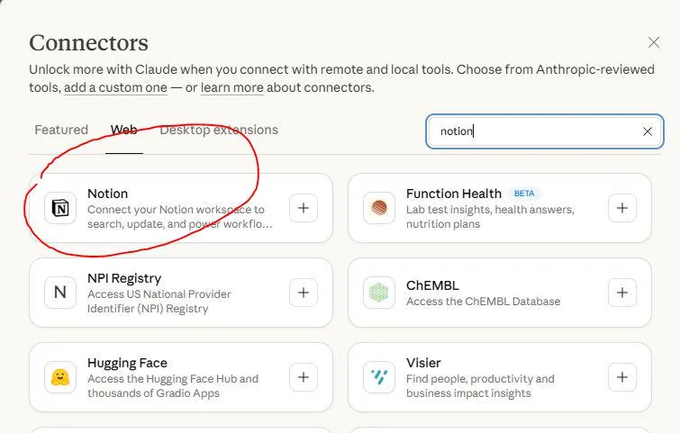
Notion Connector
Once connected, Claude can read your Notion workspace directly inside any chat.
Now all your tasks, CRMs, notes, tables, etc., are accessible and editable for Claude.
I recommend creating a new "Memory Database" where you store all your AI preferences, rules, and important AI context.
As you're working with Claude, you can say: "Send this to my Notion Memory Database."
You can then export this Notion data to other LLMs or AI platforms via a CSV file or by using the Notion MCP connector.
This setup is similar to what I covered in Layer Two, except you now have nice visuals with Notion's built-in board views, to-do lists, and more, and you unlock additional functionality.
I personally don't use this setup often (Option two below is just better), but I do occasionally use it to send and store valuable mega prompts I use in Claude:
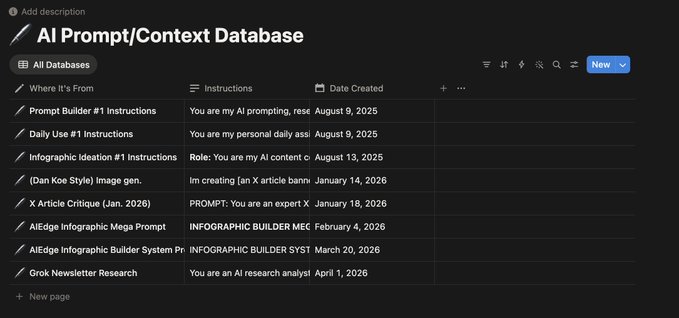
Claude x Notion: Final Product
Option 2: Claude x Obsidian
Obsidian is a tool that stores everything as plain Markdown files on your computer, making it a solid way to connect with Claude and build a second brain.
The setup
1. Download Obsidian
Go to obsidian.md and download the app.
Create a new Vault (think of this as a simple desktop folder where Claude Code will store and access your data).
2. Select Vault in Claude Cowork/Claude Code
Open the Claude desktop app and click 'Select Folder.'
Point it at your Obsidian Vault folder. Claude now has direct read and write access to everything inside it.
3. Inject mega prompt
Paste Andrej Karpathy's LLM Knowledge Base system prompt into the chatbox.
This is the instruction set that tells Claude Code how to build, maintain, and evolve your wiki over time.
The prompt is available here:
gist.github.com/karpathy/442a6bf555914893e9891c11519de94f
4. Feed it your data
Drop in any existing notes, CSV files, article exports, or Notion exports to start populating your second brain.
Claude then ingests each source, extracts the key information, and integrates it into an evolving memory wiki.
Final Product
The final product is an AI second brain knowledge wiki that links ideas, notes, remembers ALL your data, and looks like this:
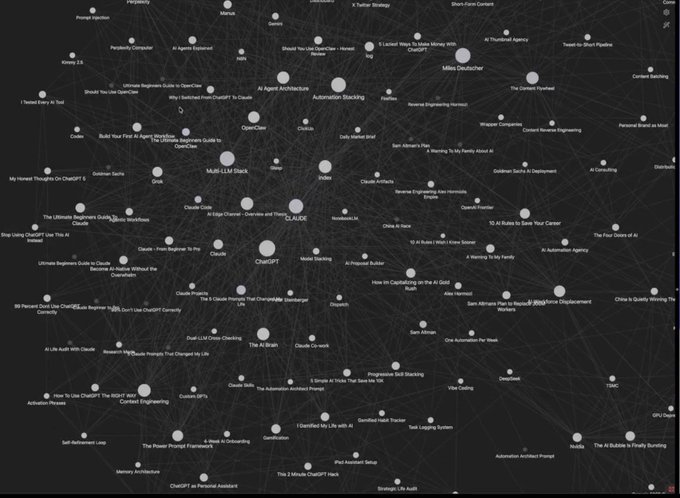
Claude x Obsidian: Final Product
Which one should you choose?
Notion = fast, simple option
Obsidian = local storage, and you want Claude to have a deep understanding (this is the most advanced memory system I've personally found).
If you're going to build the Claude x Obsidian second brain, I recommend reading this first (more details):
> **AI Edge@aiedge_**: [原文链接](https://x.com/aiedge_/status/2041908011078447222)
>
## Final Thoughts
So, there you have it, my three layers to building memory systems inside Claude that make it way sharper.
Again, layer one is the basic setup that yields immediate results (enough for most people).
Layer two requires some setup, but is extremely valuable.
And lastly, layer three will completely change how you use Claude.
I hope you found this article helpful. I post AI articles 2-3x/week, and all my content is hand-written, based on how I'm actually using AI (no AI slop).
If that's the style of content you like to see, follow me @aiedge_ and more will be on your feed soon!
Lastly, if you can, please Like/Repost this article so others can see it💙
## 相关链接
- [AI Edge](https://x.com/aiedge_)
- [@aiedge_](https://x.com/aiedge_)
- [1.4M](https://x.com/aiedge_/status/2046966170868486512/analytics)
- [gist.github.com/karpathy/442a6bf555914893e9891c11519de94f](https://gist.github.com/karpathy/442a6bf555914893e9891c11519de94f)
- [Apr 8](https://x.com/aiedge_/status/2041908011078447222)
- [985K](https://x.com/aiedge_/status/2041908011078447222/analytics)
- [@aiedge_](https://x.com/@aiedge_)
- [Upgrade to Premium](https://x.com/i/premium_sign_up)
- [10:55 PM · Apr 22, 2026](https://x.com/aiedge_/status/2046966170868486512)
- [1.4M Views](https://x.com/aiedge_/status/2046966170868486512/analytics)
- [View quotes](https://x.com/aiedge_/status/2046966170868486512/quotes)
---
*导出时间: 2026/4/26 18:57:38*
---
## 中文翻译
# 如何赋予 Claude 完美记忆(完全指南)
**作者**: AI Edge
**日期**: 2026-04-08T15:56:21.000Z
**来源**: [https://x.com/aiedge_/status/2046966170868486512](https://x.com/aiedge_/status/2046966170868486512)
---

不管别人怎么说——默认情况下,Claude 的记忆基本上没什么用。
它经常忘记上下文;你不得不反复解释,即使解释了,它往往还是记不住。
可悲的是,大多数人忍受这些缺陷已经好几个月了,却不知道还有更好的方法。
我每天都会使用 Claude。我在 Claude 上花费的屏幕时间实际上比 Mac 上的任何其他应用都要多。
因为我太频繁地使用 Claude,我不能让自己最常用的工作工具随机忘记上下文和重要数据。
为了获得一个尽可能敏锐的 Claude,我开始钻研寻找每一种可能的记忆解决方案。
幸运的是,我的研究成功了。
我发现了三个“层级”的记忆系统,它们让 Claude 变得强大得多。
第一种简单易用,足以满足 90% 以上的 Claude 用户。
第二种需要大约 60 分钟来设置,但会彻底改变 Claude 的运行方式。
最后一种将 Claude 转变为一个进化的第二大脑,基于你所有的数据进行训练。
在今天的文章中,我将揭示所有这三个系统以及我如何让我的 Claude 变得更敏锐。
无论你是从未接触过 Claude 还是资深用户,我相信你都能找到适合你的系统。
## 第一层:基础记忆(初学者)
每个人都应该从这里开始——四个快速见效的方法,只需几分钟设置,即可立即改善你与 Claude 的每一次对话。
1. 记忆编辑工具
现在就去 设置 → 记忆。
这是 Claude 中最容易被忽视的页面,大多数人从未打开过它。
你会发现这里存储了 Claude 关于你积累的所有信息(偏好、事实、习惯、工作风格等),这些信息是被动地在你的每一次对话中积累起来的。
如果不加管理,你的记忆很快就会被垃圾信息填满。
解决方法很简单:通读该页面上的所有内容。删除任何过时的、不准确或不相关的内容。然后,手动添加你真正希望 Claude 永久保留的上下文。
在这里只保留基础内容(你的角色和基本偏好)——我们很快将深入构建高度特定的系统。

聊天记忆
2. 项目指令
如果你使用 Claude Projects(你应该用),你需要填写你的项目指令字段。

项目指令
我的建议:为你所有最常用的工作流程创建项目,然后将你的所有上下文通过语音输入到 Google Doc 中,并将其作为 PDF 上传到每个项目中。
3. 直接告诉 Claude
这份清单中最简单的记忆黑客技巧。在对话中途,直接告诉 Claude 你希望它记住什么。
像这样:
```
“记住我永远不想要 [x]”
“记住我的角色是 [x]”
“用 [x] 更新你的记忆”
“记住我更喜欢回复在 400 字以内。”
```
Claude 会立即将这些存储在你的记忆中。你也可以告诉它忘记某些事情:“忘记我提到的 [x]。”
4. 记忆导入与导出
如果你一直在使用 ChatGPT(或其他 LLM)并积累了大量上下文,你不必在 Claude 中从头开始;你有两个有效的选项来转移上下文:
a) 你可以告诉 ChatGPT 你正在切换平台,并要求它生成一个记忆导出文档:“我正在将此项目切换到 Claude,请给我一份摘要文档……”
b) 你可以在 Claude 中使用导入/导出功能
在 设置 → 记忆 中,你可以从其他 LLM 导入完整数据。

导出/导入
这四个快速修改足以满足 90% 以上的你,并且它们会对 Claude 的响应方式产生立竿见影的影响。
然而,下一节是给那些想要真正的系统将 Claude 提升到新水平的人准备的。
## 第二层:上下文文件系统(中级)
第一层解决了基本的记忆问题。
第二层构建了更强大的东西:一个基于文件的内存架构,它存在于你的计算机上,自动加载到 Cowork 和 Claude Code 中。
概念很简单:不再通过提示词给 Claude 上下文,而是将所有这些上下文存储在 Claude 可以访问的桌面 .MD 文件中。
你也可以将这些 markdown 文件附加到任何 LLM 或 AI 代理系统。
新建一个桌面文件夹,将其标记为“Claude 主文件夹”,并在其中构建这四个 markdown 文件(Claude 可以帮你做这件事):
1. Instructions.MD
这个文件告诉 Claude 你所有的规则和指令:
示例:
## 你是谁
## 你做什么
## 规则
## 好的输出是什么样的
重要包含:“随着时间的推移,用我的偏好更新 Memory.MD。”
这一行至关重要;这是你让 Claude 在第二个 markdown 文件中创建数据运行记忆日志的方法。
2. Memory.MD
这是 Claude 的“大脑”,它会随着时间不断更新。
示例:
## 偏好
## 纠正
## 模式
## 决策
现在,每当你对它说类似“停止使用 em 破折号”的话时,Claude 就会进入记忆文件并更新它。
3. Context.MD
[x] 项目的特定上下文文件。
显然,这个 markdown 文件中的内容会根据你的具体项目而变化。
你也可以只创建一个通用的“业务上下文”或“生活上下文”的 markdown 超级文件。
4. 档案副本
这一个纯粹是保护性的,但值得做。
Claude 会在你工作时自动更新你的记忆文件。偶尔,它会错误地覆盖某些内容或做出你意料之外的改变。
如果没有备份系统,这些上下文就丢失了。
解决方法很简单。每周一次,将包含 Instructions、Memory、Context 以及其他所有内容的整个主文件夹复制到一个 Claude 无法访问的单独档案文件夹中,并贴上日期标签。
如果出现任何问题或被错误覆盖,你可以从档案中恢复。
最终产品应该是这样的:

4 个 Markdown 文件:最终产品
正如我上面提到的,你可以直接让 Claude 为你创建这个。
只需创建一个名为“Claude 主文件夹”的新文件夹,将其附加到新的 Cowork 聊天中,然后粘贴此提示词:
```
进入我连接工作区中的“Claude 主文件夹”,并在其中构建这四个 markdown 文件:
Instructions.md — 包括以下部分:你是谁、你做什么、规则、好的输出是什么样的,以及一行告诉 Claude 随着时间推移用我的偏好更新 Memory.md 的内容。
Memory.md — 包括以下部分:偏好、纠正、模式、决策和个人上下文。预先填充占位符示例,以便我知道该添加什么。
Context.md — 包括以下部分:关于此项目/业务、受众、关键人员与协作者、活跃项目与优先级、工具与技术栈、重要背景/历史。使用带有占位符的模板格式供我填写。
Archive-Guide.md — 一份分步指南,解释为什么要归档、如何每周进行(复制文件夹,重命名为日期,移动到 Claude 无法访问的地方)、包含什么、如果出现故障如何恢复以及将备份存储在哪里。
```
所以你已经建立了系统——现在,你实际上如何使用它?
无论何时你在 Cowork/Claude Code 中工作,你都可以附加你的主文件夹,Claude 会将其作为一个微型记忆数据库使用。
它会编辑记忆 markdown 文件,为你留下可以附加到任何 LLM、新聊天或 AI 代理的内容。
你也可以手动更新 .MD 文件,并在你的主文件夹内为特定项目创建新文件夹。
这个系统是一个彻底的游戏规则改变者,但我即将在第三层中展示的内容会将这个系统带得更远。
## 第三层:AI 第二大脑(高级)
这是最深层,坦率地说,并不适合每个人。
它确实需要一些初始设置和持续维护,但对于那些构建它的人来说,这确实是 Claude 高级、详细记忆系统的最佳选择。
根据你的工作方式,有两种选择。
第一个选项比较简单,我把它提供给那些想要“简单”AI 第二大脑的人。
第二个选项更高级(但总体上更好),需要 1-2 小时的专注构建(别担心,我会引导你完成所有步骤)。
请记住,为了让你的 AI 第二大脑记忆库有效,你实际上必须花时间维护它并更新你的数据库。
选项 1:Claude x Notion
将 Claude 连接到 Notion 是你在 5 分钟内能做的最高杠杆的事情。
转到 Claude → 设置 → 连接器,然后启用 Notion 连接器。

Notion 连接器
连接后,Claude 可以在任何聊天中直接读取你的 Notion 工作区。
现在,你所有的任务、CRM、笔记、表格等都可以被 Claude 访问和编辑。
我建议创建一个新的“记忆数据库”,在其中存储所有你的 AI 偏好、规则和重要的 AI 上下文。
当你与 Claude 一起工作时,你可以说:“把这个发送到我的 Notion 记忆数据库。”
然后,你可以通过 CSV 文件或使用 Notion MCP 连接器将此 Notion 数据导出到其他 LLM 或 AI 平台。
此设置类似于我在第二层中介绍的内容,除了你现在拥有 Notion 内置的看板视图、待办事项列表等带来的精美视觉效果,并且你解锁了额外功能。
我个人不经常使用这个设置(下面的选项二更好),但我偶尔会用它来发送和存储我在 Claude 中使用的有价值的超级提示词:

Claude x Notion:最终产品
选项 2:Claude x Obsidian
Obsidian 是一个将所有内容作为计算机上的纯 Markdown 文件存储的工具,这是连接 Claude 和构建第二大脑的可靠方法。
设置
1. 下载 Obsidian
访问 obsidian.md 并下载该应用程序。
创建一个新的库(可以将这视为一个简单的桌面文件夹,Claude Code 将在其中存储和访问你的数据)。
2. 在 Claude Cowork/Claude Code 中选择库
打开 Claude 桌面应用并点击“选择文件夹”。
将其指向你的 Obsidian 库文件夹。Claude 现在对里面的所有内容拥有直接读写权限。
3. 注入超级提示词
将 Andrej Karpathy 的 LLM 知识库系统提示词粘贴到聊天框中。
这是指示 Claude Code 如何随时间推移构建、维护和进化你的 wiki 的指令集。
提示词位于此处:
gist.github.com/karpathy/442a6bf555914893e9891c11519de94f
4. 投喂数据
放入任何现有的笔记、CSV 文件、文章导出或 Notion 导出,以开始填充你的第二大脑。
然后,Claude 会摄取每个来源,提取关键信息,并将其整合到一个不断发展的记忆 wiki 中。
最终产品
最终产品是一个 AI 第二大脑知识 wiki,它链接想法、笔记,记住你的所有数据,看起来像这样:

Claude x Obsidian:最终产品
你应该选择哪一个?
Notion = 快速、简单的选项
Obsidian = 本地存储,并且你希望 Claude 拥有深刻的理解(这是我个人发现的最先进的记忆系统)。
如果你打算构建 Claude x Obsidian 第二大脑,我建议先阅读这个(更多细节):
> **AI Edge@aiedge_**: [原文链接](https://x.com/aiedge_/status/2041908011078447222)
>
## 最后的想法
所以,这就是我在 Claude 内部构建记忆系统的三个层级,它们让它变得更敏锐。
再说一次,第一层是产生即时结果的基本设置(对大多数人来说已经足够了)。
第二层需要一些设置,但非常有价值。
最后,第三层将彻底改变你使用 Claude 的方式。
我希望你觉得这篇文章有帮助。我每周发布 2-3 篇 AI 文章,所有内容都是手写的,基于我实际使用 AI 的方式(没有 AI 垃圾)。
如果你喜欢这种风格的内容,请关注我 @aiedge_,更多内容将很快出现在你的信息流中!
最后,如果可以的话,请点赞/转发这篇文章,让其他人也能看到💙
## 相关链接
- [AI Edge](https://x.com/aiedge_)
- [@aiedge_](https://x.com/aiedge_)
- [1.4M](https://x.com/aiedge_/status/2046966170868486512/analytics)
- [gist.github.com/karpathy/442a6bf555914893e9891c11519de94f](https://gist.github.com/karpathy/442a6bf555914893e9891c11519de94f)
- [Apr 8](https://x.com/aiedge_/status/2041908011078447222)
- [985K](https://x.com/aiedge_/status/2041908011078447222/analytics)
- [@aiedge_](https://x.com/@aiedge_)
- [Upgrade to Premium](https://x.com/i/premium_sign_up)
- [10:55 PM · Apr 22, 2026](https://x.com/aiedge_/status/2046966170868486512)
- [1.4M Views](https://x.com/aiedge_/status/2046966170868486512/analytics)
- [View quotes](https://x.com/aiedge_/status/2046966170868486512/quotes)
---
*导出时间: 2026/4/26 18:57:38*