# 25 Hidden Claude Features Most People Completely Miss
**作者**: Kanika
**日期**: 2026-08-18T07:26:37.000Z
**来源**: [https://x.com/KanikaBK/status/2089614929783587309](https://x.com/KanikaBK/status/2089614929783587309)
---
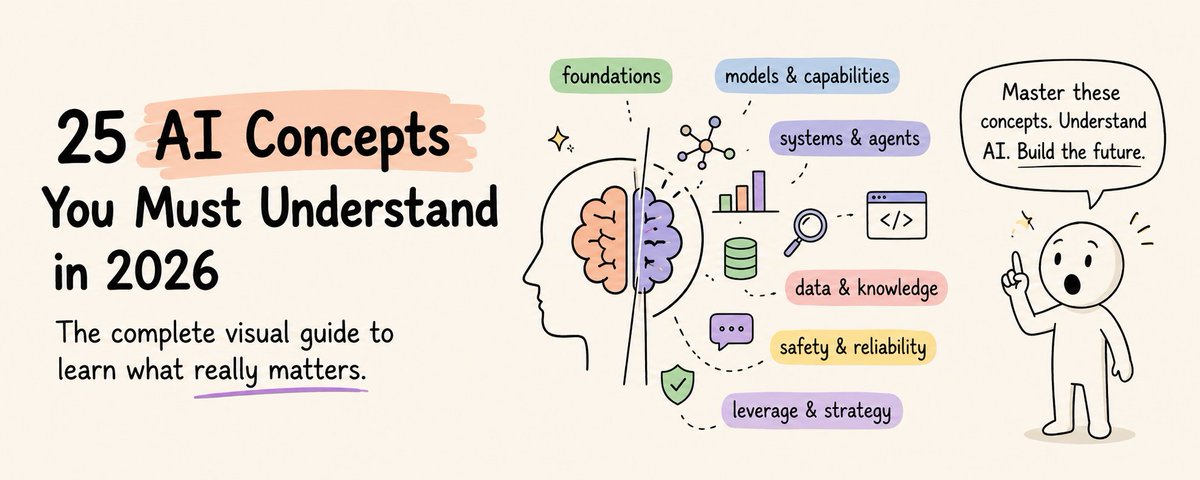
Most people use Claude like a chat box and miss the features that actually make it a working system.
Save this so that you can use it later or share it with someone who really needs this!
So far after daily testing I have realised that, the biggest gains come from a small set of underused settings, workspaces, and agent tools.
This article covers 25 features most users never turn on or never use correctly.
## Why these features stay hidden
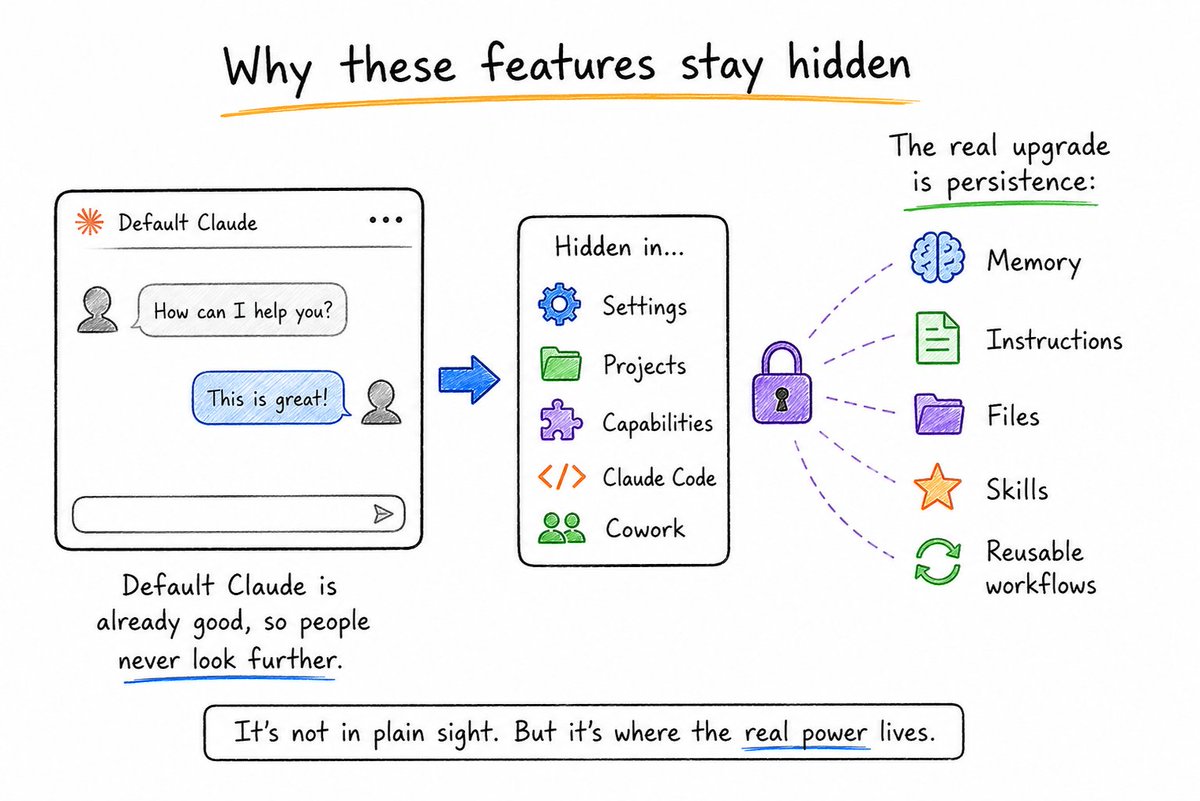
They sit in Settings, Projects, Capabilities, Claude Code, and Cowork not in the main chat window.
Default Claude is already good, so people never look further.
The real upgrade is persistence: memory, instructions, files, skills, and reusable workflows.
## A. Settings most people never open (1–6)
These live in Settings → Capabilities, Settings → Memory, and the profile/preferences area. Most users never touch them.
## 1. Custom / profile instructions — standing rules that apply across chats
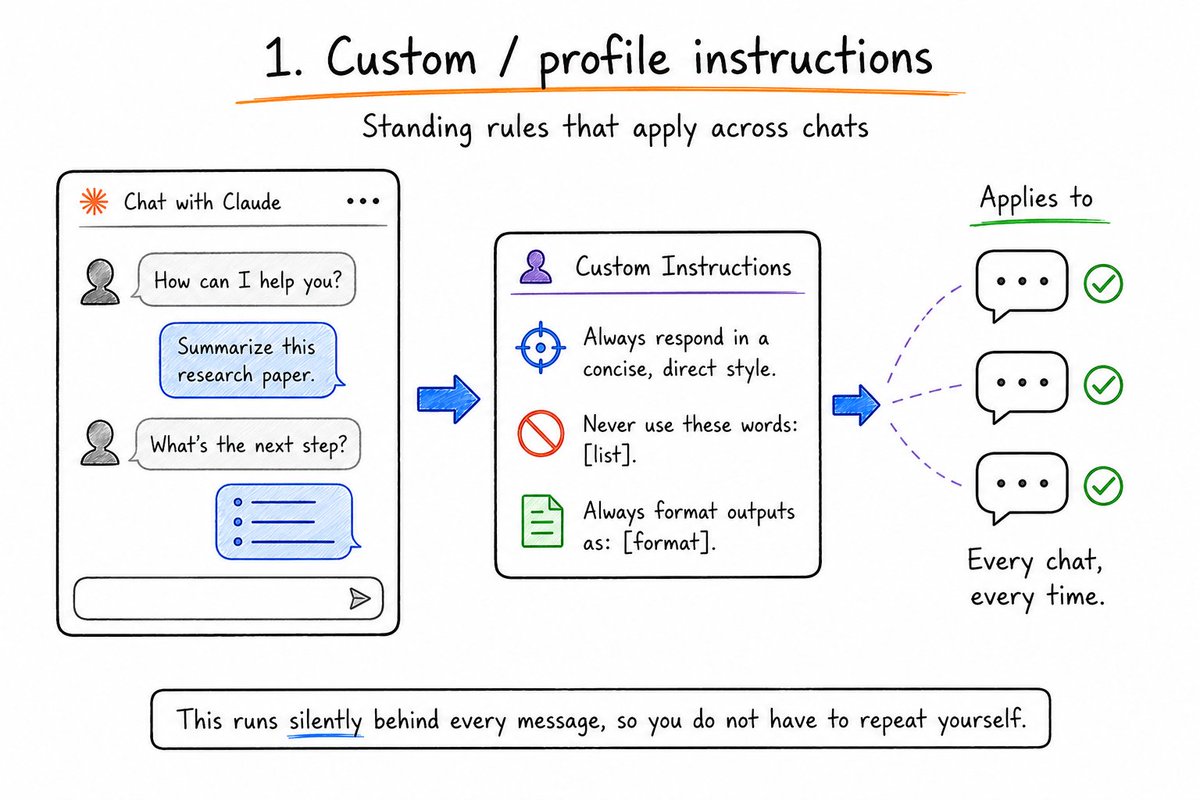
Custom instructions act as a global system prompt for every conversation.
You can write things like: “Always respond in a concise, direct style.” “Never use these words: [list].” “Always format outputs as: [format].”
This runs silently behind every message, so you do not have to repeat yourself.
## 2. Memory from chat history — Claude remembers preferences and facts across sessions
When enabled, Claude learns your preferences, your projects, and your communication style over time.
You can view and edit what Claude remembers in Settings → Memory. Curate it like you would curate an employee’s onboarding notes.
## 3. Search and reference past chats — pull context from earlier conversations
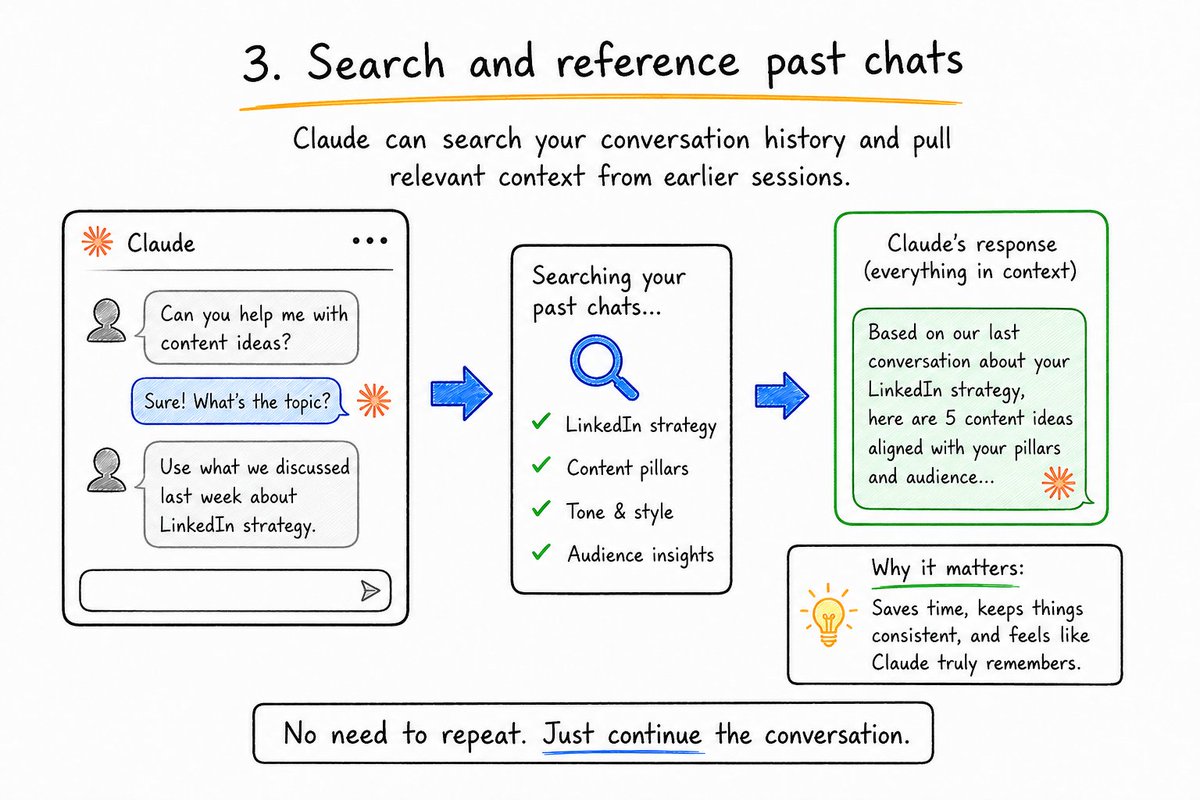
Claude can search your conversation history and pull relevant context from earlier sessions.
Instead of re-explaining everything, you can say: “Use what we discussed last week about [topic]” and Claude will retrieve it.
## 4. Code execution and file creation — required for Artifacts, Skills, and file work
In Settings → Capabilities, you must enable code execution and file creation for many advanced features.
Without this, Artifacts, Skills, and file-based workflows will not work. This is the single most common “why is this broken?” issue.
## 5. Effort control — choose how hard Claude thinks on a task (low to max / extra)
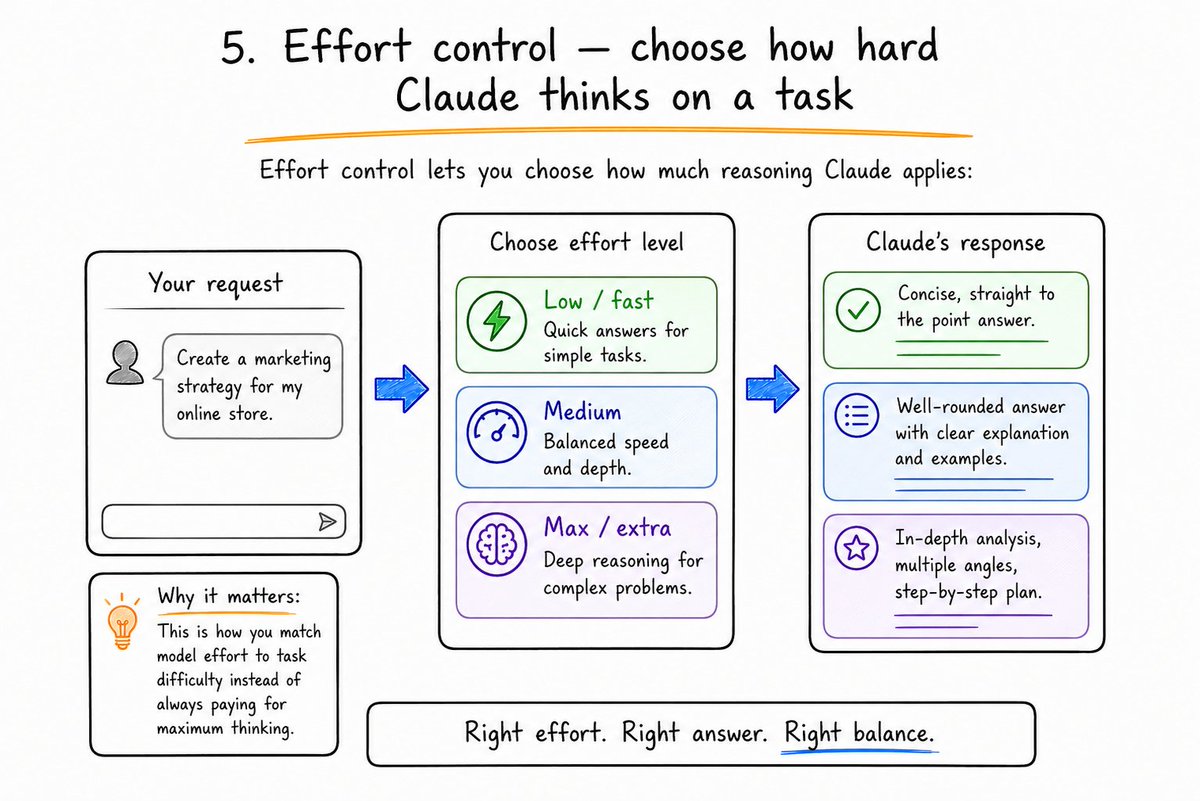
Effort control lets you choose how much reasoning Claude applies:
- Low / fast: Quick answers for simple tasks.
- Medium: Balanced speed and depth.
- Max / extra: Deep reasoning for complex problems.
This is how you match model effort to task difficulty instead of always paying for maximum thinking.
## 6. Styles — reusable tone and format presets instead of rewriting style every time
Claude has preset communication styles you can switch between: Concise, Explanatory, Formal, and more. You can also create custom styles.
Build one that matches your voice and every conversation starts with the right tone automatically.
## B. Projects: the most underused workspace (7–11)
Projects are persistent workspaces with their own instructions and files. Every conversation inside a project automatically inherits the context.
## 7. Projects as persistent workspaces — stop re-pasting the same brief
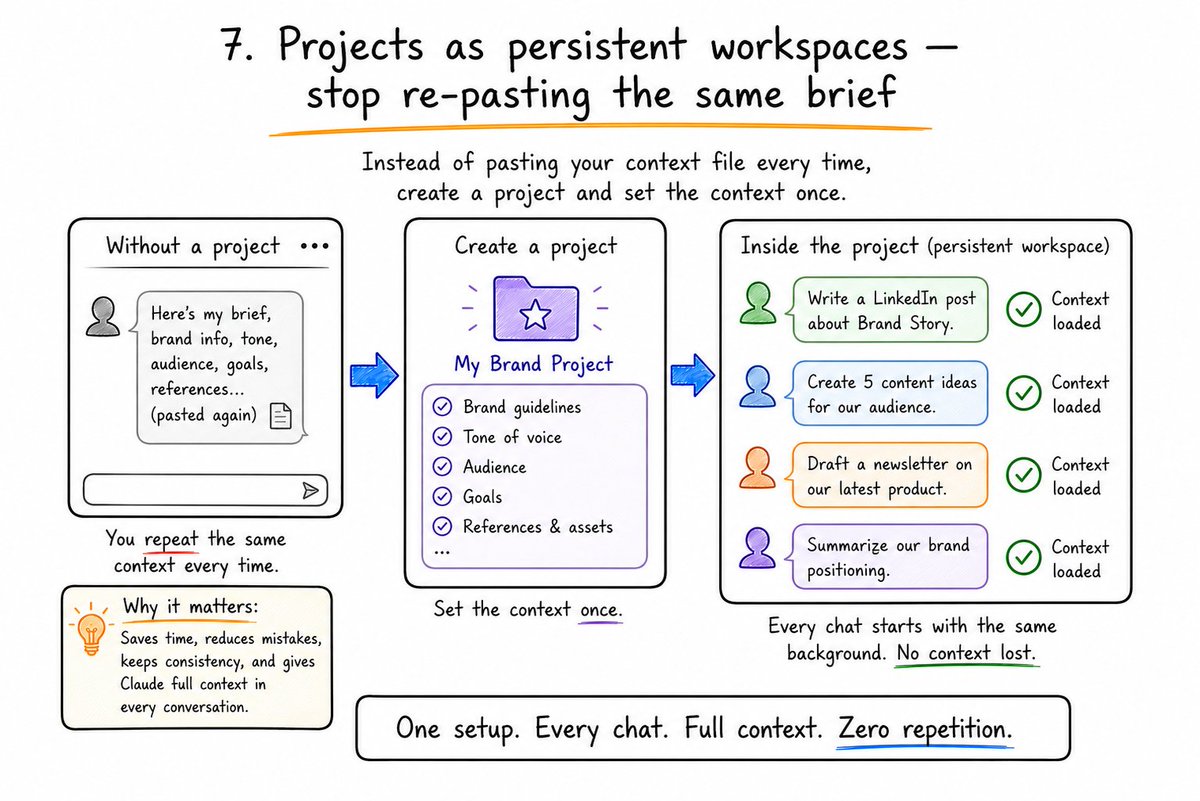
Instead of pasting your context file every time, create a project and set the context once.
Every chat inside that project starts with the same background, so you do not lose continuity.
## 8. Project instructions — a system prompt for one type of work only
In Project settings, you can write custom instructions that act as a system prompt for that project only.
Example: “You are my content strategist. Always respond in my brand voice. Never use these words: [list]. Always format outputs as: [format].”
## 9. Project knowledge files — docs, notes, and references Claude uses automatically
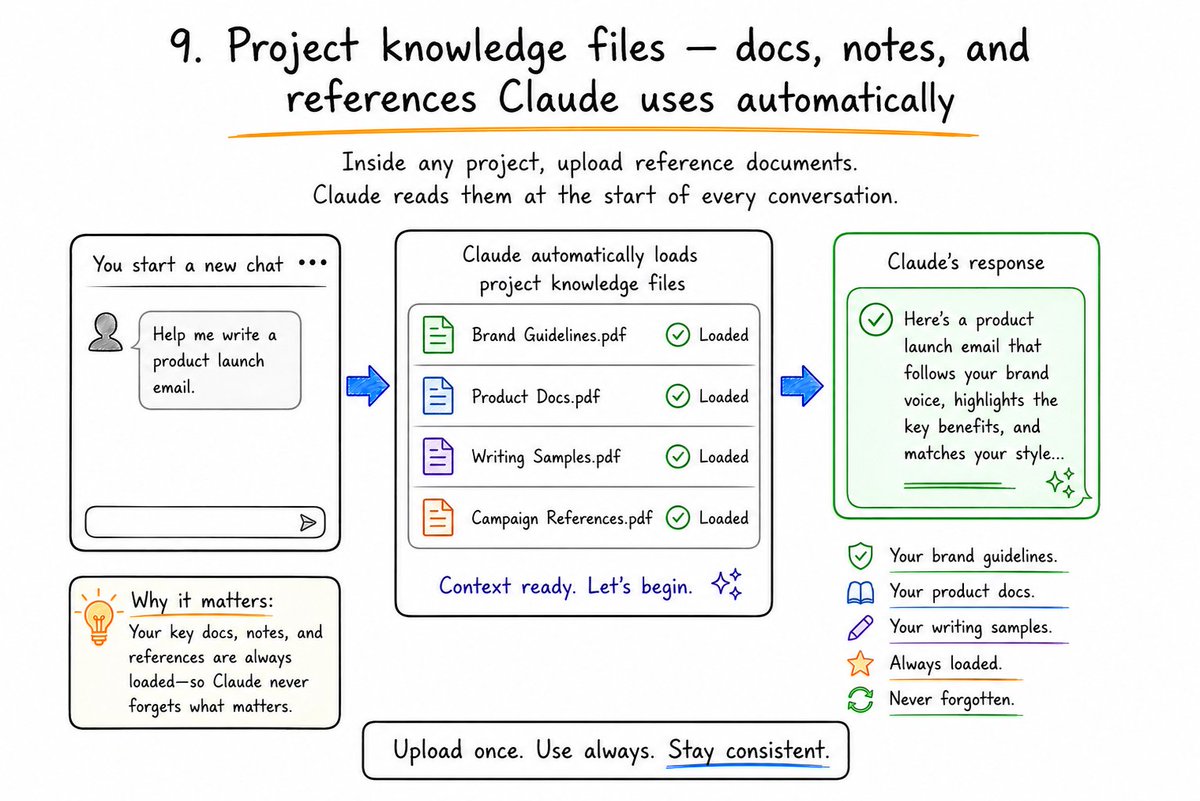
Inside any project, upload reference documents. Claude reads them at the start of every conversation.
Your brand guidelines. Your product docs. Your writing samples. Always loaded. Never forgotten.
## 10. RAG mode in large projects — expands capacity when files get big
In large projects with many files, Claude can operate in a RAG-like mode, retrieving relevant sections instead of trying to hold everything in context at once.
This keeps performance stable even as your project grows.
## 11. Separate project memory — keep client/work context isolated from personal chats
Each project has its own memory layer, separate from your global memory and personal chats.
This keeps client/work context isolated and prevents cross-contamination between different types of work.
## C. Output tools people skip (12–15)
These are the visible features that turn chat into real deliverables.
## 12. Artifacts — live documents, apps, dashboards, and pages beside the chat
When Claude produces code, documents, or visual outputs, they render in a separate panel called Artifacts.
You can iterate on artifacts independently of the conversation. Edit, refine, and download without losing your chat context.
## 13. Versioned artifacts — update in place and restore earlier versions
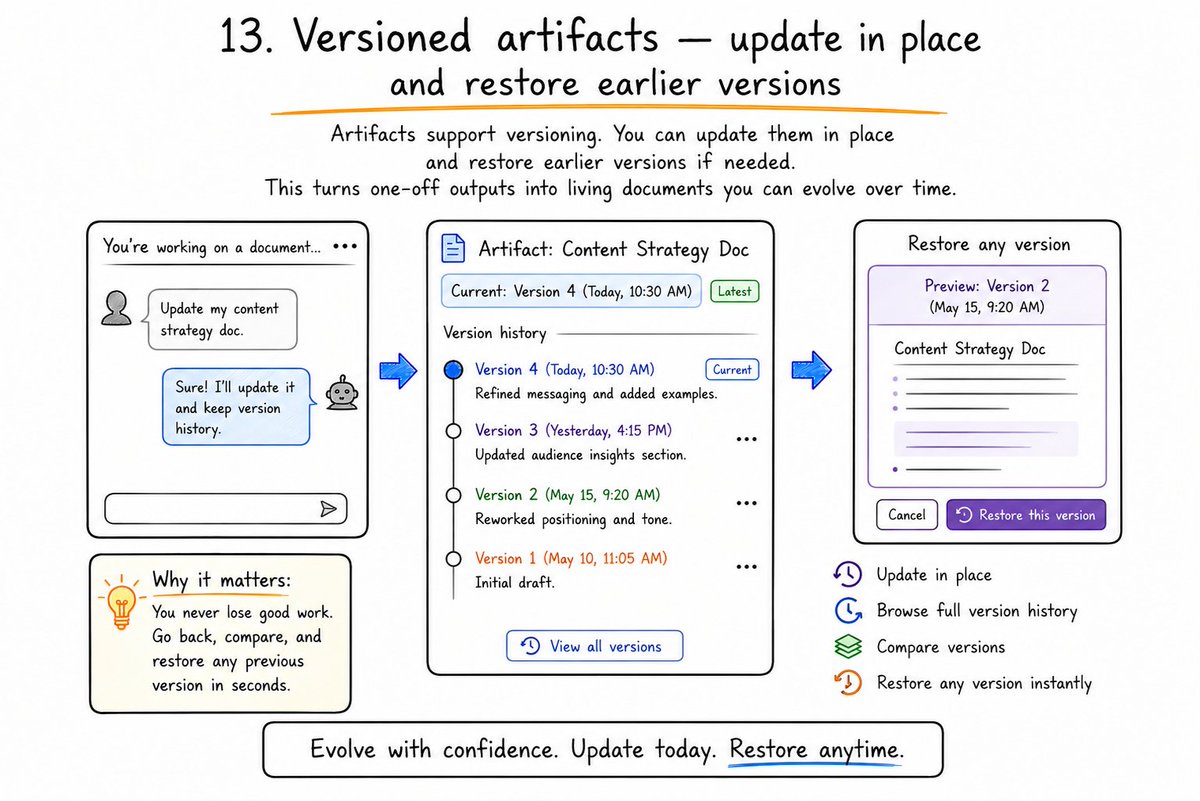
Artifacts support versioning. You can update them in place and restore earlier versions if needed.
This turns one-off outputs into living documents you can evolve over time.
## 14. Shareable artifact pages — turn a session into something others can open
You can generate shareable links for artifacts so others can open and view them.
This turns a private session into something you can send to teammates, clients, or collaborators.
## 15. Interactive / structured replies — use Claude’s option-based flow instead of only free text
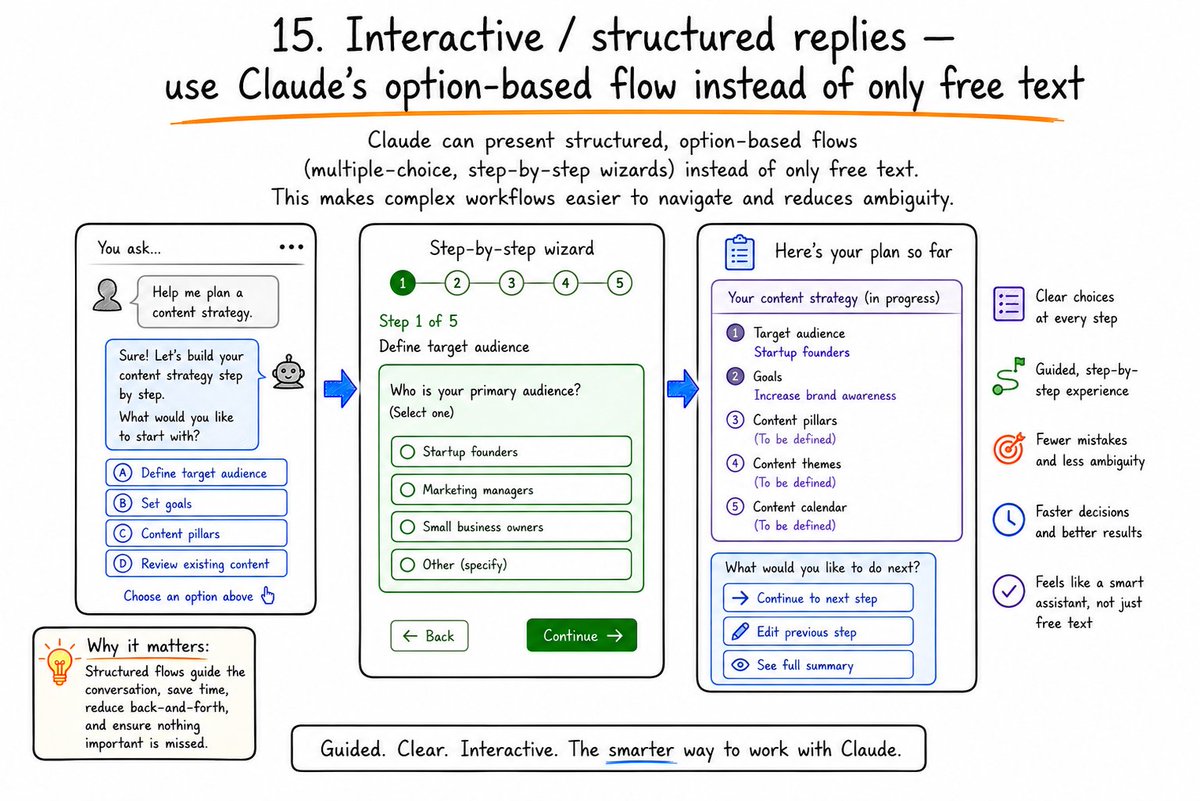
Claude can present structured, option-based flows (multiple-choice, step-by-step wizards) instead of only free text.
This makes complex workflows easier to navigate and reduces ambiguity.
## D. Skills, Cowork & automation (16–20)
This is where Claude moves from chat to workflows and agents.
## 16. Skills — reusable playbooks Claude can load when relevant
Skills are reusable playbooks stored as markdown files (e.g., .claude/skills/<name>/SKILL.md).
They define workflows, checklists, and patterns that Claude can load automatically when relevant.
## 17. Skill sharing — reuse the same workflows across chats and teammates
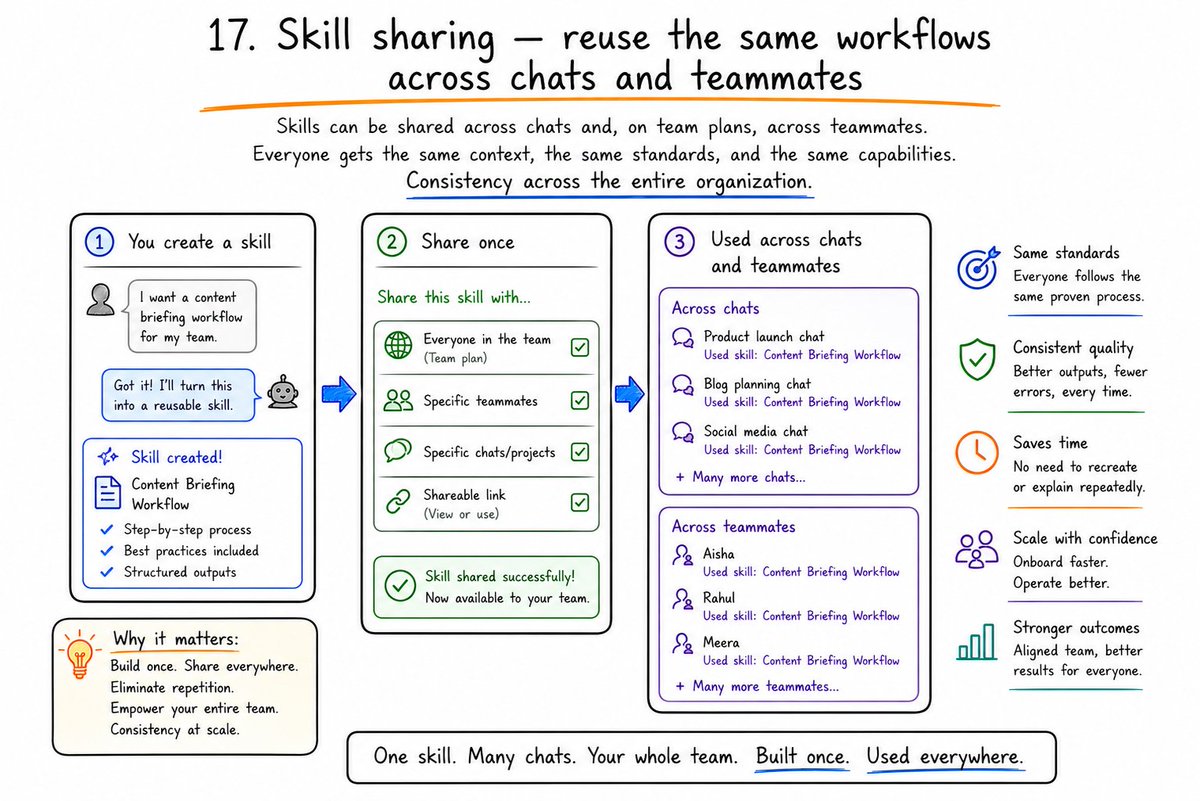
Skills can be shared across chats and, on team plans, across teammates.
Everyone gets the same context, the same standards, and the same capabilities. Consistency across the entire organization.
## 18. Cowork scheduled / remote sessions — work continues after you close the laptop
Claude Cowork can run scheduled or remote sessions. Your computer needs to be on and Claude Desktop open, but the tasks run unattended.
If your laptop sleeps during a run, it auto-runs when you reopen.
## 19. Parallel sub-agents — split large jobs across multiple agents
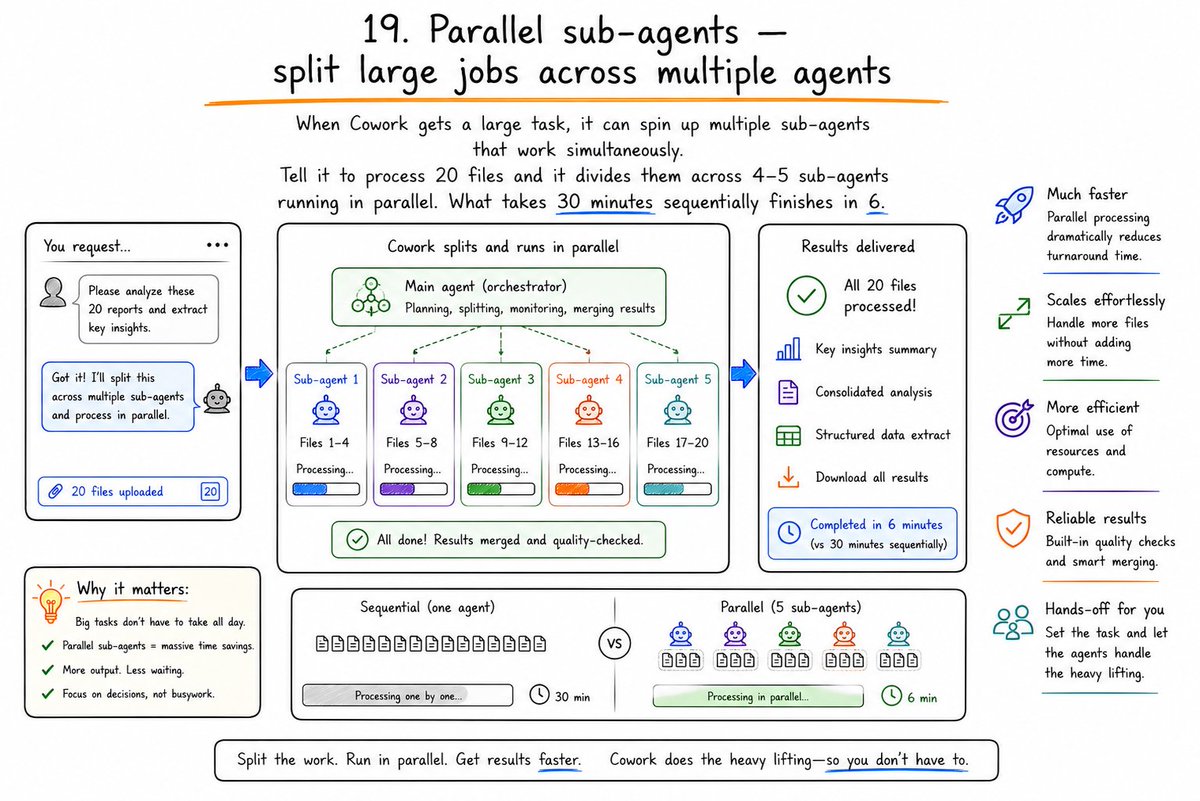
When Cowork gets a large task, it can spin up multiple sub-agents that work simultaneously.
Tell it to process 20 files and it divides them across 4–5 sub-agents running in parallel. What takes 30 minutes sequentially finishes in 6.
## 20. Connectors — let Claude work with files, email, calendar, and other tools
Connectors let Claude access your files, email, calendar, Drive, and other tools.
You can chain connectors: “Read my Gmail, check my calendar, pull relevant files from Drive, and create a meeting prep document.” Four connectors, one instruction, zero tab switching.
## E. Claude Code power features (21–25)
Claude Code is the terminal-based coding agent. These are the features that make it reliable instead of chaotic.
## 21. CLAUDE.md hierarchy — user, project, and folder-level rules stacked together
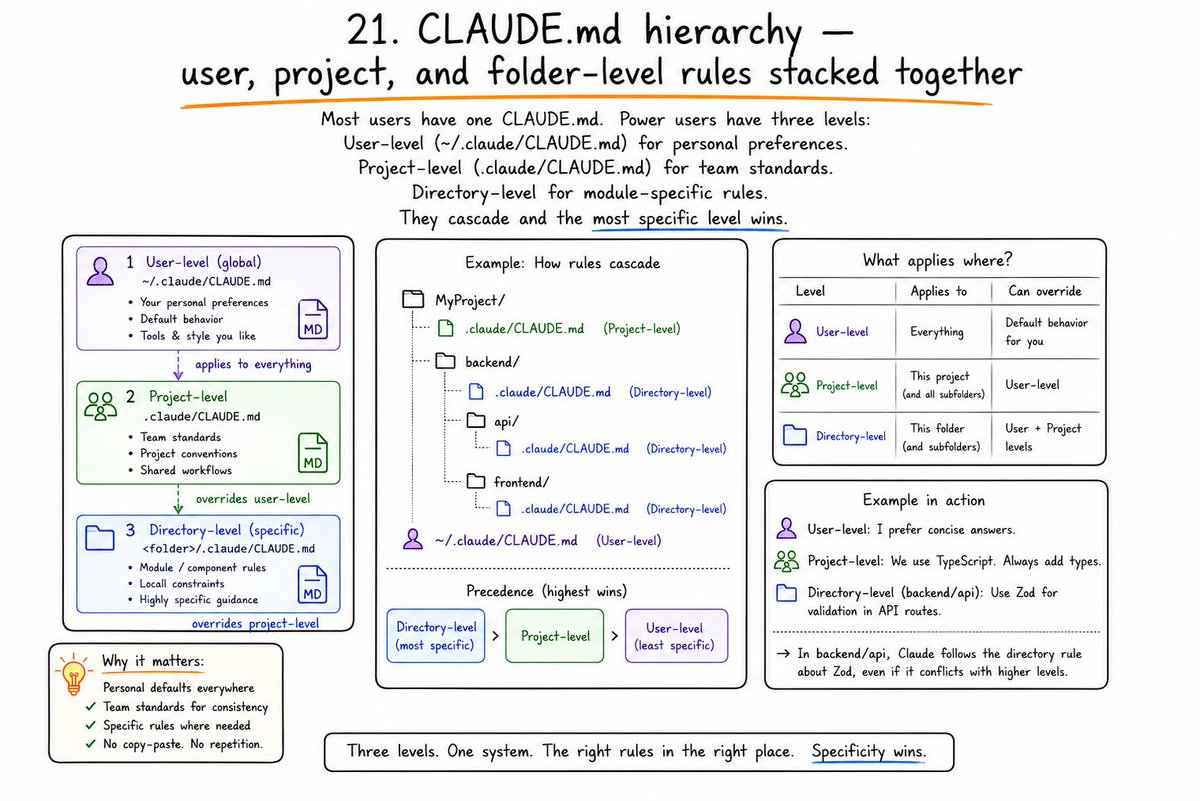
Most users have one CLAUDE.md. Power users have three levels:
- User-level (~/.claude/CLAUDE.md) for personal preferences.
- Project-level (.claude/CLAUDE.md) for team standards.
- Directory-level for module-specific rules.
They cascade and the most specific level wins.
## 22. /init, /plan, /compact, /review — the slash commands that prevent messy sessions
Key slash commands:
- /init — Initialize project with CLAUDE.md.
- /plan — Enter plan mode; Claude designs an implementation strategy without making changes.
- /compact — Compresses your conversation when context gets long.
- /review — Quick code review of recent changes.
These prevent messy, uncontrolled sessions.bruniaux+2
## 23. Plan mode before coding — Claude outlines the approach and waits for approval
Plan Mode enables Claude to create structured plans before implementation.
You can activate it with:
- Shift+Tab (cycle permission modes to Plan),
- /plan command,
- or --permission-mode plan in CLI.
Claude will:
1. Analyze the task.
2. Create a detailed plan.
3. Present it for approval.
4. Execute step by step.
Essential for any task touching multiple files. The difference between clean execution and debugging chaos.
## 24. Hooks and permission rules — block dangerous actions and enforce your process
Hooks and permission rules let you:
- Block dangerous actions (e.g., no deploys without approval).
- Enforce your process (e.g., tests must pass before commits).
- Define what tools Claude can use in different contexts.
This is how you make Claude Code safe for production work.
## 25. Reusable workflows / saved agent teams — turn a good run into a repeatable system
You can save successful setups as reusable workflows or agent teams.
Once a workflow works, you can rerun it with different inputs instead of rebuilding from scratch every time.
## The features that give the fastest payoff
If you only enable a few things first, start with these:
- Projects + instructions — stop re-pasting context.
- Memory + past-chat search — let Claude remember what matters.
- Artifacts for deliverables — turn chat into real files and apps.
- Skills for repeated processes — encode your best workflows.
- CLAUDE.md + plan mode for coding work — prevent chaotic refactors.
## What most people get wrong
Common mistakes:
- Using one generic chat for everything. No projects, no separation of concerns.
- Repeating the same context every session. Wasting tokens and time instead of using Projects and Memory.
- Treating Claude as a chatbot instead of a workspace. Ignoring Artifacts, Skills, and file-based workflows.
- Enabling nothing in Settings → Capabilities. Wondering why Artifacts, Skills, or code execution do not work.
- Skipping review, permissions, and saved workflows. Letting Claude run wild instead of designing safe, repeatable systems.
## Simple setup order
A practical sequence to get value fast:
1. Turn on memory, chat search, and code execution. Settings → Memory and Settings → Capabilities.
2. Write short custom instructions. Global or per-project, depending on your needs.
3. Create 2–3 Projects for your main types of work. One for personal, one for client/work, one for experiments.
4. Add one Skill for a process you repeat weekly. E.g., content review, code review, meeting prep.
5. If you code, add a CLAUDE.md and start with /plan. Use Plan Mode for any non-trivial change.
## Key takeaway
Claude’s hidden advantage is not a secret prompt.
It is persistence: instructions, files, memory, skills, and reusable workflows. Turn these 25 features on, and Claude stops resetting every conversation and starts compounding with your work.
Hope you liked the article.
Building better AI workflows for creators like you.
❣️I’m Kanika ([@KanikaBK](https://x.com/@KanikaBK)) — follow for more practical tests and setups.
Also subscribe to my newsletter: [https://passiveincomehabit.beehiiv.com/](https://passiveincomehabit.beehiiv.com/)
## 相关链接
- [Kanika](https://x.com/KanikaBK)
- [@KanikaBK](https://x.com/KanikaBK)
- [2.1K](https://x.com/KanikaBK/status/2089614929783587309/analytics)
- [@KanikaBK](https://x.com/@KanikaBK)
- [https://passiveincomehabit.beehiiv.com/](https://passiveincomehabit.beehiiv.com/)
- [Upgrade to Premium](https://x.com/i/premium_sign_up)
- [3:26 PM · Aug 18, 2026](https://x.com/KanikaBK/status/2089614929783587309)
- [2,112 Views](https://x.com/KanikaBK/status/2089614929783587309/analytics)
---
*导出时间: 2026/8/18 18:25:54*
---
## 中文翻译
# 25个大多数人完全忽略的Claude隐藏功能
**作者**: Kanika
**日期**: 2026-08-18T07:26:37.000Z
**来源**: [https://x.com/KanikaBK/status/2089614929783587309](https://x.com/KanikaBK/status/2089614929783587309)
---

大多数人把Claude当作一个聊天框来使用,却错过了那些真正能让它成为一个工作系统的功能。
收藏这篇文章,以便日后使用,或分享给真正需要的人!
经过每天的测试,我意识到最大的提升来自一小组被低估的设置、工作区和智能体工具。
这篇文章涵盖了25个大多数用户从未开启或从未正确使用的功能。

## 为什么这些功能一直被隐藏
它们位于设置、项目、功能、Claude Code和Cowork中,而不是在主聊天窗口里。
默认的Claude已经很好用,所以人们从不去深入挖掘。
真正的升级在于持久性:记忆、指令、文件、技能和可复用的工作流。
## A. 大多数人从未打开的设置(1–6)
这些设置位于“设置 → 功能”、“设置 → 记忆”以及个人资料/偏好设置区域。大多数用户从未碰过它们。
## 1. 自定义/个人资料指令 — 跨聊天生效的长期规则

自定义指令相当于每次对话的全局系统提示词。
你可以写类似这样的内容:“始终以简洁、直接的风格回复。”“绝不使用这些词:[列表]。”“输出始终按以下格式:[格式]。”
它会在每条消息背后静默运行,这样你就不必重复自己。
## 2. 聊天历史记忆 — Claude跨会话记住你的偏好和事实
启用后,Claude会随着时间推移学习你的偏好、你的项目以及你的沟通风格。
你可以在“设置 → 记忆”中查看和编辑Claude记住的内容。像整理员工入职笔记一样去管理它。
## 3. 搜索和引用过去的聊天 — 从之前的对话中调取上下文

Claude可以搜索你的对话历史,并从之前的会话中调取相关上下文。
你不需要重新解释所有内容,只需说:“使用我们上周讨论过的关于[主题]的内容”,Claude就会检索出来。
## 4. 代码执行和文件创建 — Artifacts、技能和文件工作的必备前提
在“设置 → 功能”中,你必须启用代码执行和文件创建,许多高级功能才能使用。
如果不启用,Artifacts、技能和基于文件的工作流都无法工作。这是最常见的“为什么这个坏了?”的问题。
## 5. 付出程度控制 — 选择Claude在任务上思考的强度(从低到最大/额外)

付出程度控制让你选择Claude应用多少推理能力:
- 低/快速:简单任务的快速回答。
- 中等:速度与深度的平衡。
- 最大/额外:复杂问题的深度推理。
这样你就可以将模型的投入程度与任务难度相匹配,而不是每次都为最大强度的思考买单。
## 6. 风格 — 可复用的语气和格式预设,无需每次重写风格
Claude有预设的沟通风格,你可以在它们之间切换:简洁、解释性、正式等。你也可以创建自定义风格。
打造一个符合你个人风格的自定义风格,每次对话都会自动以正确的语气开始。
## B. 项目:最被低估的工作区(7–11)
项目是拥有独立指令和文件的持久工作区。项目内的每次对话都会自动继承上下文。
## 7. 项目作为持久工作区 — 不用再重复粘贴同样的简报

不用每次都粘贴你的上下文文件,而是创建一个项目并一次性设置好上下文。
该项目内的每次聊天都从相同的背景开始,你不会失去连续性。
## 8. 项目指令 — 仅针对一种工作类型的系统提示词
在项目设置中,你可以编写自定义指令,它们仅作为该项目的系统提示词。
例如:“你是我的内容策略师。始终以我的品牌语气回复。绝不使用这些词:[列表]。输出始终按以下格式:[格式]。”
## 9. 项目知识文件 — Claude自动使用的文档、笔记和参考资料

在任何项目中,上传参考文档。Claude会在每次对话开始时读取它们。
你的品牌指南、产品文档、写作样例。始终加载,从不遗忘。
## 10. 大型项目中的RAG模式 — 文件变大时扩展容量
在包含大量文件的大型项目中,Claude可以以类似RAG的模式运行,检索相关部分,而不是试图将所有内容同时保存在上下文中。
这能确保即使项目不断增长,性能依然稳定。
## 11. 独立的项目记忆 — 将客户/工作上下文与个人聊天隔离
每个项目都有自己的记忆层,与你的全局记忆和个人聊天分开。
这能将客户/工作上下文隔离,防止不同类型工作之间的交叉污染。
## C. 人们容易跳过的输出工具(12–15)
这些是将聊天转化为真正交付成果的可见功能。
## 12. Artifacts — 聊天旁边的实时文档、应用、仪表板和页面
当Claude生成代码、文档或可视化输出时,它们会渲染在一个名为Artifacts的独立面板中。
你可以独立于对话对artifacts进行迭代。编辑、优化和下载,而不会丢失聊天上下文。
## 13. 版本化artifacts — 就地更新并恢复早期版本

Artifacts支持版本管理。你可以就地更新它们,并在需要时恢复早期版本。
这将一次性输出转变为可以随时间演进的活文档。
## 14. 可共享的artifact页面 — 将会话变成他人可以打开的内容
你可以为artifacts生成可共享的链接,让其他人打开和查看。
这将一个私人会话变成你可以发送给团队成员、客户或协作者的内容。
## 15. 交互式/结构化回复 — 使用Claude基于选项的流程,而不仅仅是自由文本

Claude可以呈现结构化的、基于选项的流程(多选题、分步向导),而不仅仅是自由文本。
这使得复杂的工作流更容易导航,并减少了歧义。
## D. 技能、Cowork与自动化(16–20)
这是Claude从聊天走向工作流和智能体的地方。
## 16. 技能 — Claude可以在相关时加载的可复用操作手册
技能是存储为markdown文件的可复用操作手册(例如,.claude/skills/<name>/SKILL.md)。
它们定义了工作流、检查清单和模式,Claude可以在相关时自动加载。
## 17. 技能共享 — 在不同聊天和团队成员之间复用相同的工作流

技能可以跨聊天共享,在团队计划中还可以跨团队成员共享。
每个人都能获得相同的上下文、相同的标准和相同的能力。整个组织的一致性。
## 18. Cowork定时/远程会话 — 合上笔记本电脑后工作仍在继续
Claude Cowork可以运行定时或远程会话。你的电脑需要开机且Claude桌面版保持打开,但任务是无人值守运行的。
如果你的笔记本电脑在运行过程中休眠,重新打开时会自动继续运行。
## 19. 并行子智能体 — 将大型任务拆分给多个智能体

当Cowork接到大型任务时,它可以启动多个同时工作的子智能体。
让它处理20个文件,它会将它们分给4–5个并行运行的子智能体。顺序执行需要30分钟的任务,6分钟就能完成。
## 20. 连接器 — 让Claude处理文件、邮件、日历和其他工具
连接器让Claude可以访问你的文件、邮件、日历、云端硬盘和其他工具。
你可以串联多个连接器:“阅读我的Gmail,查看我的日历,从Drive中拉取相关文件,然后创建一份会议准备文档。”四个连接器,一条指令,零次标签页切换。
## E. Claude Code 强力功能(21–25)
Claude Code是基于终端的编码智能体。这些功能让它可靠而非混乱。
## 21. CLAUDE.md 层级结构 — 用户级、项目级和文件夹级规则叠加使用

大多数用户只有一个CLAUDE.md。高手有三级:
- 用户级(~/.claude/CLAUDE.md)用于个人偏好。
- 项目级(.claude/CLAUDE.md)用于团队标准。
- 目录级用于模块特定规则。
它们级联生效,最具体的级别优先。
## 22. /init、/plan、/compact、/review — 防止混乱会话的斜杠命令
关键斜杠命令:
- /init — 用CLAUDE.md初始化项目。
- /plan — 进入计划模式;Claude设计实施方案但不做任何更改。
- /compact — 当上下文变长时压缩你的对话。
- /review — 对最近的更改进行快速代码审查。
这些命令可以防止混乱、失控的会话。bruniaux+2
## 23. 编码前先使用计划模式 — Claude概述方法并等待批准
计划模式让Claude在实施前创建结构化的计划。
你可以通过以下方式激活它:
- Shift+Tab(循环切换权限模式到Plan),
- /plan 命令,
- 或在CLI中使用 --permission-mode plan。
Claude将会:
1. 分析任务。
2. 创建详细的计划。
3. 呈现计划等待批准。
4. 逐步执行。
对于任何涉及多个文件的任务都至关重要。这是干净执行与调试混乱之间的区别。
## 24. 钩子和权限规则 — 阻止危险操作并强制执行你的流程
钩子和权限规则让你可以:
- 阻止危险操作(例如,未经批准不得部署)。
- 强制执行你的流程(例如,提交前必须通过测试)。
- 定义Claude在不同情境下可以使用哪些工具。
这就是让Claude Code能安全用于生产工作的方法。
## 25. 可复用工作流/保存的智能体团队 — 将一次成功的运行变成可重复的系统
你可以将成功的配置保存为可复用的工作流或智能体团队。
一旦某个工作流有效,你可以用不同的输入重新运行它,而不必每次从头搭建。
## 见效最快的功能
如果你只想先启用少数几项,可以从这些开始:
- 项目 + 指令 — 不再重复粘贴上下文。
- 记忆 + 过去聊天搜索 — 让Claude记住重要内容。
- 用于交付成果的Artifacts — 将聊天变成真正的文件和应用。
- 用于重复流程的技能 — 编码你的最佳工作流。
- 用于编码工作的CLAUDE.md + 计划模式 — 防止混乱的重构。
## 大多数人做错的地方
常见错误:
- 用一个通用聊天处理所有事情。没有项目,没有关注点分离。
- 每次会话都重复相同的上下文。浪费token和时间,而不是使用项目和记忆。
- 把Claude当作聊天机器人而不是工作区。忽视Artifacts、技能和基于文件的工作流。
- 在“设置 → 功能”中什么都不启用。还奇怪为什么Artifacts、技能或代码执行不工作。
- 跳过审查、权限和保存的工作流。让Claude放任自流,而不是设计安全、可重复的系统。
## 简单的设置顺序
快速获得价值的实用步骤:
1. 开启记忆、聊天搜索和代码执行。设置 → 记忆 和 设置 → 功能。
2. 编写简短的自定义指令。全局或按项目设置,取决于你的需求。
3. 为你的主要工作类型创建2–3个项目。一个个人用,一个客户/工作用,一个实验用。
4. 为你每周重复的流程添加一个技能。例如,内容审查、代码审查、会议准备。
5. 如果你写代码,添加一个CLAUDE.md并从/plan开始。任何非微小的更改都使用计划模式。
## 核心要点
Claude的隐藏优势不是什么秘密提示词。
而是持久性:指令、文件、记忆、技能和可复用的工作流。开启这25个功能后,Claude不再每次对话都重新归零,而是开始与你的工作不断累积。
希望你喜欢这篇文章。
为像你这样的创作者构建更好的AI工作流。
❣️我是Kanika([@KanikaBK](https://x.com/@KanikaBK))— 关注我获取更多实用测试和配置。
也欢迎订阅我的时事通讯:[https://passiveincomehabit.beehiiv.com/](https://passiveincomehabit.beehiiv.com/)
## 相关链接
- [Kanika](https://x.com/KanikaBK)
- [@KanikaBK](https://x.com/KanikaBK)
- [2.1K](https://x.com/KanikaBK/status/2089614929783587309/analytics)
- [@KanikaBK](https://x.com/@KanikaBK)
- [https://passiveincomehabit.beehiiv.com/](https://passiveincomehabit.beehiiv.com/)
- [Upgrade to Premium](https://x.com/i/premium_sign_up)
- [3:26 PM · Aug 18, 2026](https://x.com/KanikaBK/status/2089614929783587309)
- [2,112 Views](https://x.com/KanikaBK/status/2089614929783587309/analytics)
---
*导出时间: 2026/8/18 18:25:54*